Version 1.0.0-SNAPSHOT.
1. Introduction
This guide explains how to use Arveo Flex Client and administer its scenarios, categories, dashboard presentation and translations. Start with User workflows for everyday tasks; Administration covers installation alongside existing ECR and Workspace, operational handover, configuration and import/export for administrators.
2. Product versions and feature compatibility for the 1.0.0 target
Use this matrix with the installation procedure and runtime configuration reference. A tested combination applies to the features listed below. It does not imply compatibility with every earlier or later product version. Development versions are identified explicitly and are not certified minimum release versions.
| Product / feature | Selected baseline | Requirement | Verification scope |
|---|---|---|---|
arveo Workspace / embedded Flex |
1.2.0-develop.17 |
Compatible Workspace guest integration, public application/API routes and same-user authentication. Repository compatibility does not replace this host requirement. |
Embedded-client capture and focused ZIP/CSV acceptance passed on develop.17. A broader browser suite passed on develop.12. Full develop.17 acceptance and a minimum supported production release remain to be established. |
ECR / repository functionality |
28.2.0 |
System-field metadata is required for type loading. Enumeration-backed controls also require enumeration search. See ECR 27.x LTS and backward compatibility for older versions. |
28.2.0 has focused repository, retention, litigation and export acceptance. Complete 1.0.0 qualification remains in progress. |
Download-Service / ZIP |
13.1.0 release |
Selected release support baseline: 13.1.0. Requires private storage, ECR connectivity, delegated-user tokens and explicit Flex adapter activation. |
Authenticated generation and download passed, including an exact comparison of the decompressed original content. Full UI save, permission and recovery qualification remains open. Earlier service releases are not qualified. |
Download-Service / CSV |
13.1.0 release |
Selected release support baseline: 13.1.0. Requires typed CSV export, UTF-8 output and a reliable total row count, plus the private integration above. |
Authenticated precheck, CSV content, encoding and row count passed for documents, records and documents within a record. Full UI save and multi-column ordering qualification remains open. Earlier service releases are not qualified. |
Arveo Keycloak / identity |
1.1.0 (embedded Keycloak 26.8.1) |
Issuer, audience and delegated-user exchange must match the installed topology. |
Participates in the tested Workspace/export combination. Other identity-provider versions require separate validation. |
Document Conversion Service / renditions |
12.0.1 with ECR 28.2.0 |
Use the service and worker versions supported by the installed ECR release. Conversion is required to generate renditions; downloading an existing original or rendition does not itself require a new conversion. |
Focused lifecycle acceptance uses 12.0.1. Version 11.1.1 has an incompatible capability contract for this ECR baseline. Complete conversion qualification is open. |
2.1. Infrastructure references and release decisions
The current Flex delivery target is 1.0.0; development artifacts are not a released 1.0.0 product. The following versions are declared deployment references, not independently proven minima or a complete certified production combination.
| Component | Declared reference | Qualification boundary |
|---|---|---|
PostgreSQL |
18.1 |
Allocate separate Flex and platform logical databases; validate migrations, backup and restore with the selected release. |
ActiveMQ Classic |
6.1.7 |
Platform messaging dependency; select a version supported by the installed ECR topology. |
Registry |
7.0.4 |
Platform discovery dependency; preserve the repository’s supported discovery contract. |
Valkey |
9-alpine |
Workspace state dependency. This floating reference must be replaced with an approved immutable delivery identity before production acceptance. |
Document converter worker |
1.1.2 |
Declared worker reference; qualify its supported formats and pairing with Conversion Service 12.0.1. |
Freeze the production Workspace release and immutable delivery identities before release acceptance. No earliest compatible Workspace release has been established. The selected Download-Service support baseline is 13.1.0 for both ZIP and CSV; this is not evidence that every earlier release is incompatible. ECR 28.1.0 remains a contract-level candidate, while 28.2.0 is the exercised baseline. Complete installation and load acceptance remains required for the selected combination. See Installation and service dependencies and Flex capacity planning for deployment scope.
2.2. Shared-link and configuration-export compatibility
The integration contract defines separate version-1 filter
and sorting envelopes. The v2. filter-context prefix is a preference-context format;
it is neither configuration payload v4 nor an ECR product version. Link producers
must support the exported configuration schema and the deployed Flex link contract
explicitly. They cannot infer those capabilities from the Workspace or ECR version.
The deployed Flex version must provide authenticated configuration export and shared sorting before external applications rely on those features. No earliest released Flex version has been qualified for that combination. Saved links remain subject to current configuration, field permissions and repository state; they are not historical snapshots. Qualify login destination restoration and URL-length limits with the selected Workspace/gateway topology during installation acceptance.
2.3. ECR 27.x LTS and backward compatibility
The current Flex Client is not compatible without changes with the reviewed ECR 27.x releases. The assessment compared the released repository API contracts for 27.0.2, 27.1.2 and 27.2.2 with the calls required by the current client. It is a contract assessment, not an integrated runtime test on 27.x. LTS maintenance status does not guarantee that an older server provides APIs added in a later major release. Confirm the supported LTS minor and latest maintenance patch with the product supplier before planning an installation.
| ECR version assessed | Required API availability | Consequence for the current Flex Client |
|---|---|---|
27.0.2, 27.1.2, 27.2.2 |
Basic document/container operations, recycle-bin operations, retention data and litigation-hold operations already exist. The separate system-field metadata and enumeration-search endpoints used by Flex are absent. |
Not compatible as delivered: loading nonempty type definitions requires the missing system-field endpoint and has no older-server fallback. Disabling retention, litigation, ZIP or CSV does not remove this type-loading dependency. |
28.0.0 |
System-field metadata is present; enumeration search is absent. |
Removes the identified 27.x type-loading blocker, but does not provide the API required by enumeration-backed controls. Not a qualified full-feature baseline. |
28.1.0 |
Both identified metadata APIs are present. |
A candidate for broader compatibility testing. API availability alone does not qualify all current lifecycle, permission, content and export behavior. |
28.2.0 |
Both identified metadata APIs are present. |
Selected and exercised baseline. The feature-specific verification limits in the product matrix still apply; this is not blanket forward compatibility. |
Supporting a customer installation on 27.x would require a separately implemented and validated compatibility path for type/system-field metadata and enumeration values, followed by testing with the exact LTS maintenance release. Presence of older CRUD or lifecycle APIs is insufficient to qualify that installation. Do not substitute empty system-field metadata or inferred permission/retention defaults to bypass the missing API. Existing production data and type definitions must remain valid under any proposed compatibility solution.
ZIP and CSV also need qualification of Download-Service 13.1.0 against the selected 27.x repository and identity setup. Successful exports against ECR 28.2.0 do not establish that cross-version service combination. Workspace and identity-provider compatibility must be checked independently of the ECR version.
2.4. Tested export combination
On 12 November 2026, focused original-service tests passed with the following combination:
| Product | Tested version |
|---|---|
Download-Service |
13.1.0 |
arveo Workspace |
1.2.0-develop.17 |
ECR |
28.2.0 |
Arveo Keycloak |
1.1.0 |
The checks exercised authenticated ZIP generation/download with exact original content comparison and CSV precheck/content/encoding/count in all three table contexts. They do not establish a lower compatible version, a complete browser save workflow or full product qualification.
2.5. Selecting an installation version
Use the selected baselines until another combination has been qualified for the required features. Obtain the approved deployment artifacts and installation instructions through your delivery channel. Record the exact delivered versions and immutable artifact identities in the installation acceptance record.
For an older repository, assess mandatory metadata loading before testing individual features. Acceptance must then cover authentication and embedded navigation, repository operations and search, scenario permissions, configured lifecycle features, original/rendition access, and any enabled ZIP/CSV workflows.
Released ECR versions are listed in the public arveo documentation archive. Use the documentation for the exact installed version; an archive entry by itself is neither a Flex compatibility certification nor a current LTS support commitment.
3. Installation and service dependencies
Plan the installation using the version matrix, capacity estimates and installation procedure. The configuration reference owns individual settings and defaults. An existing platform can be reused only after checking its versions, authentication contracts, available capacity and operational ownership.
| Component | Required responsibility | Persistence and ownership |
|---|---|---|
Flex Backend and packaged client |
Always required. Workspace serves the application and proxies its API. SDK and UI libraries are bundled; they are not separately installed services. |
Dedicated PostgreSQL database/account and |
arveo Workspace and Valkey |
Required guest host, routing and authentication integration. Register the packaged
|
Preserve Workspace route/dashboard state and its supported Valkey persistence. Workspace setup and Flex managed bootstrap are separate operations. |
Identity provider |
Required issuer, audience, keys and user identity; delegated-user exchange for exports. |
Provider database, realm configuration, signing keys and recovery procedures. |
ECR platform |
Required repository, metadata, permission checks and content access. Includes the registry, messaging, database and content storage required by its supported topology. |
Repository database, binary content, broker journal and platform configuration. Optional platform services remain additional dependencies when enabled. |
Download-Service |
Required for ZIP generation and CSV export; activate the Flex adapter explicitly. A reduced installation supports neither feature. Ordinary original and stored rendition downloads remain available subject to permissions. |
Private generated-archive storage and cleanup monitoring. CSV is streamed; complete server-side CSV spooling is not a Flex requirement. |
Conversion service and workers |
Required to generate new renditions; not required merely to download a stored rendition. Select workers supported by the installed conversion/ECR combination. |
Allocate job durability and worker scratch space according to the delivered service. |
3.1. Network and runtime prerequisites
Browsers access the public HTTPS Workspace and identity provider. Workspace needs private connectivity to Flex, Valkey and its identity dependencies. Flex needs its PostgreSQL database, ECR and identity discovery/signing keys, plus Download-Service when exports are enabled. Managed/external catalogue discovery needs the configured identity access. Download-Service needs repository access and delegated-user token exchange. ECR, conversion and workers additionally require the discovery, messaging and storage connectivity specified by their product installation guides. Do not expose private business-service listeners as alternate browser entry points.
Agree DNS, certificates and trust chains, issuer/audience, time synchronization, firewall rules and proxy streaming/body/timeout limits before deployment. Size connection pools across all replicas. Keep secret mounts and setup credentials out of application logs and published installation records.
The delivered Flex container includes its JVM. Running the executable Flex JAR outside that container requires a Java 25-compatible runtime. Other products use their own delivered runtimes; Java 25 is not a platform-wide prerequisite. Node, npm, Maven, the TypeScript SDK and development tooling are source-build requirements, not additional customer services or browser prerequisites.
3.2. Startup, recovery and handover
Prepare storage, databases, secrets and certificates first. Bring up identity, registry, messaging and Valkey before their consumers; establish ECR and Workspace readiness, then optional export/conversion services and Flex’s managed prerequisites. Follow the installed products' readiness contracts rather than fixed delays. Flex’s optional initial type verification occurs on the first authenticated configuration read; local process startup alone does not prove that operation.
Choose the initial human administrator explicitly. After successful managed setup, retire setup login credentials and prove restart/discovery without them. Preserve the encryption key ring, including old keys needed to read stored credentials.
Agree owners, backup retention, recovery point/time objectives and restore tests for every persistent component. Back up application data and required keys, keeping keys and credentials separately protected. Restore repository metadata and content consistently. Include route/state recovery, archive cleanup alarms and certificate renewal in handover. Capacity and version qualification must cover the customer’s actual topology, not merely successful startup.
4. Flex capacity planning
This section covers only Flex Backend and its dedicated PostgreSQL allocation. The values are initial planning estimates, not measured throughput or certified minimum requirements. Validate them against the customer’s workload before production. Capacity planning for the connected platform services remains with their operators and product documentation.
4.1. Reference workload and compute
The starting assumption is 250 named users with 25 concurrently active users, including two simultaneous ZIP downloads and two CSV exports. Export size, CSV row width, search frequency and permission complexity affect Flex load. The configured CSV ceiling of 1,000,000 rows is a safety limit, not a capacity guarantee.
| Flex component | Starting vCPU / RAM (GiB) | Recommended vCPU / RAM (GiB) |
|---|---|---|
Flex Backend, one instance |
2 / 4 |
4 / 8 |
Dedicated Flex PostgreSQL allocation |
2 / 4 |
4 / 8 |
Total |
4 / 8 |
8 / 16 |
The recommendation adds headroom for the same workload; it does not promise a higher supported user count. Totals exclude host/operating-system overhead, replicas and failover reserve. A single instance provides no high availability. A shared physical PostgreSQL cluster must reserve the Flex allocation separately from other workloads while retaining Flex’s dedicated logical database and account.
For Flex Backend, an initial JVM heap budget near 50–60% of its container memory leaves space for native buffers, threads and metadata. Validate actual heap/native use and garbage collection; do not allocate all container memory to the heap.
4.2. Flex storage and data transfers
| Flex allocation | Starting GiB | Recommended GiB |
|---|---|---|
Flex database, including WAL and maintenance headroom |
20 |
50 |
Flex runtime logs |
20 |
40 |
Total |
40 |
90 |
Operating-system/container-image space, backups and replication are additional. Database growth depends on configuration, translations, private user preferences and export tracking, rather than the repository’s stored document bytes. Measure actual growth and apply log rotation. If logs are collected externally, size local buffers and collector retention according to the agreed operating model.
ZIP archive storage belongs to Download-Service, not Flex. Flex persists job and transfer metadata and streams archive content from that service to the browser; it does not maintain a durable archive pool. Size and operate archive storage under the Download-Service’s own requirements. Repository originals and renditions are likewise outside Flex storage sizing.
CSV streams through Flex without a persisted CSV artifact. Budget concurrent stream buffers and network capacity; a buffering proxy requires its own separate assessment. For example, transferring 10 GiB through Flex in 200 seconds requires approximately 51.2 MiB/s on both the incoming and outgoing paths per active transfer, before protocol overhead. Two such transfers require approximately 102.4 MiB/s in each direction. Browser CSV fallback may buffer a complete Blob and needs client memory proportional to the export, independently of Flex Backend memory.
4.3. Backup, monitoring and validation
Size Flex database backups separately from measured full/incremental backup sizes, WAL generation, change rate and the agreed retention policy. Do not assume compression or deduplication. Retain the matching managed-bootstrap keys in separately protected secret storage where managed discovery is used. See Backup and restore of an existing installation for backup scope and restore checks; no platform-wide backup capacity is specified here.
Monitor concurrent requests, p95 response times, CPU, heap/native memory, garbage collection, database connections, WAL/checkpoints, disk latency, free space and transfer throughput. Initial investigation triggers can be sustained CPU above 70%, memory above 80% or free space below 30%; tune them to the operating objectives. Assess database I/O with representative Flex reads/writes before selecting storage; no measured IOPS requirement has been established.
Validate representative configuration/user-state activity, repository requests through Flex and concurrent ZIP/CSV transfers. Record resource limits and results, then adjust these estimates. No load benchmark has been performed for this sizing.
5. User workflows
5.1. Access and permissions
Open arveo Workspace using the address supplied by your administrator and sign in with your own account. Open Flex Client from the Workspace dashboard. The application runs inside Workspace; a bookmark must use the Workspace entry point. If authentication expires and Workspace requests a new sign-in, complete it in Workspace. Ordinary access denials and loading errors do not automatically mean your session expired. Before repeating a failed save, reload and check whether the change was already persisted.
A normal user sees only visible scenarios with an explicit scenario-access grant. Direct links require the same grant. Access alone does not permit reading records, documents or content: actions have independent grants and must also be enabled in configuration. Administrators can configure all scenarios but receive no automatic scenario grants. Repository authorization still applies independently. Ask your administrator when access is denied; do not repeatedly submit an action.
Columns, details and create/update fields may have independent visibility and editability rules. Hidden fields do not appear; visible restricted fields are read-only. A form cannot submit if a required restricted field cannot be satisfied. Navigation refreshes permissions. If permissions change, protected views disappear and further unauthorized submissions are blocked; unsaved input is retained only in memory. An ECR denial preserves input and does not remove the Flex grant.
The published Workspace theme and light/dark appearance also apply to Flex, including tenant branding when configured. Choose appearance in Workspace; Flex has no separate theme importer or mode selector. The theme changes application controls, text and document-viewer controls while original document and image content keeps its own colors. If the Workspace appearance cannot be loaded, Flex remains usable with its bundled appearance and shows a warning. Use Retry in that warning to try loading the Workspace appearance again. The warning disappears after a successful retry; retrying does not save or change scenario settings.
5.2. Choose a scenario and language
The enabled Workspace language is used when Flex Client opens and whenever you change the language in Workspace. Use the Workspace language selector to change the language for Flex Client. When the selector is hidden on a narrow screen, open More actions in the Workspace header to choose a language. Flex does not display its own language selector or branding footer. If Workspace language is unavailable or disabled in Flex, the client uses an enabled saved preference, then a matching browser language, then the configured default. Scenario names, descriptions, category labels and field labels use the configured translations, falling back to the default text when a translation is missing. Open a scenario from a card or list row. To read a long description in full, hover over a scenario card or list row for one second. Keyboard focus on the scenario title opens the same enlarged preview. Move into the preview to scroll or select its text; press Escape to close it. Use the breadcrumb to return to the dashboard or to the parent record. Hidden scenarios are not available through ordinary navigation.
The browser address follows your scenario, Records or Documents workspace, selected record, and document open in the right-side panel. You can bookmark or share that address, paste it into the browser, or reload it to reopen the same workspace. Closing the document panel removes the document from the address. Browser Back and Forward follow these destinations and reopen or close the panel. Opening a saved address still requires your current scenario and repository permissions. Old links using scenario query parameters redirect to the new paths. Unsaved editor changes must be resolved before leaving through in-app navigation or browser history.
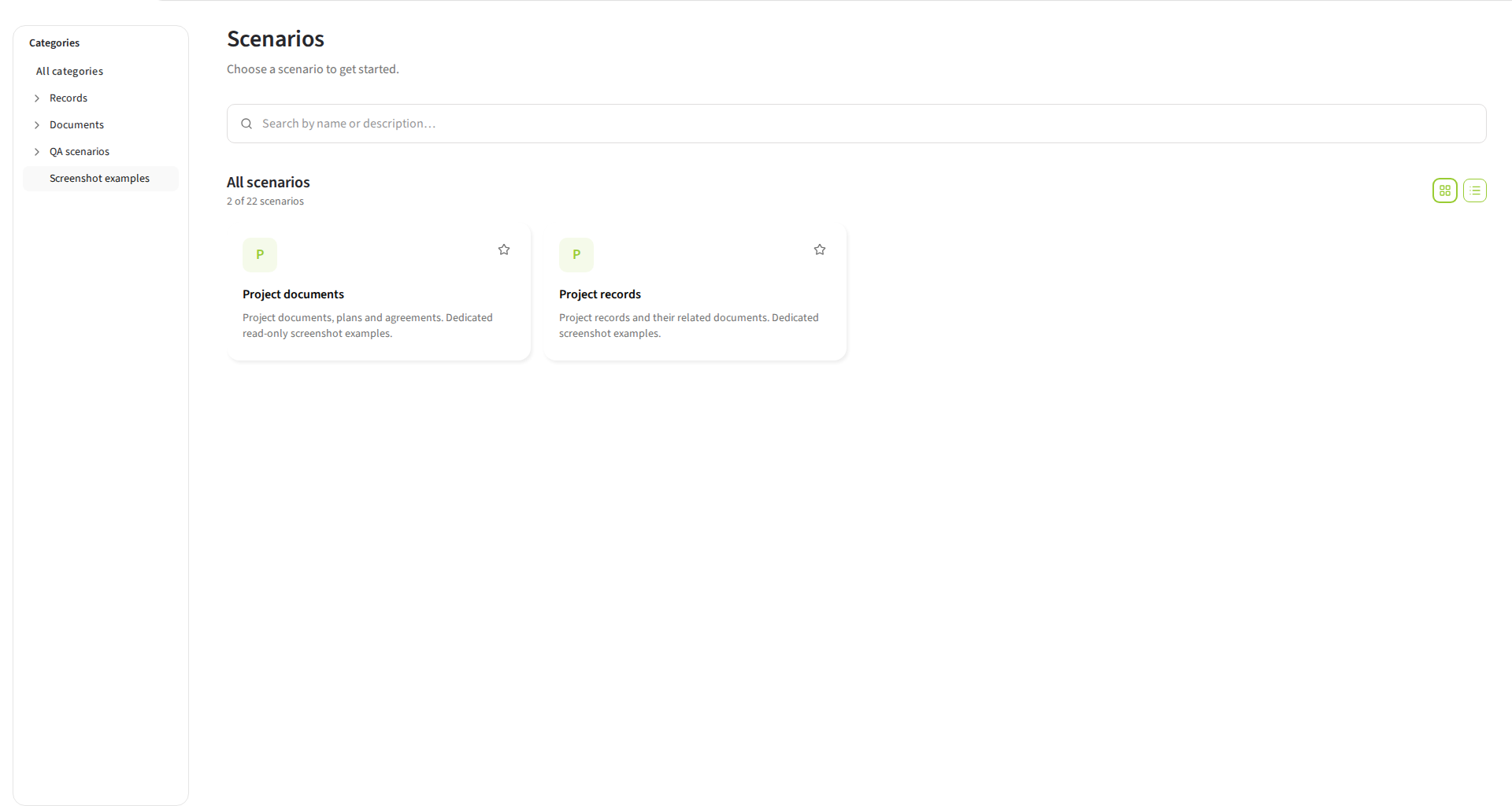
Use the dashboard search and card/list view controls to find scenarios, and mark favorites for quick access. When your administrator uses tree presentation, choose a category in the sidebar to narrow navigation. Flat presentation does not use that category hierarchy. Scroll within the scenario card or list area to reach more scenarios. The dashboard heading, search, view controls, and pagination remain visible. Favorites and long category trees have their own scroll areas. Optional scenario icons and categories help navigation; neither changes document membership or grants repository access.
-
Categories: when category navigation is shown, choose a category to include its scenarios and those in all its child categories. All categories also includes unassigned scenarios; there is no separate Unassigned category in the dashboard. Your administrator can choose a flat catalog instead, hiding category navigation without removing scenarios or their assignments.
-
Search: search by scenario name or description in the current language. Search narrows the main catalog within the selected category, not repository documents. Clear the search and choose All categories when a scenario is unexpectedly missing. Results retain configured scenario order; use pagination to see more matches.
-
Favorites: use the favorite control to add or remove a personal shortcut. The favorites area shows your visible favorite scenarios independently of the main catalog’s search and category selection. A favorite does not grant repository access or make a hidden scenario visible.
-
Cards view / List view: choose how to display the catalog. This choice and your favorites are saved privately for your account. Search, selected category and page are temporary; they are not saved dashboard preferences. The administrator’s tree/flat choice is shared and is separate from your cards/list choice.
Scenario icons are chosen by the administrator. When no supported icon is configured, the dashboard shows the scenario’s initial instead.
If dashboard preferences cannot be restored, use Retry loading preferences. Changes remain pending until restoration succeeds, so they do not replace preferences that could not be loaded. If saving fails, use Retry saving dashboard preferences. A warning means the latest choices are not confirmed as saved; it does not prevent opening a scenario.
A one-stage scenario opens a document list. A two-stage scenario first opens a record list; selecting a record opens its documents. The selected record scopes child searches and creation. Confirm the parent before modifying documents.
5.3. Work in a Simple Document scenario
A Simple Document scenario opens one list directly. There is no parent-selection step. The list contains the permitted items of the configured type; its displayed title and fields are chosen by your administrator.
-
Open the scenario card from the dashboard.
-
Enter search values to narrow the list. If the required filter is not visible, expand the filter row with More. Clear a filter to broaden the results again; use the offered sorting and column settings to arrange the list. Save the column settings to apply visibility and order. When the administrator enables table preferences, these settings are restored for your user and scenario when you return. More results load as you move through the list.
-
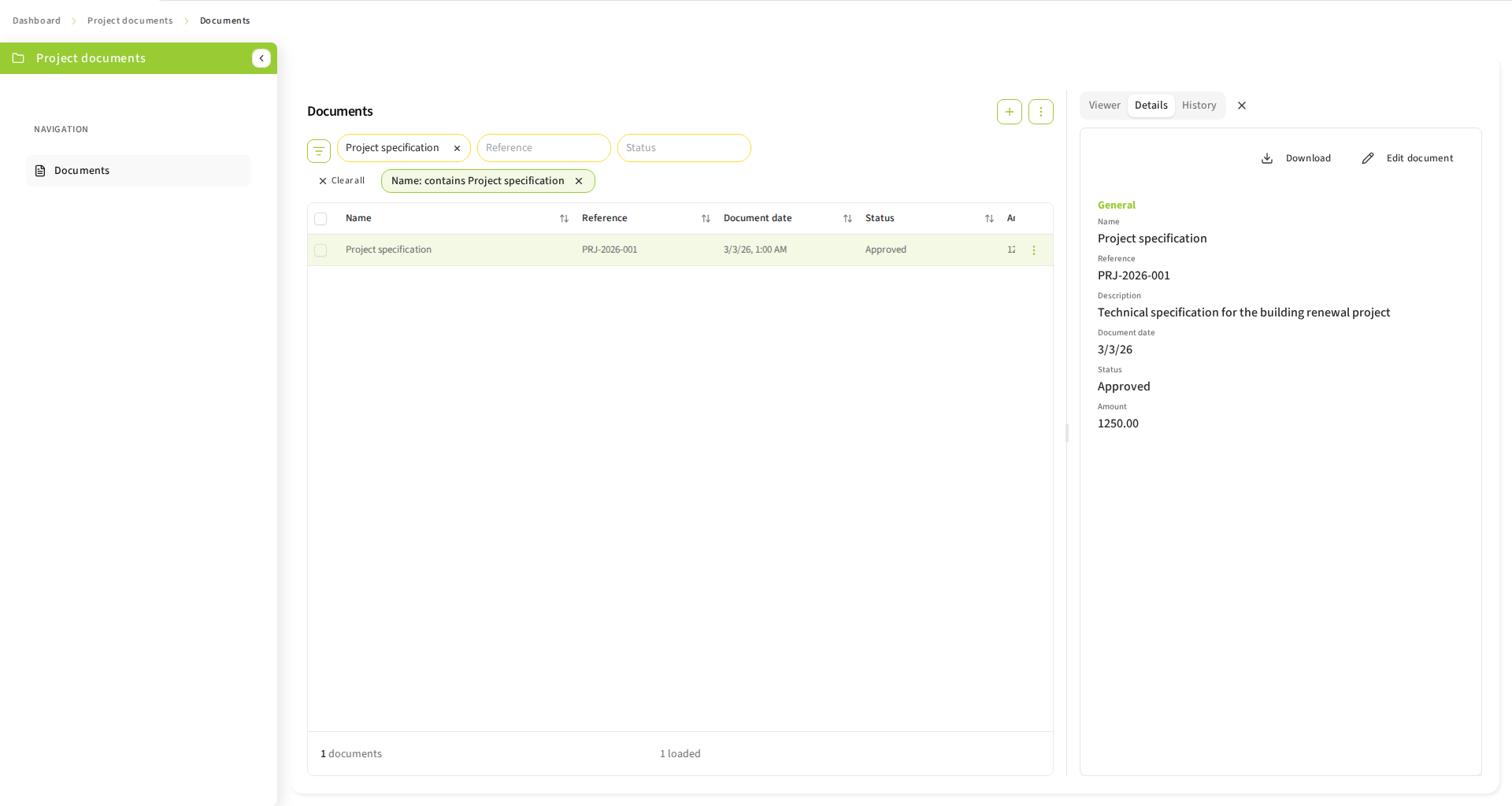
Select an item to open its workspace alongside the list. Details shows metadata; Viewer is offered for document content; History appears when configured.
-
Use the create action to add an item if it is available. Complete required writable fields and select/upload content as requested. Save and verify the new item in the list.
-
Use an item’s edit or delete action where offered. Check the confirmation and persisted result. Closing the workspace returns attention to the list and does not delete the item.
Before permanent deletion, read the consequences and type the displayed item name exactly. If no recognizable name is available, type DELETE as instructed. The Delete button remains unavailable until the text matches. While deletion is running, wait for the result. If it fails, the confirmation stays open with an error so you can retry or cancel. For record deletion, also review the consequences for child documents.
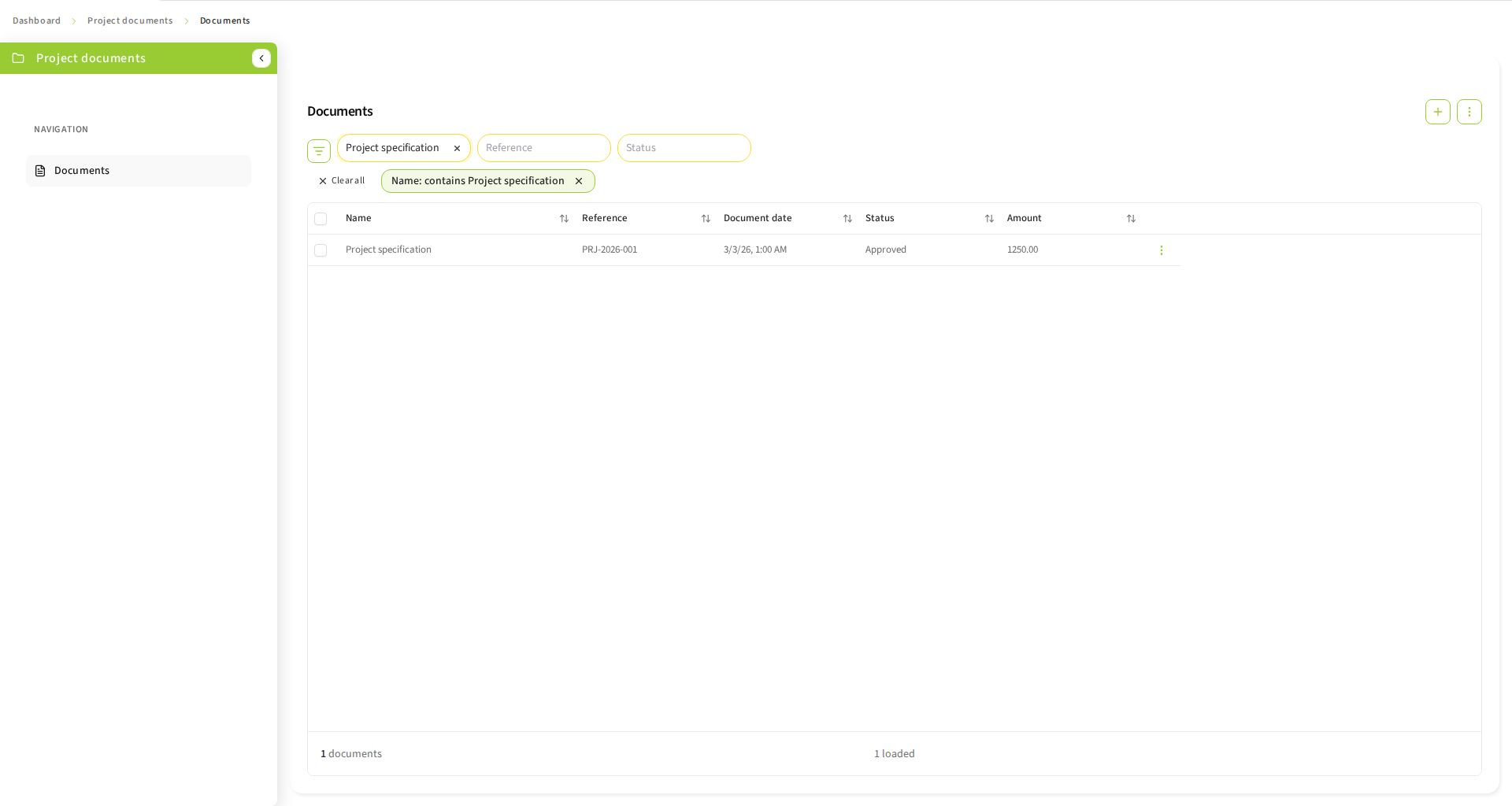
Example: to inspect an invoice, search for its number, select the matching row, check Details, then open Viewer. If a filter hides the saved item, clear that filter before assuming the save failed.
The sidebar shows Documents in a Simple Document scenario. When your administrator enables Recycle Bin and grants access, Recycle Bin opens trashed documents directly. Record scenarios also provide Records and nested Records/Documents destinations in Recycle Bin. Breadcrumbs above the workspace show the scenario and current destination and let you return to an ancestor. Table headings distinguish Documents, Records, Trashed Documents and Trashed Records; these labels follow the selected language. When a search includes trashed items, a muted row tint and a narrow status column identify them. The header reserves the same space as each row, so business values stay aligned whether an item is active or trashed.
5.4. Work in a Record scenario
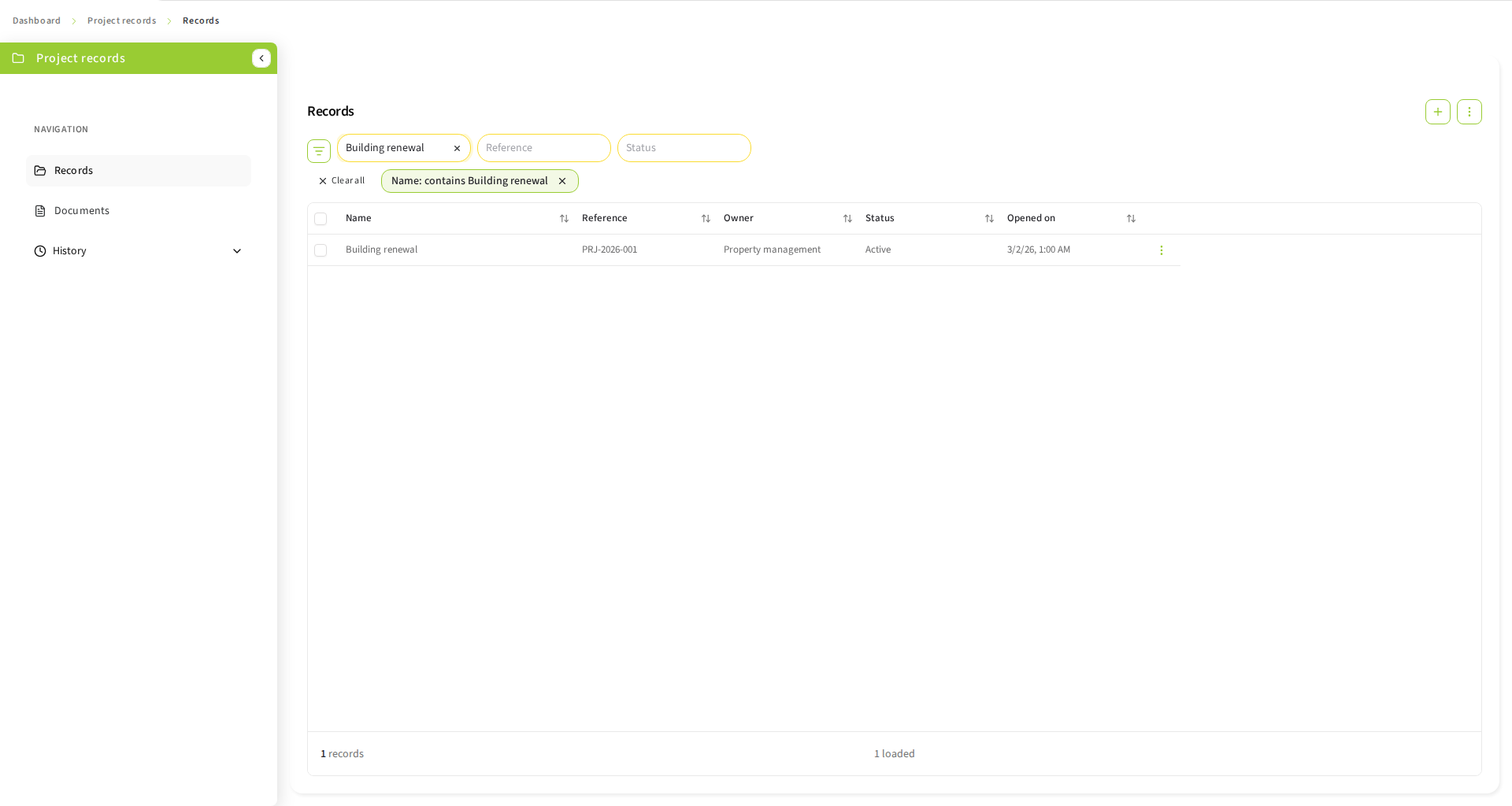
A Record scenario first opens the record list. Selecting a record then opens a different list containing its related documents. Search and sorting apply to the stage currently on screen.
In an m:n scenario, the same document can appear under several records with the same identity. The selected record’s document filters, counts and pages are evaluated within its membership; the separate flat document view is not evidence that a document belongs to a particular record. Records without links display an empty list. See Share documents between records (m:n) for sharing, creation and removal instructions. Sharing does not copy the document.
-
Search for the parent record, for example a case number or folder name. Check identifying values before selecting it.
-
Select the record to open its documents. Check the breadcrumb and configured parent summary to confirm the current context. The breadcrumb uses the highlighted summary field when it is populated and visible to you; otherwise it uses the permitted record label or identifier. An empty child list can mean that the record has no matching documents or that your search/access excludes them.
-
Search within the selected record’s documents. Clearing the child search broadens results within that record; it does not turn the list into a search across all records.
-
Select a document to open Details, Viewer and configured History, just as in a Simple Document scenario.
-
To create a child document, first choose the correct parent and use the child list’s create action. The relationship to the current parent is controlled by the scenario; it is not an arbitrary editable grouping field.
-
Close the document workspace when finished. Use the breadcrumb to return to the record list, then select a different record. Closing a document workspace alone does not change its parent context.
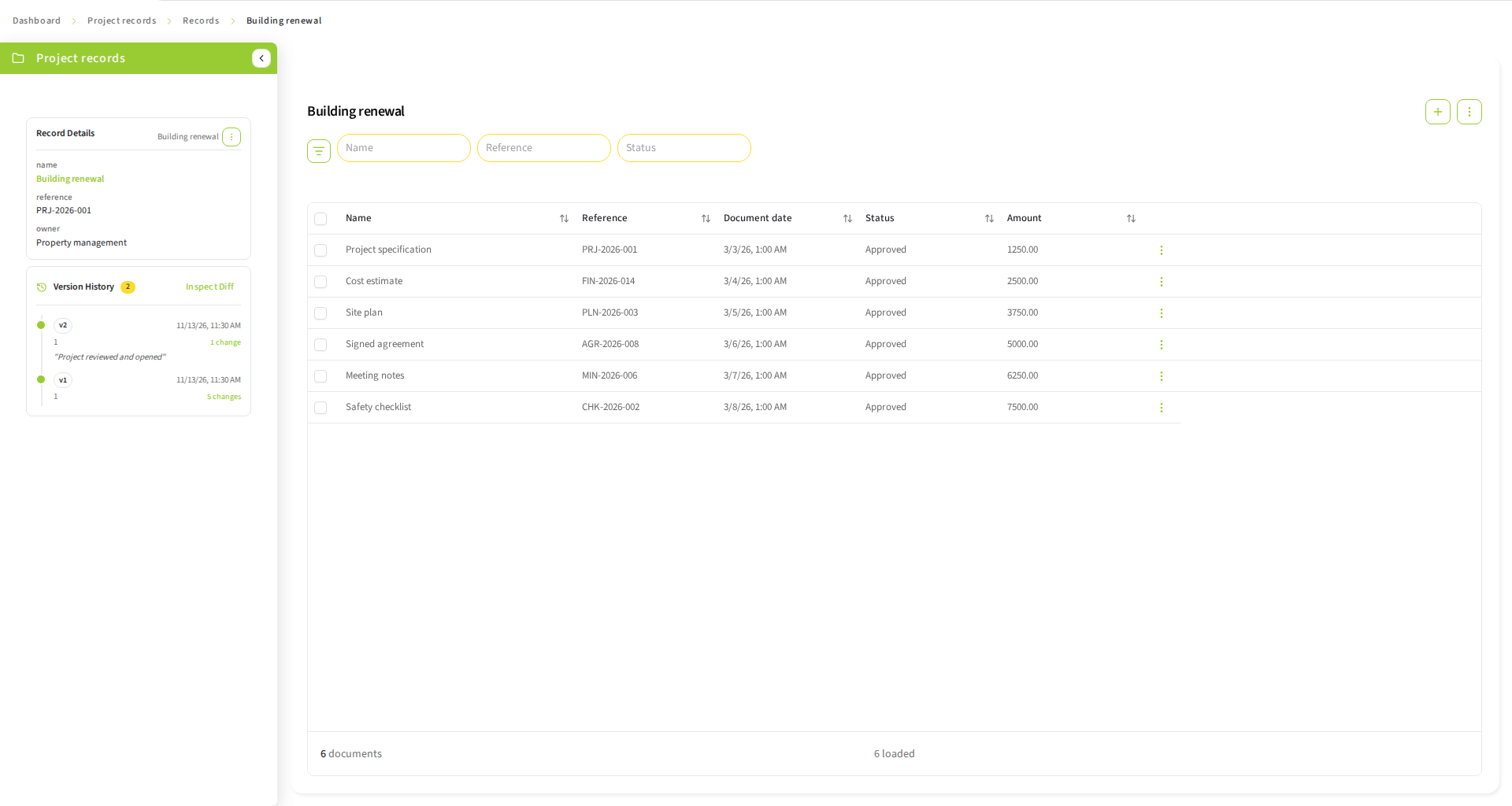
Record labels show only currently permitted metadata, falling back to the record ID. Recent-record history uses record IDs so saved descriptive labels cannot reveal fields that are now hidden.
Parent record actions and child document actions are separate. The record summary card’s three-dot menu offers Edit, Delete and Trash for active records, or Restore and permanent Delete for trashed records, according to scenario settings and permissions. It uses the same confirmation workflows as the record list. Use the record list’s actions to create, edit, inspect history or delete a parent where offered. Use child actions for an individual document. Creating a record does not automatically create its documents. Changing parent metadata does not edit all children.
For a 1:n with foreign key scenario, before the deletion confirmation opens, the client counts the related documents using record-scoped document read permission. Cascade deletion requires record-scoped document delete permission; unlinking requires record-scoped document edit permission and permission to update the relationship field. All-document workspace grants do not substitute for these permissions. Check the count and whether those documents will be deleted or unlinked. If the count cannot be determined, the client reports an error and does not open the confirmation; retry after resolving the loading or access problem. Record deletion is blocked for m:n scenarios, regardless of the cascade setting.
|
Warning
|
In a one-to-many scenario, deleting a parent can delete all related documents when cascade deletion is enabled. Otherwise children are unlinked: their parent relationship is cleared, while their metadata and stored content are retained. They no longer appear under the deleted record. A mandatory foreign-key relationship requires cascade deletion. Read the confirmation and ask your administrator when the affected scope is unclear. |
5.4.1. Share documents between records (m:n)
An m:n membership associates an existing document with a record. It is not a copy or a move. Editing shared metadata or content changes the same document wherever it is linked.
-
Open the document from a selected record’s document list or the scenario’s flat document view.
-
Open Details, then Edit document. The picker requires enabled document editing and the document-edit permission for the active workspace. Record-scoped grants and all-document grants are independent.
-
Search in Add document to record and check the identifying values of the target record. The picker searches authorized records using administrator-configured fields, independently of authored table columns and personal column preferences; record-read and field visibility permissions still restrict those values. An empty result is not proof that a record does not exist or is accessible to you.
-
Choose one record. Already-linked records are marked and cannot be selected again. Selection is staged: searching, choosing, clearing an unsaved choice or closing the drawer does not add or remove a membership.
-
Choose Save. Verify the document in the target record’s list and in its previous record’s list. Existing memberships are preserved; repeating a confirmed addition does not create another membership. A membership-only save does not create a document version.
Example: a document under case A can also be added to case B without copying its content. An edit from either case is visible from the other. Adding it to B does not remove it from A.
To create a document, first open the intended record’s document list and use its create action. The new document is initially linked to that record. Creation requires the configured creation setting and both document-create and document-edit permissions, but can remain enabled when editing existing documents is disabled. Retrying a failed initial link without further metadata changes also works in this create-only configuration. Adding an additional record requires enabled document editing. Creation is disabled in the m:n flat document view because no current record is selected. Repository authorization still controls every write.
To remove a membership:
-
Open the record whose membership you intend to remove and confirm the breadcrumb.
-
Use the document row’s Remove from this record action, which requires document-edit permission independently of the document editing switch.
-
Check the confirmation. Cancel changes nothing; confirm removes only this record-document membership.
-
Check the refreshed list. The document and its other record memberships are preserved. Removing its final membership leaves it unassigned rather than deleting it.
|
Important
|
Delete document everywhere is a separate disabled action. Record deletion is also blocked in m:n scenarios with cascade both ON and OFF. A verified repository-wide relationship cleanup contract is required before these workflows can be enabled. Do not reset data or apply one-to-many deletion instructions to bypass this safeguard. |
If a membership read fails, use the editor’s Retry action and wait for a successful load before adding a record; the pending choice is preserved. A failed search also preserves your choice. A partial-save error keeps the drawer open: completed document changes and the confirmed identity remain saved, while the pending addition is retained for retry. If creation succeeded but its initial link failed, retry completes the link using the same identity. If creation could not be confirmed, check the repository before creating again. A failed or uncertain removal is not reported as success; check the refreshed membership before retrying.
5.5. Find and inspect documents
Use the search fields offered by the scenario, choose a supported operator and enter a value of the displayed type. For example, search for a known document name, then clear the search to return to the complete permitted list. Sort using the available table headings; use paging to move through results. Configuration determines available columns, order and searchable fields.
Open Set up filter criteria to edit filters in the drawer. Choose a comparison and a value, then select Apply to update the chips and search results. Cancel, the close button and Escape discard drawer edits. Remove an applied chip to clear that criterion, or use Clear all to reset the search. Filter changes restart the result list at its first page and continue to respect the selected record’s scope.
Applied table filters are included in the address. Copy the full address to reopen or share the same search, including comparisons, ranges, lookup selections and the permitted inclusion of trashed items. Record and document tables retain separate searches in the same link. A valid URL search takes precedence over saved search preferences, including when the linked search is empty. Filters are checked against the current configuration and permissions; incompatible criteria are discarded. Base64 is an encoding, so filter values remain readable to anyone with the link.
Sorting is shared in a separate address parameter, including the priority of multiple sort fields. If filters or sorting cannot all be applied, a warning appears and the address is corrected to the effective state. You can expand the warning for details or dismiss it. Copy the address after loading has completed. For applications that generate links, see Developer integration: links with filters and sorting.
Number and date bounds are inclusive: greater than or equal to and on or after include the selected lower bound; less than or equal to and on or before include the upper bound. Between applies both bounds together. A date equality on a timestamp matches that entire local calendar day. Is empty and is not empty check whether a stored value is absent or present and need no entered value. Enumeration selections and time ranges are also sent to the repository search. Drawer actions, comparison labels and chips follow the selected language.
When a field uses an administrator-configured lookup, select a permitted repository value from its dropdown instead of entering arbitrary text. Labels can combine several columns with ` — `; the filter uses the stored key, never the displayed label. Depending on its settings, the dropdown allows one or several selections and optional case-insensitive search. Multiple stored keys match with OR within that field; other active fields still narrow the query. When search is enabled, start typing and continue in the same input as the dropdown opens; opening it does not move focus to Retry. Typing searches the options without applying a document filter until a value is selected. Lookup search inputs in forms use the field label, for example Search Customer…, to identify the values being searched. Empty lookup search filters show the field name inside the input, matching the other search fields, rather than as a separate label above it. Multiple-selection dropdowns show checkboxes beside the matches and stay open when a value is selected or deselected. Click a row or use the arrow keys and Enter to toggle a value; press Escape or click outside to close the dropdown. While a selected key is being validated, the dropdown stays open and further checkbox changes are temporarily unavailable; continue selecting once validation finishes. Checkboxes reflect confirmed selections only. Changing visible matches preserves selections on other pages. Scroll through the matches to browse more records. Single- and multiple-selection dropdowns automatically load the next page when you reach the final 10% of the scroll range, without a Load more records button. If loading fails, use Retry to continue. Selecting a value preserves the dropdown’s loaded pages while the address updates to reflect the active filters. If the lookup source is unavailable, ask an administrator to check this attribute’s lookup mapping and your scenario/repository access. Your selection is preserved; retry after the setup or access problem has been resolved. This message does not mean that a saved value has been deleted. Active lookup filters show the latest selected match in that input without extra search captions, repeated labels or selection-removal buttons. The green filter chips use the same configured display columns as the dropdown, including for restored selections; unresolved values fall back to their stored key. Use a chip’s × button to remove only that selected key: other selections and active fields remain applied, and the dropdown reflects the remaining selections. Removing the last key clears that lookup filter; Clear all removes all filters. Filtering still uses exact stored keys, not chip labels, even when several selections have the same label.
Select lookup values individually, including across pages; lookup-filter Select all is not available. Press Escape to close the dropdown and cancel its search. The search text clears, and reopening starts with unfiltered values. Committed selections and active filter chips remain. Replace the input text to start another query, or erase it to browse unfiltered values; editing the search text alone does not remove active filter chips.
Restored lookup selections resolve separately from dropdown search and paging. A value outside the visible page is not cleared. Unavailable or ambiguous saved selections and retry actions remain visible beside the lookup input when the dropdown is closed; the stored keys remain in the active chips. If the administrator changes a mapping or disables its filter, incompatible saved filter preferences are discarded before querying. If its source type disappears or is no longer a supported document/container type, the lookup control is omitted until the configuration can be repaired.
Lookup browsing and saved-value resolution use the permissions of this scenario and attribute, together with your repository access to the configured source data. The source does not need its own scenario. If your access or the mapping changes, pending lookup results are discarded. Keep existing selections and ask an administrator to check the mapping and your permissions; an unavailable lookup is not proof that a saved value was deleted. Read-only fields may still show permitted saved-value labels without allowing a different value to be selected. Deleted or trashed source entries cannot become valid selections.
Select a row to open the document workspace. Choose Details to inspect metadata. Read-only fields cannot be changed and retain their stored values when other fields are saved. Dates, enumerations and references use their corresponding controls rather than arbitrary text. Not every configured field has a control in every view. Column-header filter controls remain unavailable. CSV actions appear when configured for the current table and supported by its visible fields. ZIP actions appear when configured for the current workspace, permitted for your account and backed by an available Download-Service.
5.6. ZIP downloads and DownloadManager
Select one or more table rows and choose Download selected as ZIP. Selection checkboxes do not open a row. After selecting all loaded rows, choose whether to include Loaded rows or All matching. When the table has finished loading the complete result set without an error, those sets are identical and preparation starts directly without this choice. Loaded rows include previously loaded scroll pages. All matching follows the current authorized search, filters and parent record, including rows not yet loaded. If that search cannot be translated safely, all matching is disabled; loaded-row export remains available.
Loading another scroll page does not select its new rows automatically. Select those rows, or use the header checkbox again, to include them. The review shows selected documents, included documents and included files separately; several original files can belong to one included document.
Record tables export the selected records' direct readable documents. Use Download entire record as ZIP from the record-context action menu to export one record independently of table selection and document-table filters. Recursive subrecords, deleted documents, historical versions, renditions and annotations are excluded. Shared documents appear separately in each selected owning record folder.
Preparation resolves original contents and exact sizes before generation. Review the counts and confirm any size warning or disclosed omissions. Hard limits cannot be overridden; unknown sizes, no surviving files or interrupted preparation prevent generation. Changing selection, search or parent context invalidates pending preparation. Generated jobs remain available while navigating between scenarios or returning to the dashboard.
DownloadManager appears at the bottom-left while you have retained preparations, jobs or pending save acknowledgements. It shows actual generation progress, failures and the archive’s expiry. Its badge counts ready archives that have not been saved or removed. A ready notification never starts downloading; opening the popover does not clear the badge.
Choose Download explicitly to select a destination where verified saving is supported. Flex streams the archive, verifies its size and waits for the file to close successfully before acknowledging the save. Canceling the picker or encountering a transfer/write failure leaves the archive available for retry. A successfully saved archive disappears from the ordinary list; if acknowledgement fails, Saved — cleanup pending is retried without forcing another download.
Browser download provides an explicit alternative when verified saving is unavailable or blocked. The browser manages that download, so Flex cannot confirm that it was saved. Keep the entry until you choose Downloaded / Remove, or let it expire. Canceling a save picker never silently switches to browser downloading.
After the first acknowledged verified save, Flex schedules deletion five minutes later. Repeated acknowledgements do not extend that delay, and service retention can expire sooner. The expiry timestamp is not extended by viewing, polling or downloading. Expired or confirmed unavailable archives disappear from the ordinary list; temporary service errors retain retry feedback. After a reload, retained jobs can reappear before every service status has been refreshed. A temporary-unavailability indication keeps the job available for retry; starting a download still checks its current availability and your permission. An already started transfer may finish after expiry, but upstream cleanup can still interrupt it. Source permissions are checked again before generating an archive; starting a generated archive download still requires its current ZIP entitlement.
5.7. CSV downloads
Choose Download selected as CSV to export metadata from a document, record or record-document table. Record exports contain record attributes, not the contents of their documents. Record-document exports stay within the current parent record. CSV activation is independent of ZIP. Your administrator must enable CSV globally for documents or records and for the current scenario table. The document setting also applies to documents inside records.
Select individual rows, or select all loaded rows and choose Loaded rows or All matching. Loaded rows include previously loaded scroll pages. When the complete result set has finished loading, no scope choice is needed. Newly loaded rows remain unchecked until explicitly selected. All matching follows the current authorized search and filters. CSV is unavailable while Include trashed items is active; clear that filter before exporting. The export keeps the visible data columns in their current order and the table’s row sorting. Checkbox and action columns are excluded. Reference and lookup columns contain stored IDs, which can differ from their displayed labels. Unsupported column, filter, sort or formatting mappings prevent export with an explanation. In this delivery, date-only and decimal-family columns cannot be mapped faithfully for every value and prevent export while included; timestamp formatting is limited to supported locale profiles. Hide unsupported columns before starting a new export if they are not needed.
Flex checks the row count before starting a transfer. Zero rows show No data to export. Counts above the effective maximum are blocked; confirmation cannot override this limit. At the warning threshold, review the scope, count and maximum and confirm using the final save action. Below that threshold, a Save CSV action may still be necessary to let the browser open its save picker. Changing the export intent requires a fresh check.
When native saving is available, choose a destination. Only a complete transfer and successful file close count as a verified save. When the native picker is unavailable or blocked by browser policy, Flex reads the complete response into temporary browser memory and hands it to the browser’s download mechanism. Large CSV files can require substantial memory; a row limit does not establish a file-size limit. Canceling the picker never silently starts the fallback. Browser-managed saving and cancellation after handoff are outside Flex’s control; handoff does not verify a local save.
An active CSV transfer remains in DownloadManager while navigating within Flex. It has no percentage, estimated completion time, expiry, retry or reload recovery. Successful native saves and browser handoffs show CSV downloaded successfully and remove the entry. Explicit cancellations remove the entry without a success message. Failed entries remain with an error until dismissed; start a new export from the table to try again. A failed transfer never intentionally hands off a partial CSV.
CSV uses UTF-8 with a byte order mark and semicolons. Column headings use the active language; supported date and number formats follow the table and browser time zone. Filenames use the localized scenario name and a timestamp. CSV text is passed through from Download-Service: spreadsheet formula-like strings, including values starting with =, are preserved. Review untrusted text before opening CSV in software that evaluates formulas.
The export freezes selection, columns, search and sorting, not repository data. Concurrent changes can remove rows or change results between the count check and streaming. A changed count within the hard limit does not require another confirmation. An empty result after a successful check is accepted. CSV exports are direct transfers, with no stored artifact or later re-download.
5.8. Create, edit and delete
-
Choose the create action when enabled. In a two-stage scenario, first choose the parent record.
-
Complete all required writable fields. Select valid enumeration/reference values. Supply content when required by the chosen document type.
-
Submit the form. Resolve validation errors next to their fields; preserve the draft until the outcome is clear.
-
Confirm that the saved document appears in the correct list and reopen its details to check persisted values.
To edit, open the existing item and use its edit action. Change writable fields and save. Metadata-only edits leave unchanged content intact. When replacing original content, check filename and MIME information before saving. A failed save is not proof that nothing was stored: reload the item before retrying.
Configured metadata lookups show a single-selection dropdown. Choose the displayed item; its stored key, not its label, is saved. A saved value outside the current page or dropdown search is resolved independently. Optional editable fields offer Clear selection; required fields still need a value, and read-only or permission-restricted fields cannot be changed through the dropdown.
Wait while selections load. Empty results do not mean that an existing value should be erased. If loading fails, keep the draft and use Retry. A confirmed unavailable selection remains visible: depending on the administrator’s policy, it is preserved or an editable field requires replacement before saving. An ambiguous/invalid selection is not resolved by choosing the first matching row. A temporary service failure is shown separately and does not silently clear data or turn into a removal.
In a strict one-to-many scenario, an administrator may enable choosing another parent. Creation starts with the selected record’s referenced key, which need not be its ID. If the parent field is editable and you have the required grant, select another parent and save. After a successful move, the original record’s document list refreshes and the moved document disappears from that list. Creation under another parent likewise does not add a row to the original parent’s list. A failed save retains your draft parent selection for retry; it does not change the persisted relationship. When the setting is disabled or the field is read-only, keep the existing parent. Many-to-many scenarios continue using their separate membership controls. Moving a held document also requires any additional permission configured for editing under litigation; enabling parent selection does not bypass that protection.
Trash and permanent deletion are different actions. Where the scenario enables the recycle bin, use Trash to retain an item for restoration. Selected documents can be trashed or restored together. For a record action, confirmation shows related items and, when configured, asks whether to include children. Restoring included children restores all trashed children, even those trashed earlier. Restoring a single document may first require restoring its parent; declining that parent restoration cancels the document action. Native repository cascades are automatic. Trashing a shared document changes that same entity in every record where it is linked; it does not remove only the current membership. Review any shared/global impact shown in confirmation. A success notification confirms completed trash and restore actions. Partial or unconfirmed operations do not show a success notification; review the results and refresh the list before retrying.
Permanent deletion still requires its own confirmation and cannot be undone. For the existing active-record deletion workflow, one-to-many cascade deletion removes children; disabling it unlinks children, and mandatory foreign keys require cascade behavior. In m:n scenarios, use Remove from this record for membership removal. The recycle-bin feature remains in development; see the administration chapter’s development notice before relying on it. Cancel if scope is unclear.
Deleting an active record follows the same cascade/unlink policy with Recycle Bin on or off. The count includes all linked documents. If any child is trashed, restore it before choosing an unlink policy. Deleting children permanently needs the corresponding active-delete or trash-purge permissions. Individual document deletion from a record also works with Recycle Bin on or off and requires the current record-scoped permissions and membership. It deletes the document entity; it does not merely remove a record link. For supported m:n membership removal, use Remove from this record instead; irreversible m:n deletion remains blocked. If an item changes between active and trashed during permanent deletion, execution stops; refresh and confirm the current state before trying again.
Permanently deleting a trashed record always deletes its trashed children first; active linked children must be moved to the recycle bin beforehand. Restore, Delete and Trash are separate actions. Restoring a parent through a native cascade can restore other trashed siblings too, including documents trashed independently. Read the total impact before confirming.
For bin deletion, enter the displayed name exactly, or DELETE for bulk/unnamed items. Restore needs no deletion phrase. Cancelling makes no changes. A failed or interrupted action may have completed some steps: refresh the list and inspect the items before starting again. A partial result is not a rollback: some items may already have changed, and an unresolved item may have changed even if its response was lost. Start a new action only after checking current state and reviewing a fresh confirmation. Repository retention restrictions still apply.
5.9. Choose content and a viewer
Open Viewer in the document workspace. The client chooses the viewer from the selected content’s format, not from the scenario name. The same scenario can contain PDFs, images and text documents.
An original is a stored content element of the document. A rendition is another representation associated with an original, for example a PDF generated from another format. Renditions may be unavailable until repository processing finishes. They are not additional documents or historical versions.
When several configured elements are available, use the content selector above the viewer. Entries are grouped under their originals. The default element is chosen by the administrator and can be an original or a rendition. If only one element is available, there may be no selector. Check the selected entry before viewing or downloading.
| Viewer | Content | Main features |
|---|---|---|
PDF documents |
Page navigation, magnification, pan, selection/search, print, download and configured annotations |
|
Image |
PNG, JPEG, GIF, BMP, SVG, WebP, AVIF |
Zoom, fit/original-size display, rotation, fullscreen and download |
TIFF |
TIFF content, including multipage files |
Page navigation/thumbnails, zoom, rotation and download |
Text |
Content identified as |
Line numbers, wrapping, text zoom, copy and download |
Fallback |
Other formats |
Download when enabled; no dedicated inline viewer |
There is no dedicated native Office, audio or video viewer in this client. A supported rendition may make such content viewable, for example a PDF rendition. HTML identified as text is shown as text rather than as an interactive webpage. Viewer display controls do not change stored content.
5.9.1. Read a PDF
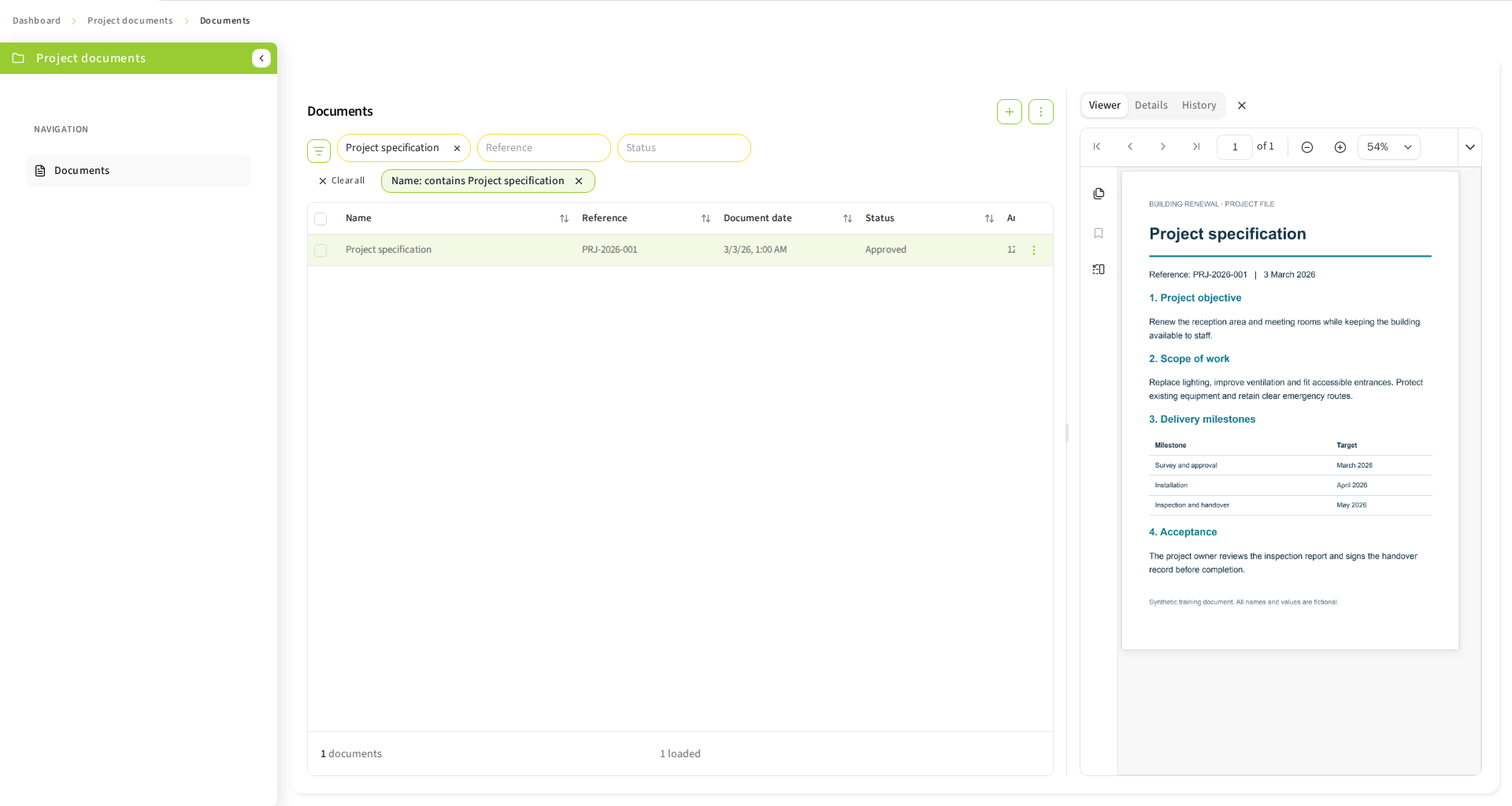
-
Page navigation: use previous/next and the page-number control to move through the document. Check the displayed page count; document pages are distinct from pages of search results.
-
Magnification: use zoom controls or the offered fit modes to make text readable. A narrow workspace may hide toolbar items in an overflow menu; widen the workspace when needed.
-
Pan and selection: choose Pan to move around an enlarged page, or Selection to select text. These modes affect mouse interaction, not repository metadata.
-
Search: use the viewer’s search tool to find text inside this PDF. This is separate from scenario search. Image-only scans may contain no searchable/selectable text; the client does not perform OCR on demand.
-
Print: use the PDF print action when available. Browser printing and device selection occur outside the scenario configuration workflow.
-
Download: use the download action when enabled for the selected content. Check the filename and browser download destination.
5.9.2. View, edit and save PDF annotations
Annotations require enabled configuration and repository permissions. The viewer can show saved annotations without allowing you to edit them. Historical versions are read-only. Annotation settings belong to an original and also apply to its renditions.
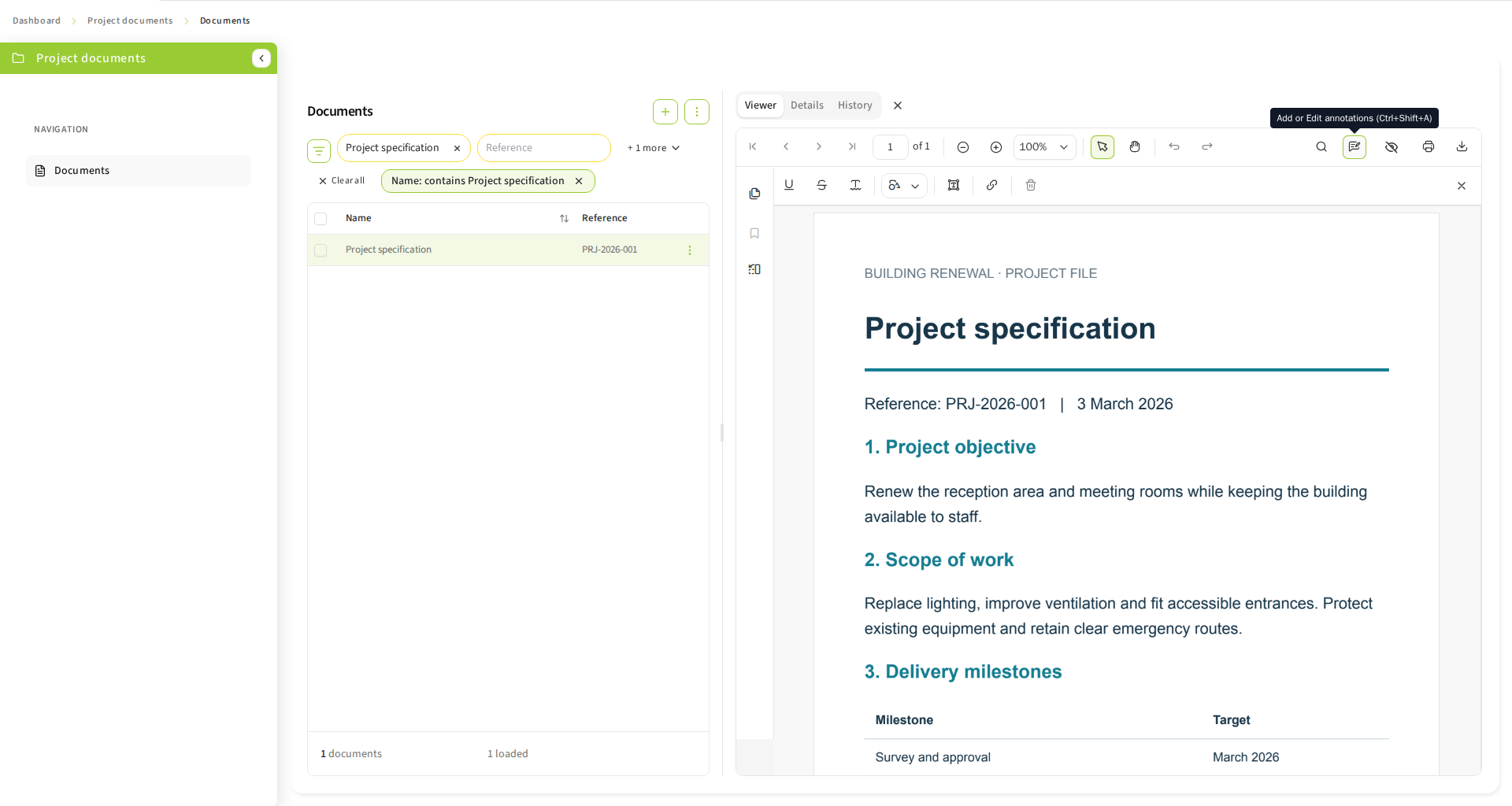
-
Use Show/Hide annotations to control their visibility. Hiding them is a display choice, not deletion. Editing tools are available only when annotations are visible and editable.
-
Enter annotation editing through the toolbar. Text-markup tools include highlight, underline, strikethrough and squiggly underline. They require selectable text. Free-text and shape tools can be used for visible notes and markings.
-
Select an annotation to change the offered fill/stroke color, thickness or opacity, move/resize it where supported, or delete it. Undo/redo operates on editing changes; it is not repository version restoration.
-
Choose Save annotations to persist changes. Until saving succeeds, the draft is not proof of a stored annotation. Reopen the content to check the result when necessary.
-
When changing content or leaving the document with unsaved annotation changes, use the offered Save and continue, Discard and continue, or Cancel choice. Cancel keeps the current document and draft open.
If annotations cannot load, use Retry and wait for a successful load before editing. A save failure requires resolving the error and retrying; do not discard a needed draft just to dismiss the message. Permission restrictions or loading errors can disable editing even while the PDF itself is visible.
5.9.3. Inspect an image
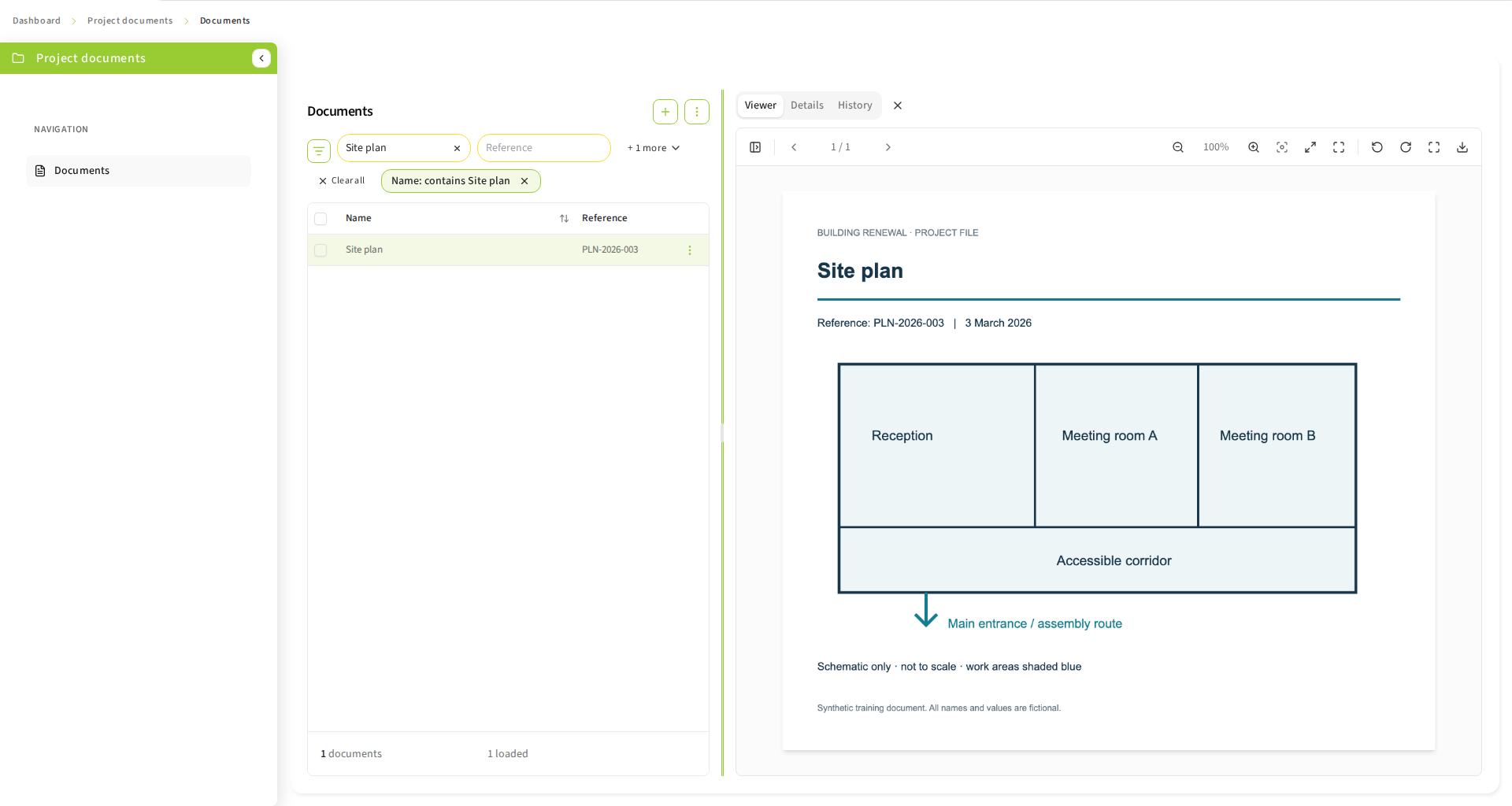
Use zoom in/out to change magnification and reset to return to the base zoom. Fit adapts the image to the available space; original-size display uses its natural dimensions. Rotate clockwise or counterclockwise to read sideways scans; these rotations affect the display only. Use fullscreen for more space and exit fullscreen to return to the workspace. Download obtains the selected stored content when enabled, rather than a screenshot of your rotated view.
The viewer component can navigate multiple supplied images, but this client supplies the selected content as one image. Use the document content selector to switch between stored originals/renditions; do not expect an image gallery of all documents. Image formats do not expose the PDF annotation toolbar.
5.9.4. Read a TIFF
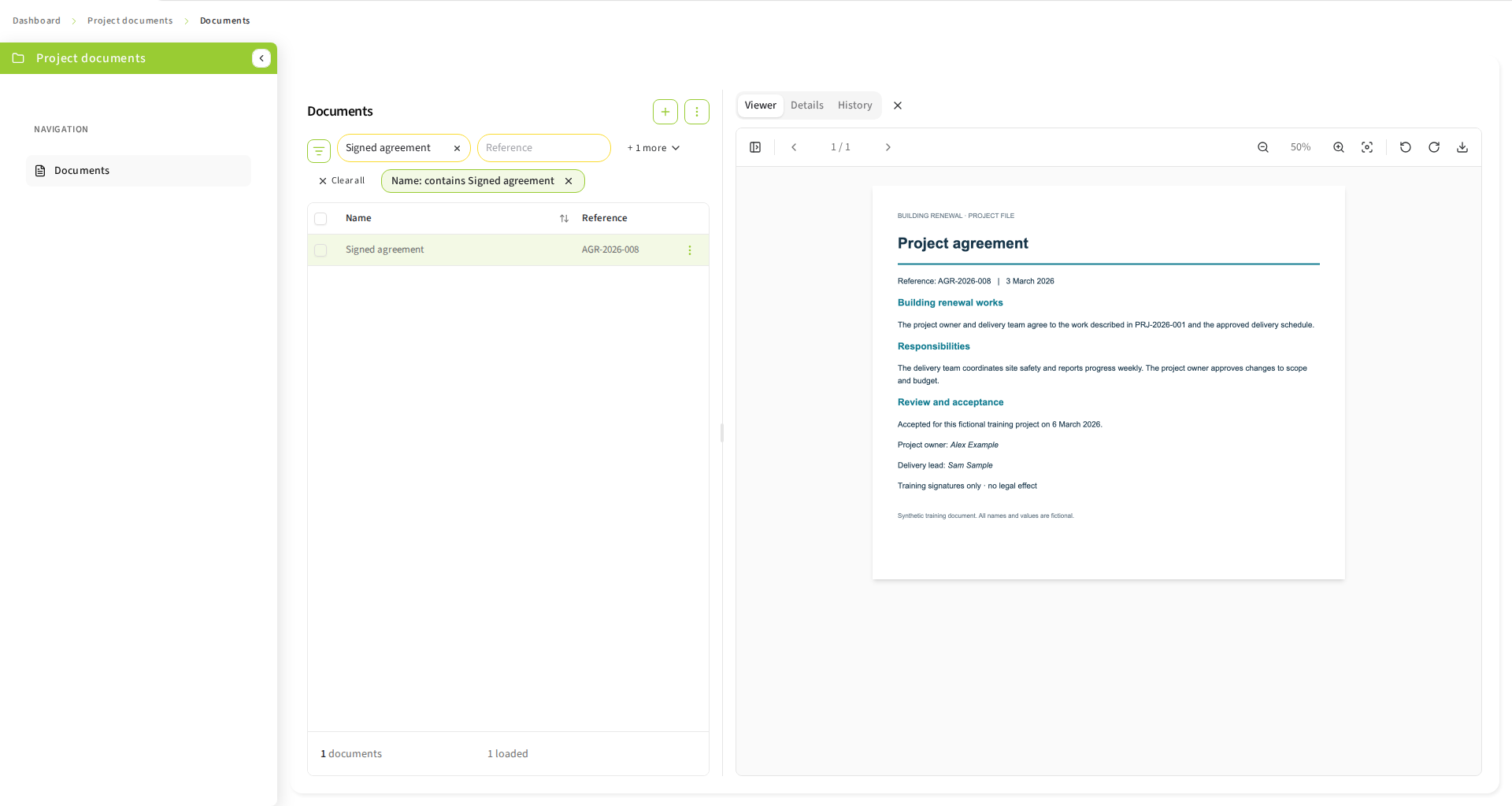
TIFF files can contain several pages. Use previous/next or the page-number control to change the active page; toggle the thumbnail sidebar to identify pages visually. A single-page TIFF has no additional page to navigate to. Zoom in/out and reset adjust the active page’s display; rotation helps read sideways pages. Download, when enabled, retrieves the TIFF content, not merely the rendered page. PDF text search and annotation editing are not TIFF controls.
5.9.5. Read text content
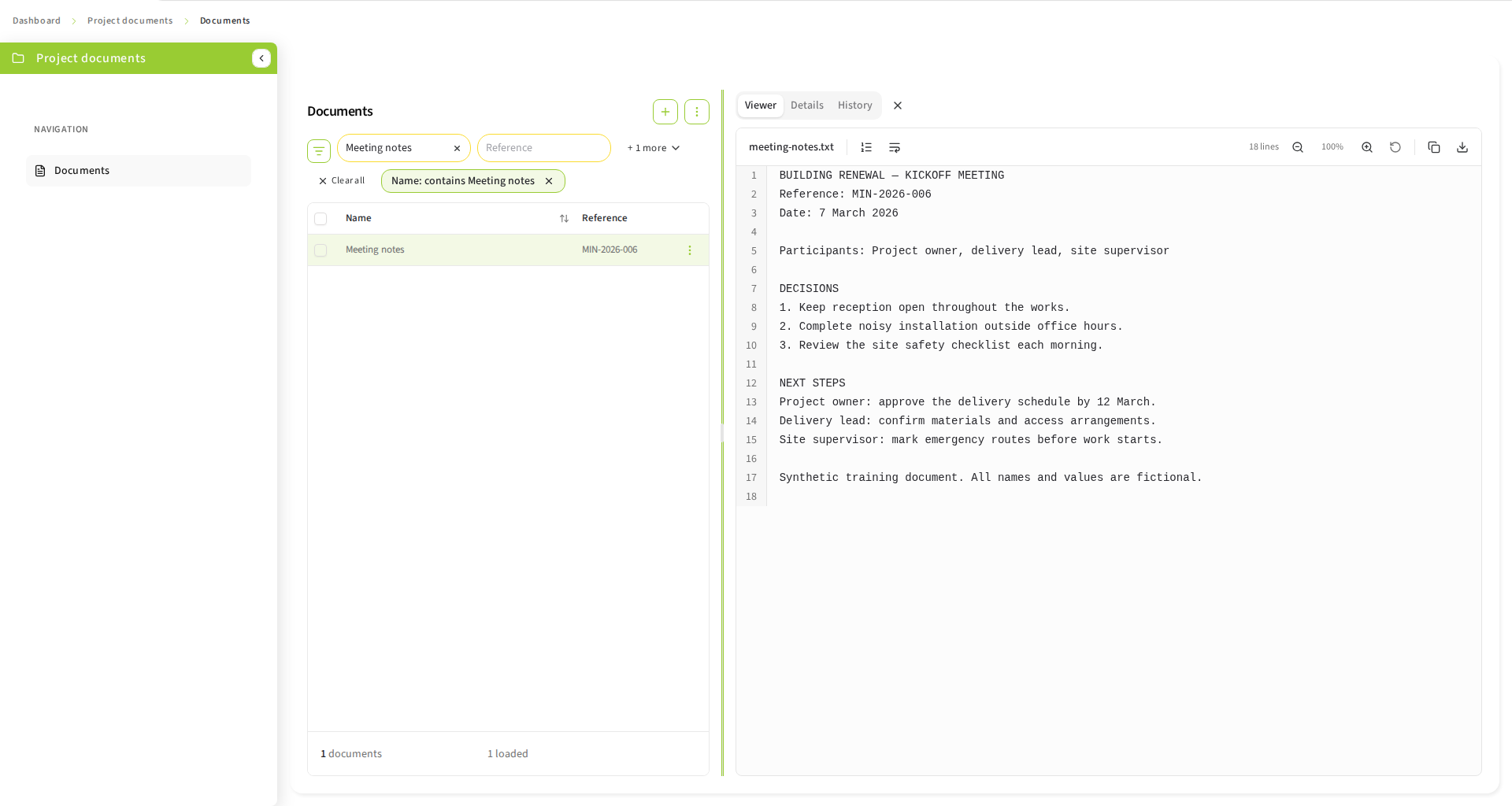
Toggle line numbers when referring to a particular line. Enable wrapping to keep long lines within the viewer; disable it to preserve long-line layout and scroll horizontally. Text zoom changes displayed font size, and reset restores the base size. Copy text copies the content to the clipboard when the browser permits it; download saves the selected content when enabled. These actions do not edit the stored text. This viewer is a reader, not a source editor or a rendered HTML preview.
5.9.6. Downloads, unavailable content and historical viewing
Viewing and downloading are separate capabilities. Each original and rendition has its own availability and download settings; repository permissions still apply. A hidden download control does not mean the document has no content. An unsupported format offers a download fallback only when download is enabled.
Loading errors can result from inaccessible content, invalid format metadata, missing renditions or viewer initialization failures. Check the content selector, try an available original, and reload through Workspace if needed. An empty preview alone does not establish an authorization failure. Report the scenario, document and selected element to your administrator without including credentials.
Content and annotations may be unavailable while a document is in the recycle bin, including content and annotations of historical versions. Retention does not guarantee preview or download access while trashed; a failed read does not prove that content was deleted. If access is needed, use the authorized Restore workflow, review its related-item impact before confirming, then reopen the content after restoration. Ask your administrator if restoration is unavailable. See Recycle-bin configuration (in development) for the current limitation.
From History, open a historical version to inspect its content and version fields in a separate drawer. Historical content uses its own content selector. Close that drawer to return to the current version. Viewing an old version does not restore it; annotations of historical content cannot be edited.
5.10. Versions and comments
When history is enabled, open History. Select a historical version to inspect that version rather than the current document. Return to the current version before editing. Comments appear only where enabled and permitted; cancel an unfinished comment to discard it, or submit it and reopen history to check the saved result.
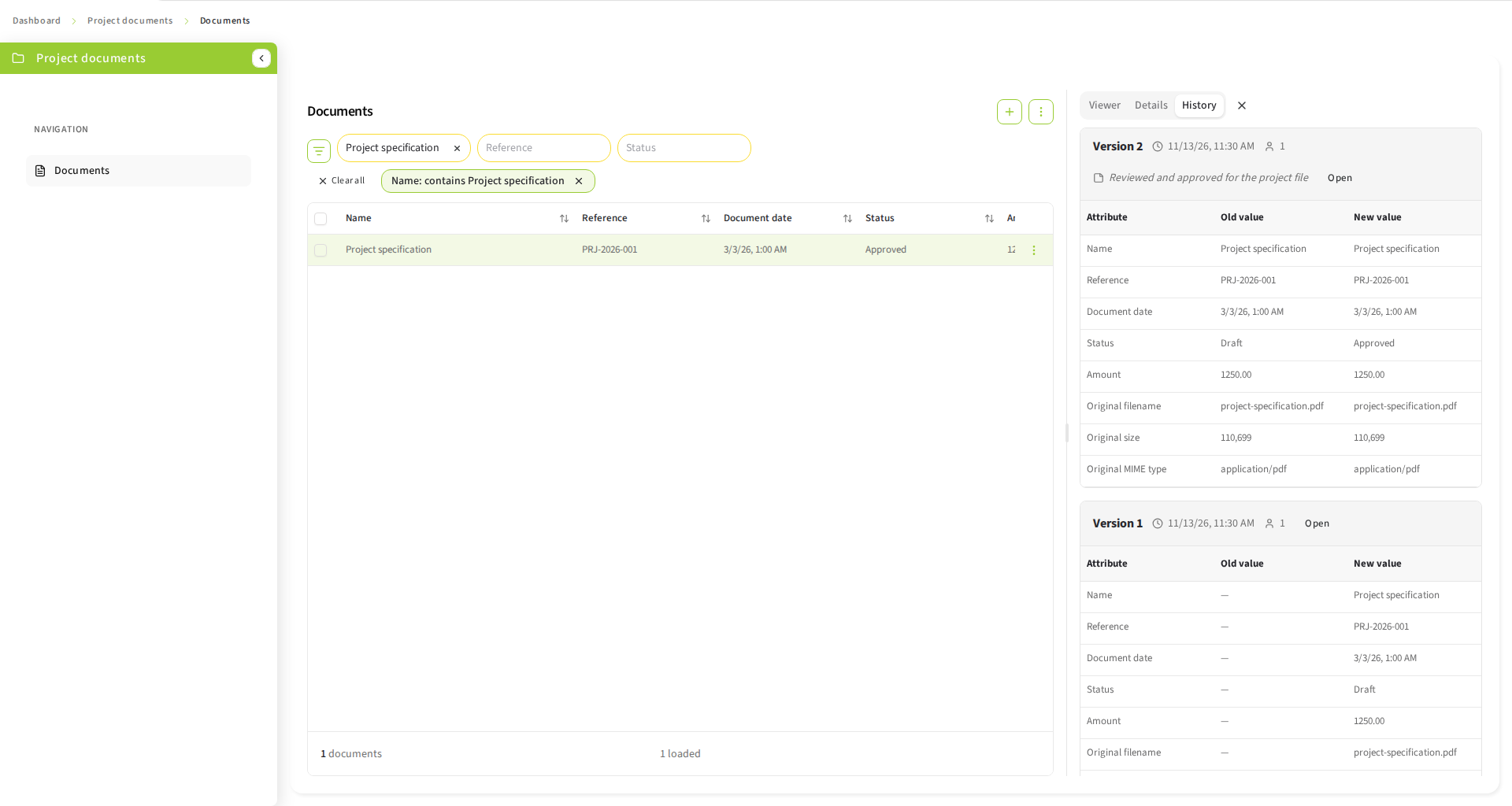
Historical selection is an inspection action; it does not restore or overwrite the current version. Record and document history are independently configured.
5.11. Recover from errors and unfinished work
-
Validation failure: correct the indicated fields and submit again.
-
List/loading failure: retry or reload through Workspace; verify the selected scenario and parent record.
-
Permission denial: contact the administrator with the action and item involved, without sending credentials.
-
Session expiry: authenticate through Workspace again, then check persisted state before repeating a write.
-
Navigation with unsaved work: save explicitly or intentionally discard your draft. Configuration and PDF annotation editing provide their documented save/discard/cancel choices. Do not assume that every other form draft has the same protection.
Recent records and saved views depend on scenario context and repository access. For removed or inaccessible records, return to the scenario and search again.
When a configuration administrator has no accessible visible scenarios, the dashboard explains that scenario access requires an explicit mapping and offers a configuration shortcut. Administration remains available. Your administrator can browse the permission catalog and configure access; no permissions are granted automatically.
5.12. Document workspace settings
In Record scenarios, Documents lists all scenario documents and a selected record lists only its linked documents. Administrators can configure these workspaces independently, so their columns, filters, details and permitted actions may differ. Each workspace remembers its own enabled table and search preferences. Content and version capabilities share the scenario’s document-type settings.
6. Litigation holds
Eligible records and documents display a litigation-hold indicator in a fixed table column, like the recycle-bin indicator. A success notification confirms setting or removing a hold, and the table refreshes automatically. Set hold is available only for items without a hold; for a multiple selection, every selected item must be without a hold. Remove hold is available only for held items; for a multiple selection, every selected item must be held. A hold protects the entity across its versions, including after its retention date expires. Setting or removing a hold requires an enabled scenario feature and the permissions configured by your administrator; the repository may still reject an operation.
Use the row menu, selected-row actions, record card or document details to set or remove a hold. The confirmation shows affected entities and options for connected records or documents. Setting a hold protects against permanent deletion; removing it leaves other retention rules in effect. Review the confirmation before proceeding. Optional inclusion covers visible related documents only. Automatic inclusion is required by scenario configuration. Native repository inheritance is mandatory and can affect documents you cannot see. You cannot override an inherited child hold independently. When removing a hold from such a document, include the connected record in the confirmation. This removes the hold from the record and all documents inheriting it, including documents you cannot view. The record removal permission is required. Without including the record, the removal cannot be confirmed.
The administrator can configure different child-inclusion rules for setting and removing holds. Removing a record hold does not necessarily remove independent document holds. In strict record scenarios, setting a document hold can optionally or automatically include its parent and then visible siblings. Shared documents retain an entity-wide hold without automatic propagation through many-to-many relationships.
If the confirmed selection changes or confirmation expires, review the refreshed confirmation and confirm again. Refreshing the confirmation does not submit the action automatically. After an uncertain failure, refresh and inspect current protection before retrying.
The Litigation navigation entry lists held records and documents when enabled and authorized. Viewing this list does not grant permission to change holds. Held items in the recycle bin require the usual recycle-bin visibility permissions.
Your administrator can require an additional permission to edit held items. This includes metadata, relationships, content, versions and annotations; ordinary edit permissions still apply.
7. Retention dates and protected lifecycle actions
Where your administrator enables it, tables and document details show whether retention is unsupported, unset, active or expired. In document details, the retention label and state appear inside the metadata card; hold and retention actions share its action row with Download. The table settings allow you to move the retention column among the business columns; protection indicators remain fixed. Litigation hold is shown separately. Expiration does not itself grant permission to delete. Use Set retention date from the entry menu, record card, details or selected-row actions. Choose a day in the date picker, then choose Review scope. The current local time is captured when you select the day and retained through confirmation. If that time is skipped or repeated on the selected day due to daylight saving time, select the day again at another time. Review the summary of affected and unchanged entries, the associated records and documents to include, and whether retention can be extended. Existing longer dates remain unchanged. Configured automatic inclusion is mandatory; optional inclusion requires your choice. Configured inclusion happens only during this action, not when creating or linking documents. For native inheritance, explicitly include the source record. The record and all inheriting documents may change, including documents you cannot see. You need the applicable source-record permission. Choose Set retention date only after reviewing this effect. Cancellation changes nothing. After an error, your input remains; review again before retrying. An uncertain response must be reconciled by re-reading state. Lookup-backed metadata and parent-record reassignment follow the same editing protection as ordinary fields. A configured parent selector does not grant permission to edit a held document or a document in the recycle bin.
A litigation hold always blocks moving an entry to the recycle bin and permanently deleting or purging it. Active retention requires a separate administrator-configured override in addition to normal action and repository permissions. Retention management permission does not grant this override. Neither deletion nor trash clears a hold or retention date. Extending retention remains possible during a hold with the retention permission.
8. Administration
8.1. Install Flex Backend into an existing infrastructure
This section is for infrastructure and identity administrators installing a new Flex Backend alongside an existing ECR and arveo Workspace. Application configuration administrators perform the handover checks afterwards. Do not reset ECR, replace the realm or overwrite existing Workspace registrations. The current Workspace migration has automated integrated verification, but live host, restart and existing-infrastructure installation acceptance remain required. These instructions do not establish production readiness. The approved rights scope preserves shared Flex configuration and existing scenario/ECR permission checks; organization-specific configuration and repository isolation are deferred.
8.1.1. Prepare services and identities
A standard installation requires arveo Workspace, the identity provider, ECR, the Flex Backend with PostgreSQL, and the original arveo Download-Service. Provision and activate the Download-Service with private storage, delegated-token audience and matching file/byte limits. Flex can run in a reduced installation without it, but ZIP downloads and CSV export are then unsupported; the configuration UI explains that the service is disabled, unreachable or incompatible.
Record the delivered ECR, Workspace, Keycloak and Flex versions and verify their compatibility. The current Workspace migration targets develop.17; the development fixture uses Arveo Keycloak 1.1.0. These fixture versions do not prove compatibility with a different installed identity provider. Agree the public HTTPS Workspace URL, internal backend/ECR addresses, realm issuer, access-token audience and certificate trust with the platform administrator. The browser-facing identity provider must also use HTTPS with a certificate trusted by browsers, Workspace and backend/ECR clients. Its public hostname and scheme must match the advertised issuer and discovery endpoints. Keep any internal bootstrap or administration endpoint separate; do not use it as a public login address or change an existing realm issuer without an explicit platform migration.
Allocate a dedicated PostgreSQL database and user for Flex. Flex initializes its
own flex_backend schema with versioned migrations. Keep its database and encryption
keys backed up separately from ECR. Use the delivered backend image with its packaged
client, or the executable JAR under your service manager. Keep secrets in deployment
secret storage. Never use development passwords, realm imports or reset/seed scripts
on the installed infrastructure.
Set the backend database URL/identity (ARVEO_FLEX_BACKEND_DATABASE_URL,
ARVEO_FLEX_BACKEND_DATABASE_USERNAME, ARVEO_FLEX_BACKEND_DATABASE_PASSWORD),
realm issuer (ARVEO_FLEX_BACKEND_OAUTH_ISSUER) and intended token audience
(ARVEO_FLEX_BACKEND_OAUTH_AUDIENCE). Configure the fixed ECR target with
ARVEO_FLEX_BACKEND_ECR_PROXY_UPSTREAM and the public Workspace origin with
ARVEO_FLEX_BACKEND_ECR_PROXY_PUBLIC_ORIGIN. Replace localhost defaults with actual
installation addresses. Backend and ECR must accept the actual user’s forwarded
token; do not disable token validation or certificate checks. Restrict internal
backend access, forwarded-header trust and guest framing/content policies to the
intended deployment. The guest uses Workspace’s original bridge and has no separate login.
8.1.2. Select permission discovery and start Flex
Choose arveo-flex-backend.permissions.discovery.mode explicitly. External mode
uses an identity-operator-provisioned discovery account and its configured connection
and secret file. Managed mode requires discovery enabled, an existing target realm,
an explicitly selected human initial administrator’s immutable user ID, a persistent
encryption key ring and temporary Flex setup credentials with the required Keycloak
management authority. Workspace and Flex technical accounts must remain separate.
Workspace administration does not automatically grant Flex configuration or business rights.
The flex-admin role manages the common Flex configuration, including scenario
permission rules. Scenario defaults can grant this role business actions; explicit
action and field restrictions remain effective, and repository authorization still
applies. This Workspace migration does not introduce organization-specific Flex
configuration or repository data isolation.
For managed setup, configure arveo-flex-backend.bootstrap with server-url, realm,
initial-administrator-user-id, temporary username and password-file,
active-key-id and key-files. Each key file contains a Base64-encoded 32-byte AES
key. Supply trusted-certificate-file when JVM trust is insufficient. An explicit
authentication-realm is needed only when setup authenticates outside the target
realm. Do not combine managed mode with external discovery connection/secret settings.
The project installation and managed-bootstrap runbooks contain the detailed settings
and required setup/runtime permissions; review them with the identity operator.
Start PostgreSQL and the existing identity/Workspace dependencies first. Wait for Workspace readiness before managed backend startup. Backend readiness must remain negative until storage and runtime discovery credential verification succeed. Internal actuator probes are for orchestration; user acceptance uses public Workspace routes. Bootstrap creates only the owned Flex identity objects; Workspace application registration is a separate administrative step.
8.1.3. Register the application in Workspace
A Workspace administrator opens Settings → Configuration → API Routes. Inspect existing entries and reserve the following public paths without replacing other routes:
| Service/public prefix | Internal target | Remove prefix |
|---|---|---|
|
Backend address plus |
Yes |
|
Backend address plus |
Yes |
Use the actual backend scheme, port and trusted certificate. If internal paths were
changed, align the route targets with ARVEO_FLEX_BACKEND_PATHS_APPLICATION and
ARVEO_FLEX_BACKEND_PATHS_API. Public settings remain /flex-client and
/flex-backend. Approve the internal host in the gateway’s SSRF policy, keep anonymous
access disabled and forward no cookies unless explicitly required. Select the
approved Workspace organization-role identifiers; do not copy unrestricted test
permissions or treat display labels as role IDs. Verify /flex-backend/config
reaches backend /api/config and /flex-client/ reaches /app/.
In Dashboard Entries, add Flex Client with entry path /flex-client/ and the
approved roles and organization IDs. The optional logo path is
/flex-client/assets/images/arveo_bildmarke.png. The tile controls discoverability;
API access, Flex grants and repository authorization remain independent. Do not
register a development server in production. Use supported Workspace administration,
not direct edits to its configuration database.
8.1.4. Accept the installation and hand over
Sign in through the public Workspace address as the initial Flex administrator and verify configuration access and permission discovery. Check normal and unauthorized users, repository search/content and an approved test write with cleanup. Verify navigation, reload, language, appearance, session recovery and browser console errors. Confirm Workspace route membership and the configured Flex role/action rules, including denied writes without side effects. Existing applications and customer data must remain unchanged.
After managed setup succeeds, remove both active bootstrap.username and
bootstrap.password-file settings and the setup-password mount. Retain the database,
encryption keys, provider settings and runtime identity. Restart Flex and verify
readiness, discovery and access without setup credentials. Check that a Workspace
restart retains the new routes and dashboard entry. Do not delete encryption keys
when retiring setup credentials; lost keys can prevent runtime credential recovery.
Give users the Workspace address and Flex Client entry instructions in Access and permissions. Hand over the supported versions, route ownership, initial administrator, monitoring, database/key backup and recovery responsibilities. Complete real integrated verification and documentation publication checks before rollout; writing or reviewing this procedure does not constitute a successful installation.
8.1.5. Backup and restore of an existing installation
Agree a recovery point objective (acceptable data loss), recovery time objective, retention policy and responsible operator before handover. Record the approved product versions and backup time together with a private deployment inventory. Keep credentials, key material and internal endpoint details out of the public acceptance report.
What must be protected
| Recovery asset | Required coverage |
|---|---|
Flex PostgreSQL database |
Use the database operator’s supported consistent backup procedure. Include the complete Flex schema and migration history, not selected configuration tables. It holds shared configuration, revisions, translations, private user state and managed discovery credentials when that mode is used, as well as export tracking. |
Deployment configuration and secrets |
Protect the selected discovery mode, issuer/audience, provider identity, certificate trust, secret references and approved artifact identities. Store secret values in separately protected secret backups, not in application configuration exports. |
Managed discovery key ring |
Back up every key ID/file needed by the backed-up encrypted credentials. Keep old read keys while retained database backups or active credentials still require them. Selecting a new active key does not reencrypt existing credentials on restart. External discovery instead requires recovery of its operator-provisioned account and secret file; managed-bootstrap keys are not required merely for external mode. |
Platform services |
Protect Workspace registrations/state, the identity provider, repository metadata and binary content using each product’s supported procedures. Preserve identities and repository references consistently; a Flex database backup does not include them. |
Generated ZIP archives |
Flex tracking and Download-Service archive storage are separate. A restored job entry does not prove that its archive exists, remains authorized or has not expired. Agree whether transient archives are recoverable or users must generate new ones. CSV exports have no persisted downloadable artifact to restore. |
A full configuration export is useful for transferring authored scenarios and settings, but is not a database or disaster-recovery backup. It does not contain private user preferences, the complete translation store, runtime discovery secrets, repository content or Workspace registrations. Retain the database backup even when a recent configuration export is available.
Restore sequence and release checks
-
Choose the recovery point and compatible delivered application version with the database/platform operators. Preserve the failed state for diagnosis where needed. Stop Flex instances and their background work before replacing the database; prevent concurrent application writes during restoration.
-
Restore the complete database with its migration history using the supported PostgreSQL procedure. Restore the matching deployment configuration and, in managed mode, the original provider identity and required key IDs/files. Keep secrets and database backups separately protected. Do not copy encrypted credentials into a different provider identity or edit ciphertext/key IDs to make it start.
-
Verify identity, repository and Workspace dependencies and their trust/routing. Restore their state consistently where they are part of the incident. Restoring Flex alone cannot repair missing repository content, changed identity subjects or lost Workspace registrations.
-
Start the selected Flex artifact with production authentication active. Retain released migration checksums. An upgrade requires its supported forward migration path; starting an older binary against a newer schema is not a rollback procedure. Keep user traffic closed until recovery checks pass.
-
In managed mode, prove readiness and discovery using the recovered encrypted runtime credentials without setup credentials. If this fails, inspect database, key mounts, provider availability/trust and runtime account authority. Restore missing keys from the protected key backup before considering reprovisioning.
-
Through Workspace, verify administrator, normal-user and denied access; read configuration, translations, user preferences and repository metadata/content. The first authenticated configuration read after restart can add eligible missing packaged scenarios. Review that expected reconciliation; do not reset/import configuration merely to suppress a recovery error. Confirm existing settings and revisions are readable and concurrent-edit safeguards still apply.
-
Check restored ZIP entries against current service availability and expiry rather than promising historical downloads. Verify the selected enabled/reduced export behavior, route persistence and denied writes without side effects. Record any data or transient-artifact loss, observed recovery time and acceptance decision before reopening traffic.
If managed credentials cannot be recovered, an explicitly authorized operator may reintroduce the setup username/password mount for controlled bootstrap recovery. Resolve foreign identity-object collisions and invalid initial-user identities; recovery does not adopt arbitrary existing accounts. After successful verification, remove both setup login settings and the setup-password mount, restart and prove readiness/discovery again without them. Never resolve a readiness failure by bypassing authentication or deleting the database, migration history or key ring.
Test this procedure in an isolated recovery environment before production handover. Use protected backup copies and prevent the rehearsal from provisioning against or mutating production identity/repository services. A reviewed procedure is not a successful restore test; retain actual recovery evidence separately.
8.1.6. Complete runtime configuration reference
Use this reference with the installation procedure and managed-bootstrap runbook. It covers every application-owned runtime property in the backend runtime configuration, plus the Spring settings needed to deploy the delivered image/JAR. It is not a catalogue of every optional Spring Boot, JVM, Workspace, Keycloak or ECR setting; those products retain their own configuration references. Development-stack orchestration settings are not customer installation defaults.
Supply configuration and secrets
Mount an operator-owned application.yaml in a private configuration directory and
set SPRING_CONFIG_ADDITIONAL_LOCATION=file:/etc/arveo-flex/ (including the trailing
slash). Keep packaged defaults active; do not replace them with a development profile.
The image/JAR must have read access to configuration, trust and secret mounts, and
write access only to its required temporary storage. PostgreSQL holds durable Flex
state; managed-bootstrap keys must survive container replacement separately.
The canonical keys below work in Spring YAML/properties. application.yaml also
provides explicit ARVEO_FLEX_BACKEND_* environment aliases for common settings;
the delivered backend application.yaml mapping is authoritative.
For example ARVEO_FLEX_BACKEND_SEED_TYPE_ATTEMPT_TIMEOUT maps to
arveo-flex-backend.configuration.type-verification.attempt-timeout.
Do not invent similarly named aliases for keys without a packaged mapping: use the
canonical YAML key. Spring’s generic environment binding removes hyphens and replaces
dots with underscores; it is different from the explicit aliases. Use YAML for lists,
typed claims and encryption-key maps. Environment values override file configuration;
command-line properties override both, so keep secrets out of command-line arguments.
A minimal deployment-specific file is:
spring:
  datasource:
    url: jdbc:postgresql://postgres.internal.example:5432/flex
    username: flex_runtime
    password: ${DEPLOYMENT_DATABASE_PASSWORD}
  security:
    oauth2:
      resourceserver:
        jwt:
          issuer-uri: https://identity.example/realms/customer
          audiences: arveo-flex-client
arveo-flex-backend:
  ecr-proxy:
    upstream: https://ecr.internal.example
    public-origin: https://workspace.example
Inject DEPLOYMENT_DATABASE_PASSWORD privately; the example defines no password.
Also choose one discovery mode below, set deployment-appropriate CSP/trust, and
provision ZIP/CSV when included. JWT issuer/audience must match the existing installation,
not the example. All public application/API acceptance enters through Workspace.
Mandatory platform settings and operational defaults
| Canonical key | Packaged default | Installation requirement |
|---|---|---|
|
None |
Required dedicated PostgreSQL JDBC URL. Never share ECR-owned schema/storage. |
|
None |
Required dedicated database identity. |
|
None |
Required private credential; mount/inject through deployment secret management. |
|
Development-only loopback issuer; override required |
Replace with the exact existing HTTPS issuer and trusted discovery/JWK endpoints. |
|
|
Match the audience in accepted Workspace access tokens; keep validation enabled. |
|
|
Internal listener only; configure gateway target/firewall consistently. |
|
|
Retain Flex schema ownership and the same schema during upgrades. |
|
|
Database identity needs schema creation on first installation and migration DDL rights. |
|
|
Accept forwarded headers only from the trusted gateway; restrict direct network access. |
|
|
Preserve streaming/byte behavior; assess any gateway compression separately. |
|
|
Internal management exposure only; do not publish via the business API route. |
|
|
Probe |
|
|
Retain managed-bootstrap readiness gating. |
|
|
Keep internal details private. |
|
|
Preserve sanitized error responses. |
|
|
Route structured logs to the platform collector; never enable credential/body dumps. |
Terminate public TLS at the approved platform boundary; configure backend TLS if the internal route uses HTTPS. JVM/platform trust must cover PostgreSQL TLS, issuer/JWK, ECR and Download-Service as applicable. Feature-specific CA file settings below do not configure global JVM trust. Back up PostgreSQL and the corresponding bootstrap key ring when managed discovery is used; test restore before accepting the installation using Backup and restore of an existing installation. Preserve released Flyway migration bytes/checksums. Database migration versions and configuration payload v4 are independent; released v2/v3 configuration is upgraded through validated paths.
Core application settings
Prefix each key in this table with arveo-flex-backend..
| Key | Default | Required/optional behavior |
|---|---|---|
|
|
Internal packaged-client path; align the Workspace cluster target if changed. |
|
|
Internal business API path; align its gateway target. |
|
|
Public single-segment path; align registration and delivered client base path. |
|
|
Public single-segment API path; align Workspace registration. |
|
|
Claim used for configuration-administrator authorization. |
|
|
Exact role value; configuration authority does not replace scenario/ECR grants. |
|
Packaged policy in |
Explicitly review for the actual Workspace origin: packaged |
|
|
Optional response policy. |
|
|
Owned JSON/API payload ceiling; positive, at most 1 GiB. Separate from ECR streaming uploads. |
|
|
Per-private-state payload ceiling; positive, at most 1 GiB. |
Permission catalogues and discovery
Prefix with arveo-flex-backend.permissions.. Catalogues expose selectable rule
values; they do not assign membership or grant repository access.
| Key | Default | Required/optional behavior |
|---|---|---|
|
|
Optional list of selectable audience values. |
|
No entries |
Registered dotted claim path, letters/digits/underscore/hyphen per segment. |
|
No entries |
|
|
No entries |
Required matching JSON scalar; no string/boolean/number coercion. |
|
|
Enable catalogue discovery only after provisioning the selected mode. |
|
|
|
|
Unset |
Required HTTPS identity-provider URL when external discovery is enabled. |
|
Unset |
Required target realm for enabled external discovery. |
|
Unset |
Required separately provisioned read-only discovery client in external mode. |
|
Unset |
Required private secret file for enabled external discovery. |
|
Unset |
Optional external discovery CA when normal trust is insufficient. |
Managed mode requires discovery.enabled: true; all external connection/secret/CA
keys must be absent. Put managed connection settings under bootstrap instead.
Disabled discovery is supported but supplies no discovered catalogue; it is not an
authentication bypass. Provision the external account’s agreed read-only mappings
or follow managed setup’s exact privileges in the bootstrap runbook.
Managed bootstrap and retirement
Prefix with arveo-flex-backend.bootstrap.. These settings are registered only in
managed discovery mode. No setup credentials, initial user or encryption keys have
a generated production default.
| Key | Default | Required/optional behavior |
|---|---|---|
|
Unset |
Required HTTPS provider address without userinfo/query/fragment. |
|
Unset |
Required existing target realm. |
|
Target |
Optional separate realm authorized to perform setup. |
|
Unset |
Required for first setup/recovery together with |
|
Unset |
Temporary private setup-password mount; remove with |
|
Unset |
Required explicitly selected human user’s immutable ID; never inferred from setup login. |
|
Unset |
Optional provider CA; normal hostname validation remains active. |
|
Unset |
Required ID present in |
|
Unset |
Required persistent map of key IDs to secret files, each Base64-encoded 32-byte AES key. Retain old read keys for stored credentials/backups. |
Follow setup authority, startup order, restart and recovery. Back up keys separately from the database. After readiness succeeds, retire both setup login keys and password mount; retain provider settings, user ID and key ring. Restart and prove readiness/discovery without setup credentials. No automatic reencryption or arbitrary account adoption is implied by rotating the active key.
Initial configuration and optional ECR type verification
Prefix with arveo-flex-backend.configuration.. The seed must be a complete valid
supported payload; changing the seed resource does not overwrite existing saved
configuration. Explicit administrator reset uses the configured system defaults.
| Key | Default | Required/optional behavior |
|---|---|---|
|
|
Optional Spring resource override, for example an operator-mounted |
|
|
Positive duration, at most 30 seconds; bounded by remaining reconciliation budget. |
|
|
Total optional-work budget, positive and at most 30 seconds; excludes normal HTTP work and transaction cleanup. |
The current authenticated user supplies the token for one complete repository catalogue on the first aggregate read after each process start. There are no seed-specific credentials or trust mounts. Local startup remains independent of ECR. Existing scenario names/settings win; new eligible entries append atomically. Technical failures preserve pending state for a later read, returning stored configuration or pristine HTTP 503. Confirmed missing types complete the cycle and require a Flex restart after installation. See Validation and concurrent editing for recovery and deleted-seed consequences.
ZIP and CSV deployment options
Prefix with arveo-flex-backend.. Standard installations provision the original
Download-Service privately; reduced installations may omit it but cannot generate
ZIP archives or export CSV. Both export families require their own effective grants, collection
settings and table activation; these switches never grant repository access.
| Key | Default | Required/optional behavior |
|---|---|---|
|
|
Set true after original-service provisioning, trust and delegated-token compatibility are verified. |
|
Development-only loopback origin; override required |
Replace with private HTTP(S) origin; no credentials/base path/query/fragment. No browser route/port is needed. |
|
|
Connection deadline. |
|
|
Complete bounded metadata-response deadline. |
|
|
Compatibility-probe deadline. |
|
|
Artifact inactivity deadline. |
|
|
Active artifact transfer lifetime. All service durations must be positive and at most 24 hours. |
|
|
Positive operator ceiling, at most |
|
|
Positive operator ceiling with the same integer maximum; align original-service byte limits. |
|
|
Positive integer row ceiling; saved administrator settings may tighten it, never raise it. |
Provision persistent private original-service storage, its validated current-user bearer/delegated-client audience and required default scopes, and matching ceilings before activation. Use the original Download-Service operator documentation for its own setting names; Flex transport settings do not provision that service. A running container is not compatibility proof. ZIP manifests expire after 15 minutes; the post-save cleanup deadline is five minutes and does not extend upstream retention. These business deadlines are not configurable transport timeouts. Proxy/gateway upload limits and timeouts must also permit the intended transfers.
Optional translation generation
Prefix with arveo-flex-backend.translation.. Packaged UI catalogues and manually
maintained translations do not need an external generation provider.
| Key | Default | Required/optional behavior |
|---|---|---|
|
|
Allows the temporary account-free generation provider; disable when outbound provider access is not intended. Does not disable localization. |
|
|
Provider request timeout, range 1–60 seconds. |
|
|
Job scheduling delay, range 1000–3600000 milliseconds; not a provider credential setting. |
Optional ECR transport sizing
Prefix with arveo-flex-backend.ecr-proxy.. Read proxy sizing and failure behavior
before raising concurrency or limits; budgets are shared per backend instance.
| Key | Default | Required/optional behavior |
|---|---|---|
|
Development-only loopback origin; override required |
Replace with fixed reachable ECR HTTP(S) origin; no credentials/path/query/fragment. |
|
Development-only loopback origin; override required |
Set the actual public HTTPS Workspace origin. |
|
|
Positive total upload budget including multipart overhead, distinct from owned JSON limits. |
|
|
Active request/connection budget, range 1–1024. |
|
|
Admission queue, range 0–1024; zero disables waiting. |
|
|
Admission wait, zero to one minute; zero rejects immediately when saturated. |
|
|
Upstream connection deadline. |
|
|
Header wait after upload completion. |
|
|
Upload/download inactivity deadline. |
|
|
Full admitted transfer lifetime; admission wait is separate. All non-admission durations must be positive and at most 24 hours. |
Installation acceptance checklist
-
Record versions/digests, identity owner, public origin, routes, database/schema, secret/key backup ownership and the selected discovery mode and reconciliation budget.
-
Complete the restore rehearsal, recording recovery point/time, matched key IDs where required, access checks and any transient archive loss.
-
Verify internal liveness/readiness and real administrator, normal-user and denied access through Workspace. Test issuer/audience, scenario/field and ECR permissions.
-
Verify authenticated first-read initialization, additive restart behavior and technical-failure recovery before handover; test confirmed missing types and supported upgrades separately.
-
Where external links are used, verify configuration export and shared filter/sorting links through Workspace: authentication, explicit empty state, rejected fields, Unicode identifiers, login destination restoration and the agreed end-to-end URL limit. Copy the effective address after loading completes.
-
Verify ZIP/CSV availability, limits and a bounded owned data journey, with cleanup. Test disabled/reduced-service behavior when that installation option is selected.
-
Retire setup credentials, restart, and verify database/key restore and persisted Workspace registrations. Never repair checksums by editing released migrations.
-
Retain sanitized evidence. Automated disposable verification does not establish acceptance of a particular customer’s existing infrastructure or authorize rollout.
8.2. Enter administration
Sign in through arveo Workspace with a configuration-administrator account. Open Flex Client, then Open settings. Normal users cannot manage configuration. Repository access and configuration-administrator permissions are distinct; enabled scenario capabilities never override repository authorization.
Use the administration navigation to switch between Scenario configuration, Permission catalog, Categories and Localization. Scenario settings, category hierarchy/assignments and dashboard presentation share one configuration draft. Moving between these workspaces retains unsaved changes; it does not save them. Enter through the Workspace client and use this navigation rather than bookmarking a nested administration URL.
Customer appearance is managed in Workspace, separately from Flex scenario configuration. A Workspace administrator manages the published theme and system/light/dark selection under Settings → Preferences → Appearance. Flex administration receives the same published appearance as scenario pages; configuration-administrator rights in Flex do not grant Workspace appearance-administration rights. There is no separate Branding page or theme import in Flex. If Flex displays an appearance-loading warning, Retry requests the current Workspace appearance without saving the configuration draft.
Each administration page starts with a short explanation. Configuration cards describe their purpose and provide a direct action. Shared type settings distinguish global attribute availability from view-specific visibility; permission pages distinguish configuration defaults from individual rules. Expand How are these rules applied? for the rule explanation. The global Permission catalog shows discovery status separately from identity search and usage inspection.
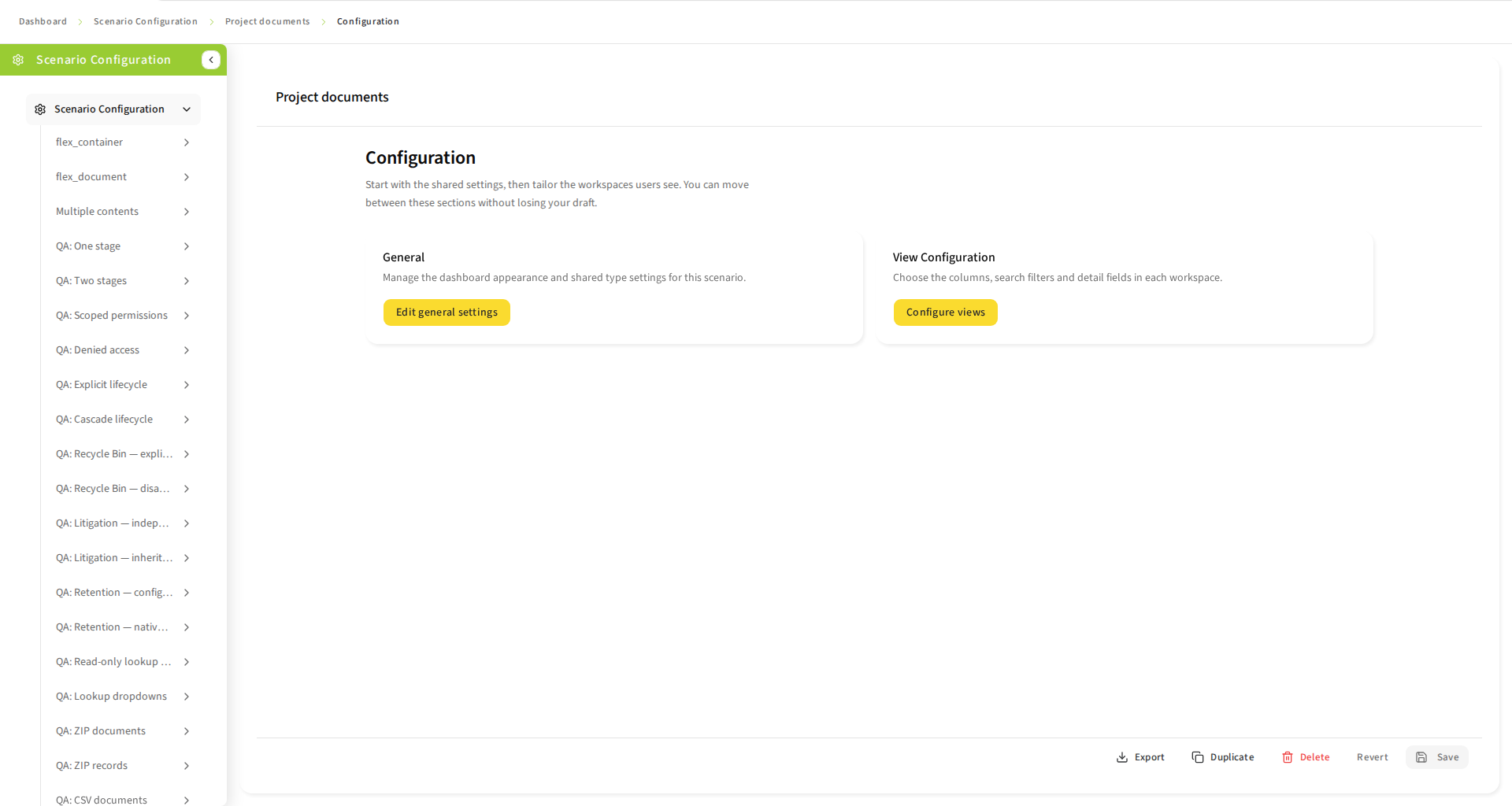
Choose Scenario Configuration in the navigation to open the scenario list. Search by scenario name, title or type, filter by stage kind, or use Create, Import and Export all. Select a scenario to open its overview, which shows its description, identity, structure, types and visibility, plus Export, Duplicate and Delete. Use the Configuration and Permissions navigation cards or sidebar children to open the corresponding editor. The breadcrumb shows Dashboard, Scenario Configuration, the scenario title and the current section; ancestor links navigate back. Clicking the Scenario Configuration row opens the list and toggles its submenu. Clicking a scenario row opens its overview and toggles its children, closing other scenario branches. The chevron is part of the row. Clicking anywhere on a scenario card opens its overview. Cancelling an unsaved-change prompt preserves the current page and menu expansion. The Configuration sidebar contains General and View Configuration. Each grouping opens a landing page with links to its children. General contains Overview (naming, icon, dashboard and record management) and TypeDefinitions (record and document attributes, versions and content). One-stage scenarios omit record settings. View Configuration follows runtime navigation: Records contains Record search and Documents within a record; Documents configures direct document search. Select a screen area using its button or the example image to open its settings without deeper navigation. Breadcrumb ancestors return to their landing pages. The JSON preview is read-only; edit using structured controls or validated import. Export a backup before significant changes. Unsaved edits are retained between a scenario’s overview, Configuration and Permissions pages. Moving to another scenario or the scenario list asks you to save, revert or cancel when the current scenario is dirty. Import returns to the list, where Save all persists the shared draft; successful duplication opens the copy’s overview, and deleting the open scenario returns to the list.
The separate Categories workspace manages the category tree, scenario assignments and dashboard presentation. In scenario General settings, choose an optional semantic icon; it changes presentation only, not repository data or permissions.
Deletion dialogs require you to type the displayed item name exactly, or DELETE when instructed, before the destructive Delete action becomes available. Category subtree deletion lists every affected scenario assignment, including hidden scenarios; the scenarios themselves are not deleted. Language removal and category removal change the draft and still require Save. Scenario deletion waits for the server result. If a request fails, its dialog stays open with an error so you can retry or cancel. Duplicate opens a name editor and stays open if saving the new scenario fails.
8.3. Choose a scenario structure
A scenario is a configured entry point into repository data. Choose its structure before configuring its labels and views. The document and record types must already exist in the repository; this wizard does not create types or relationships.
For a Record scenario, the wizard offers 1:n with foreign key or m:n with shared documents. The latter uses a dedicated container-to-document relation, not a copied document or a document foreign key. Only compatible current-version-only relations with a unique endpoint-pair index and no required writable custom relationship attributes are selectable. If no compatible type is offered, ask the repository administrator to check those definitions.
|
Important
|
m:n authoring, record-scoped browsing, document-edit linking, creation from a selected record and current-record removal were introduced in configuration version 2 and are retained in the current version-4 format. Enable document editing to expose the picker; additions/removal use the existing document-edit grant. Global document deletion and record cascade workflows remain unavailable pending a verified complete repository-wide cleanup contract. Do not treat authoring as a completed destructive lifecycle workflow. |
| Choice | Simple Document (one-stage) | Record (two-stage) |
|---|---|---|
Opening the scenario |
One list of items of the selected document type |
A parent record list, followed by documents belonging to the selected record |
Type selection |
One document type |
Child document type plus a relationship that determines the parent record type |
Configuration |
Document attributes, views, content and history |
Separate record and document attributes, views and history; document content; stored record-deletion policy |
Example |
A searchable collection of invoices |
Case records, each containing its own correspondence |
The wizard identifies these choices as One-stage and Two-stage. This guide calls them Simple Document and Record scenarios. A record is the parent organizing the documents, not another content rendition.
After a new scenario is successfully saved, leaving administration requires no further save unless other configuration or localization edits remain unsaved.
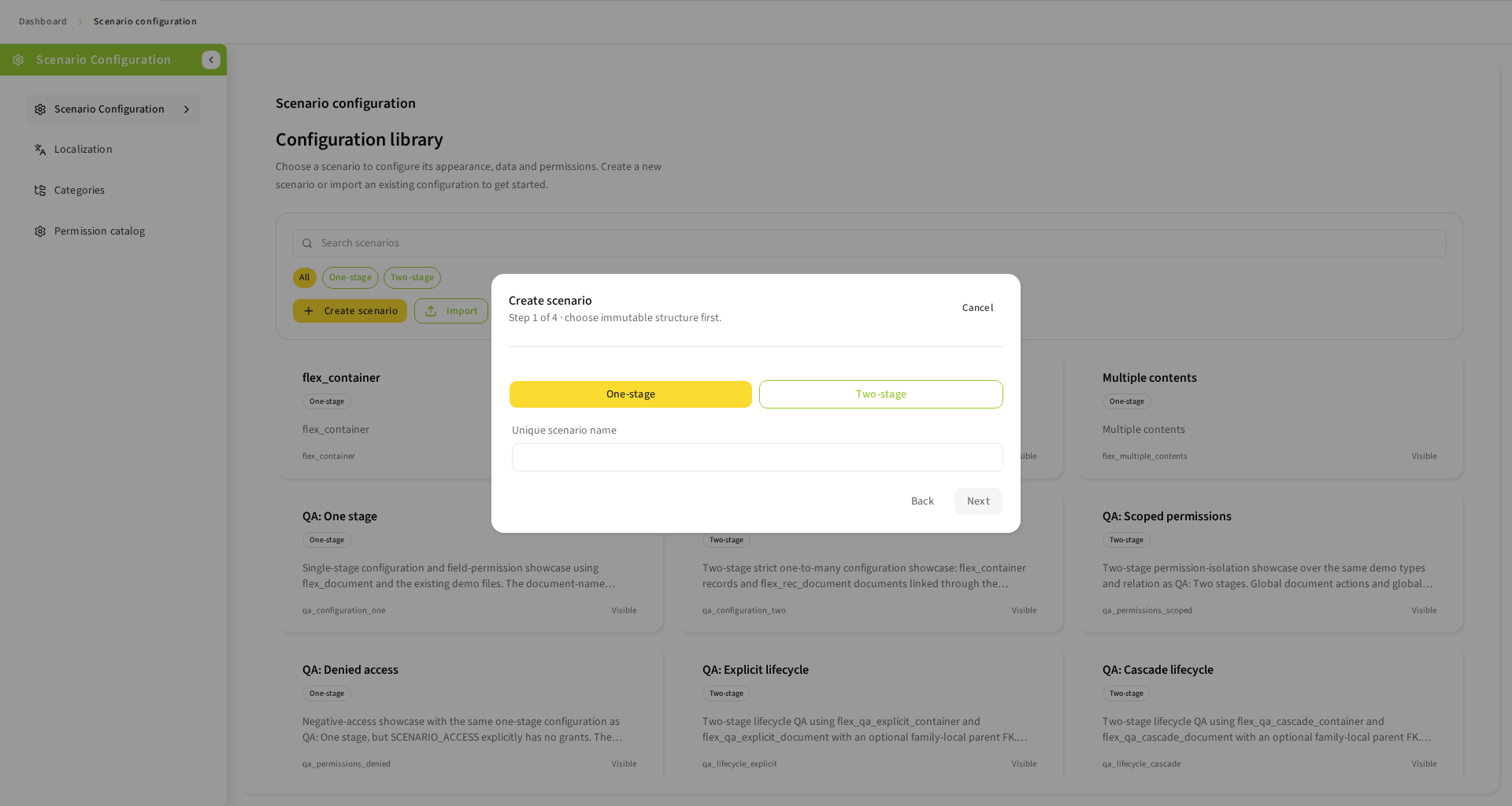
8.3.1. Create a Simple Document scenario
-
Step 1 - identity: choose One-stage and enter a unique scenario name. Use a stable descriptive identifier, for example
invoice_documents. Leading and trailing whitespace is removed. The name must contain 1 to 200 characters; a duplicate name is rejected when creating the scenario. The name is its identity, while the displayed title can be configured later. -
Step 2 - document type: select the repository type containing the items you want to expose. For example, the demo uses
flex_document. A type choice controls which attributes and content elements are available later. It does not convert existing objects to that type. -
Step 3 - defaults explanation: read the explanation of the proposed document configuration. This step is informational, not the attribute editor. The editor becomes available after creation.
-
Step 4 - review: check the name, kind and document type. Choose Create only when these structural choices are correct. Successful creation immediately stores the scenario and opens its overview; choose Configuration to edit it; later changes require Save.
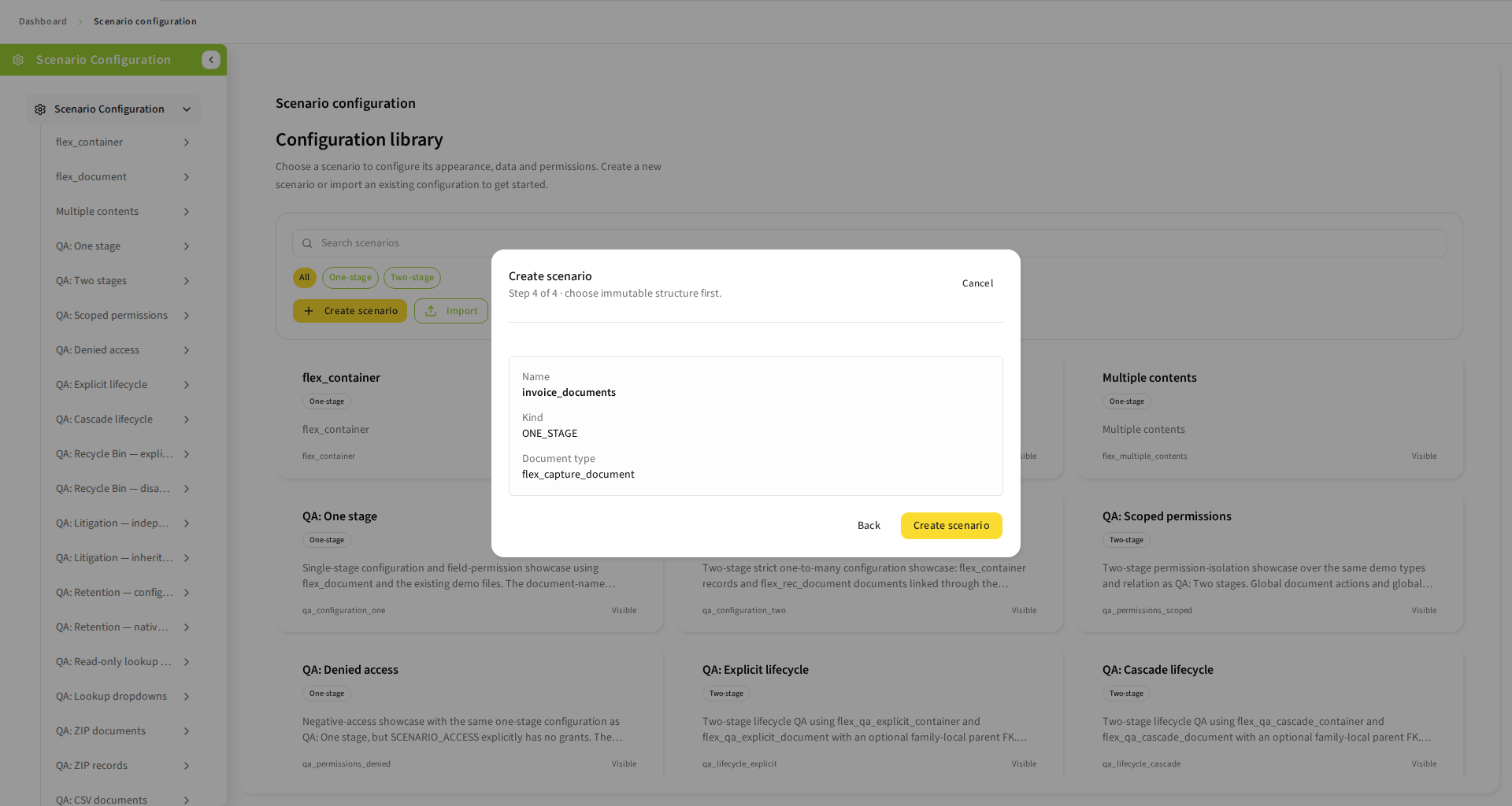
Next is disabled while a required choice is missing. Back returns to an earlier step; after changing a type, check the downstream choices again. Cancel closes the wizard without creating a scenario. A failed Create requires resolving the reported error; check the sidebar before repeating a request after a connection failure.
8.3.2. Create a one-to-many Record scenario
-
Step 1 - identity: choose Two-stage and enter a unique stable name, for example
case_documents. -
Step 2 - architecture: select 1:n with foreign key (Strict one-to-many) when each document belongs to one parent through a repository foreign key. For shared documents, follow Create and configure an m:n Record scenario instead.
-
Step 3 - child document type: select an eligible document type. The choices are filtered to types with a supported child-to-parent relationship. In the demo,
flex_rec_documentis the child type. An empty list means that an eligible repository relationship is needed; choosing an unrelated type is not a workaround. -
Step 4 - relationship: choose the foreign key linking the child to its parent. Each option shows the relationship name, child attribute and target type/attribute. The target determines the record type; there is no separate arbitrary parent-type choice. A single eligible relationship is selected automatically. When there are several, choose the one that represents the intended grouping.
-
Step 5 - review: verify name, kind, architecture, child type and relationship. For example,
fk_flex_rec_document_containerlinks the demo documents toflex_container. Create persists the initial scenario; configure its two stages next.
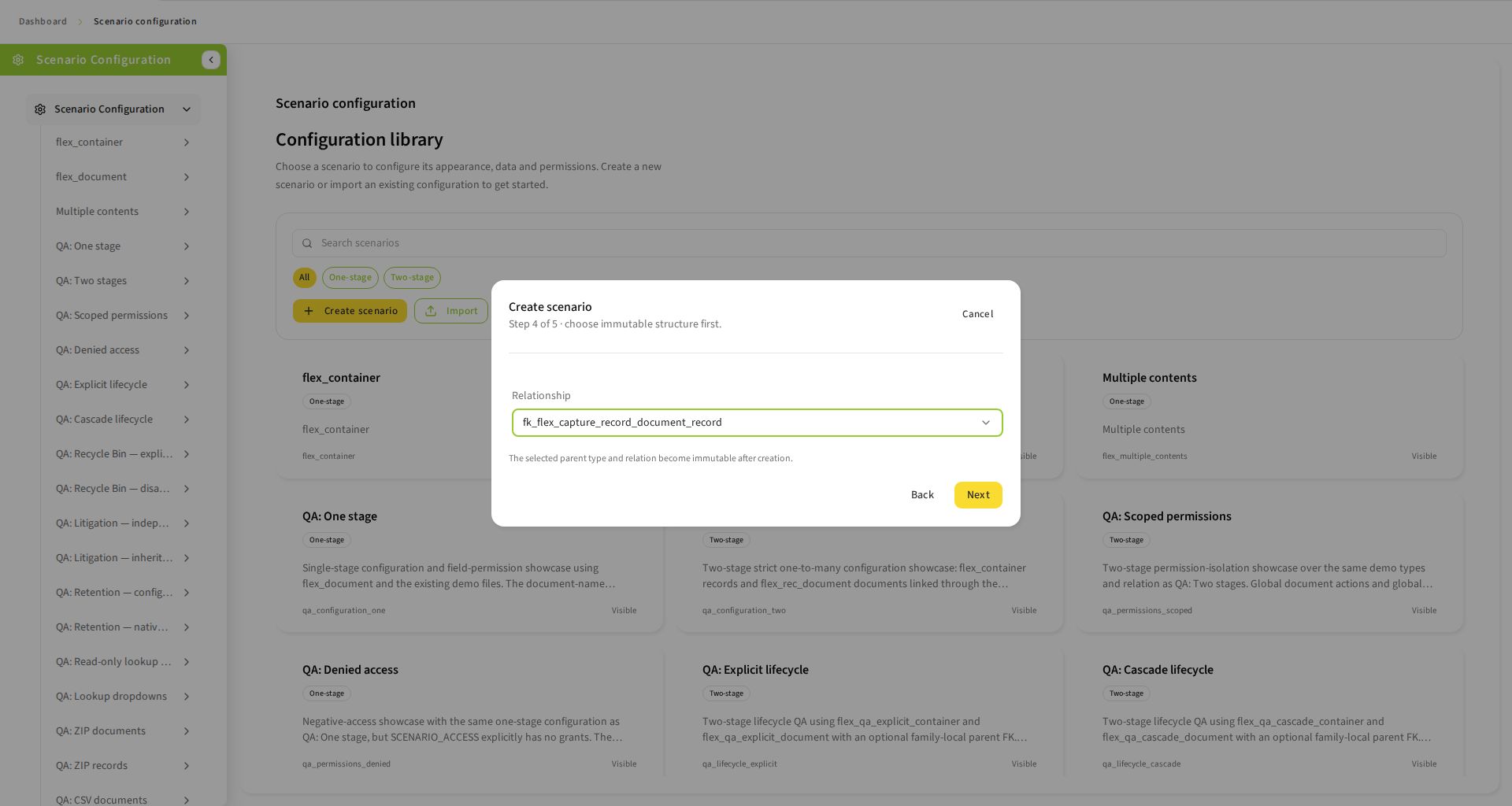
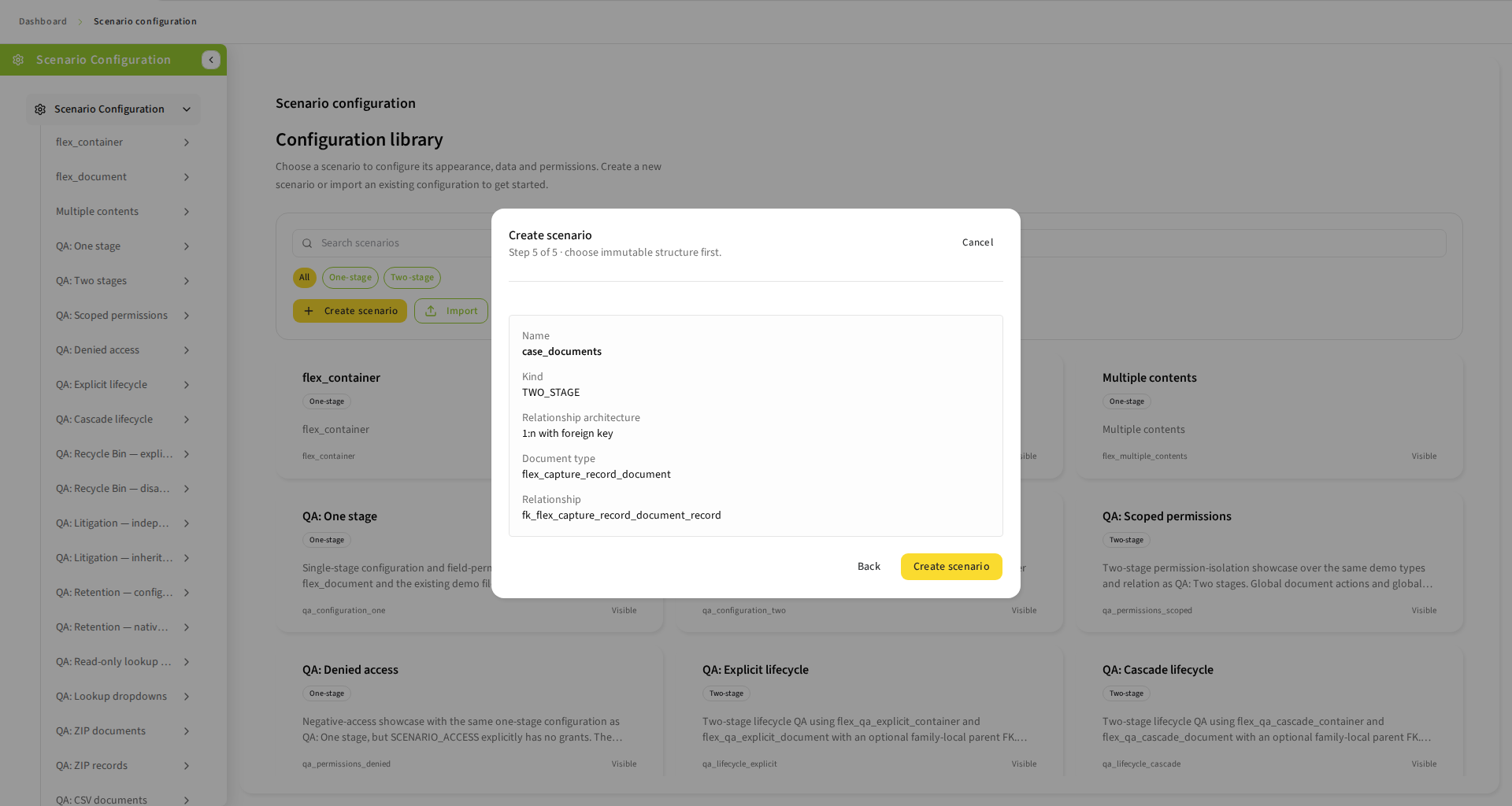
Going Back can clear dependent architecture, type or relationship selections. Recheck them before advancing. The wizard does not move documents, create parent records or repair repository relationships.
|
Important
|
Name, kind, types and relationship structure are immutable after creation. To change the structure, create a new scenario. Duplicating also requires a new unique name. |
8.3.3. Create and configure an m:n Record scenario
-
Choose Two-stage and enter a unique scenario name.
-
Choose m:n with shared documents rather than the foreign-key architecture.
-
Select an eligible child document type and its compatible container-to-document relation. The relation determines the record type; the wizard does not create repository types or memberships.
-
Review the immutable structure and choose Create. A safe discovered text attribute supplies initial picker defaults; if none exists, creation leaves an unsaved draft requiring administrator selection rather than inventing an entity field.
-
Configure the record and document stages, including the independent Record selection settings below, then save and reload.
Open General → Overview and expand Record selection. Enable the record attributes shown in options and order them with the shared ordering control. Configure searchable record attributes separately, with equals, contains or starts with where compatible with the live type. Text predicates are intended to match case-insensitively and be combined with OR. Numeric/scalar attributes support equality only; unsupported types are rejected.
At least one display column and one compatible search column are required. The picker settings are independent of authored record-table columns, sorting and personal column preferences. Record-read permission and record table-field visibility rules still restrict its identifying and searchable values. Removed or disabled references remain visible as invalid settings for explicit repair; they are not silently dropped. Save, export and reload to verify the authored order and search rules. Use current version-4 exports for these fields. Supported version-2/3 imports are upgraded; legacy V1/unversioned imports cannot contain m:n or record-selection settings.
Enable document editing for membership additions, and document creation for creation from a selected record. Additions require the existing document-edit grant; creation requires both document-create and document-edit grants, independently of the switch for editing existing documents. A create-only configuration permits initial-link retry without further metadata changes. Current-record removal checks record-scoped document-edit permission independently of the editing switch. Record-scoped create/edit grants are separate from the all-document workspace grants. Repository authorization still applies. Browsing, linking, selected-record creation and unlinking are available; enabling a setting does not grant access or enable global deletion.
The stored m:n cascade setting records a policy: enabled would delete associated documents globally, including their memberships under other records; disabled would preserve documents and remove memberships before deleting the record. Neither setting enables record deletion in the current runtime. Global document deletion and record deletion remain blocked until complete repository-wide relationship cleanup is verified; a scenario’s configured relation alone cannot establish that guarantee.
Verify with authorized test data: open records A and B, add an existing document from A to B through the document editor and check both lists. A membership-only save must not create a document version. Remove it from A using Remove from this record and confirm that the document remains under B. Do not test the recorded cascade policy as an available m:n deletion workflow. See Share documents between records (m:n) for user steps and partial-save recovery.
8.4. Configure a Simple Document scenario
Select the new scenario in the sidebar and work through its document settings. Start with a small set of useful fields, save, then test it as a normal user before making it visible to the wider audience.
-
Set the displayed title, description and dashboard visibility. A useful title such as Invoice documents is easier to recognize than a technical type name. Hiding a scenario removes ordinary navigation; it does not revoke repository access.
-
Open General → Document type, versions and content. Enable globally available attributes and give them clear labels. Review mandatory, primary-key, read-only and unique badges before enabling creation or editing.
-
Open View Configuration → Documents. Configure table persistence in Table, search persistence in Search, and creation/editing switches in Details. Persistence controls remembered view state; it does not store repository documents. Repository permissions still decide whether an action is allowed.
-
Configure Content and document Versions as described below. Choose a default available content element and decide which originals and renditions users can view or download.
-
Configure Document views: the table for finding items, search fields for narrowing results, detail/form fields for inspecting and editing them, and version fields where history is enabled.
-
Save and reload. Open the scenario as a user, search for a known item, inspect its metadata and content, and check that the enabled actions and required fields are usable.
Example: for invoices, expose invoice number and date in the list, add corresponding search fields, and organize writable metadata in a meaningful form section. Keep repository-maintained fields read-only. Enable download only for the content elements users need.
Configuration navigation stops at four editor pages: General → Overview for naming, icon and dashboard visibility; General → TypeDefinitions for document and record attributes, attribute lookups, content and versions; and View Configuration → Records and View Configuration → Documents for grouped view settings.
8.5. Configure a Record scenario
A Record scenario has shared record/document type settings and three independently configured runtime workspaces: Record Search View, Record Documents View, and Documents (all documents). View Configuration groups the record workspaces on the Records page and the all-document workspace on the Documents page. Documents inside a selected record can have different table columns, search filters, detail fields, action permissions and saved preferences from all documents.
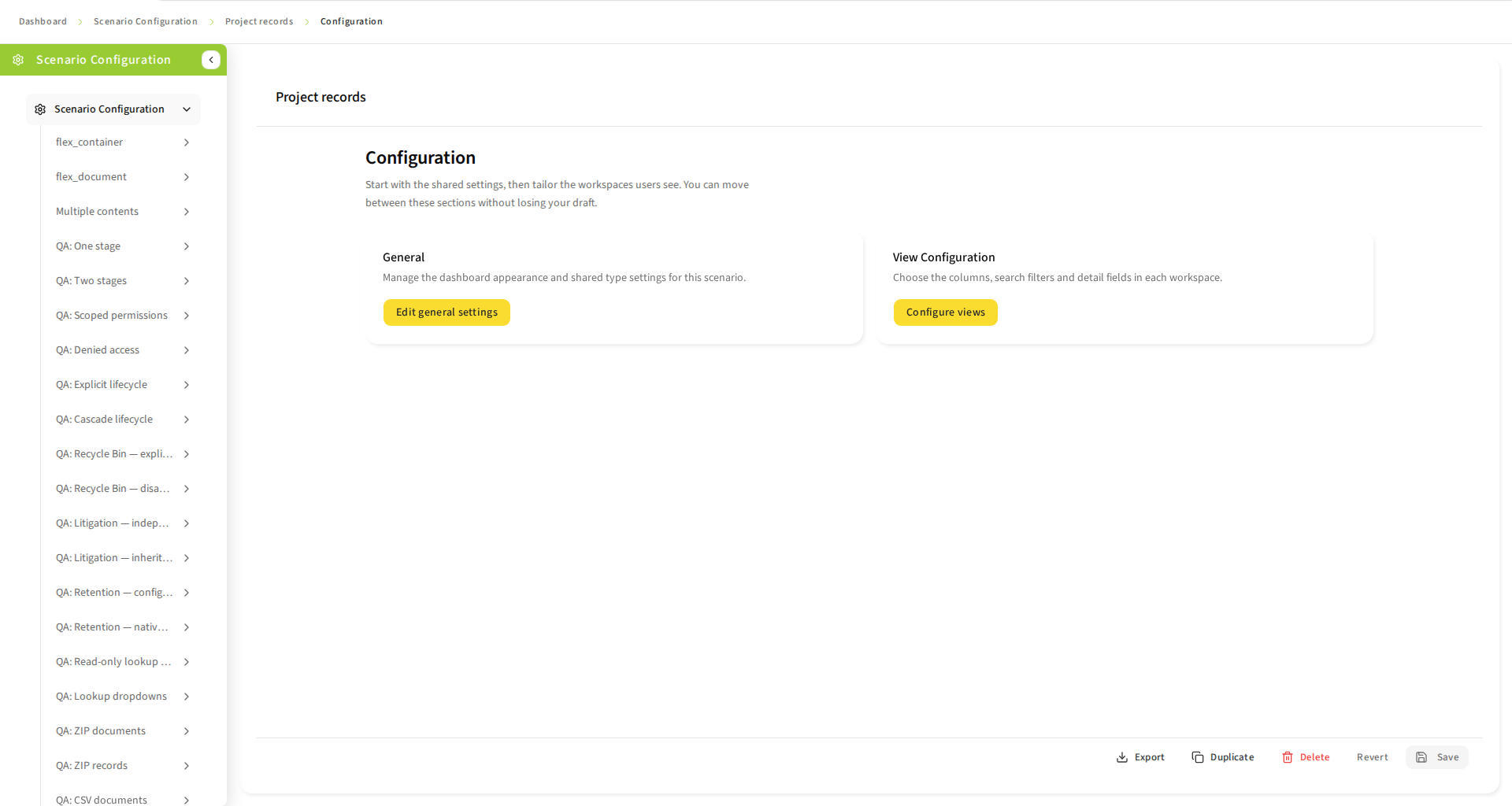
-
Review the immutable child type and relationship. Confirm that the derived parent type represents the intended record, such as a case or folder.
-
Open General → TypeDefinitions and use the Record sections to configure shared record attributes and history. Include fields that help identify the parent, such as its name or reference number. Parent create/edit settings do not enable child creation or editing.
-
Under View Configuration → Records, expand the Record search sections and configure record table columns, search filters and details. On that same Records page, configure the Record summary card and expand the Documents in record sections for child-document table, search and details. Summary-card field visibility permissions are independent of record-detail visibility. Set summary order, labels and highlighting where offered. Include enough information to distinguish similarly named records.
-
Configure shared child attributes, versions and content under the Document sections in General → TypeDefinitions. Configure View Configuration → Documents separately from the Documents in record sections on Records. Both use child attributes; only Record Documents View is scoped by the selected relationship and record.
-
Configure document originals, renditions and annotation behavior. Parent records without content do not gain a document viewer merely because document content is enabled.
-
Enable Record versions/comments and Document versions/comments independently. Choose version fields appropriate to each type.
-
Review the stored record-deletion policy before exposing deletion; the configuration editor does not offer a Record management card or Delete child documents toggle. In a one-to-many scenario, cascade deletes child documents first; without cascade, the client clears their foreign-key relationship before deleting the parent. A mandatory foreign key forces cascade behavior. In m:n scenarios, configure the separate record selector; record deletion remains blocked with either cascade setting.
-
Save and test both stages: find a record, open its child list, check the summary, inspect a child and return to the parent list. Repeat with another record to verify that documents are scoped correctly.
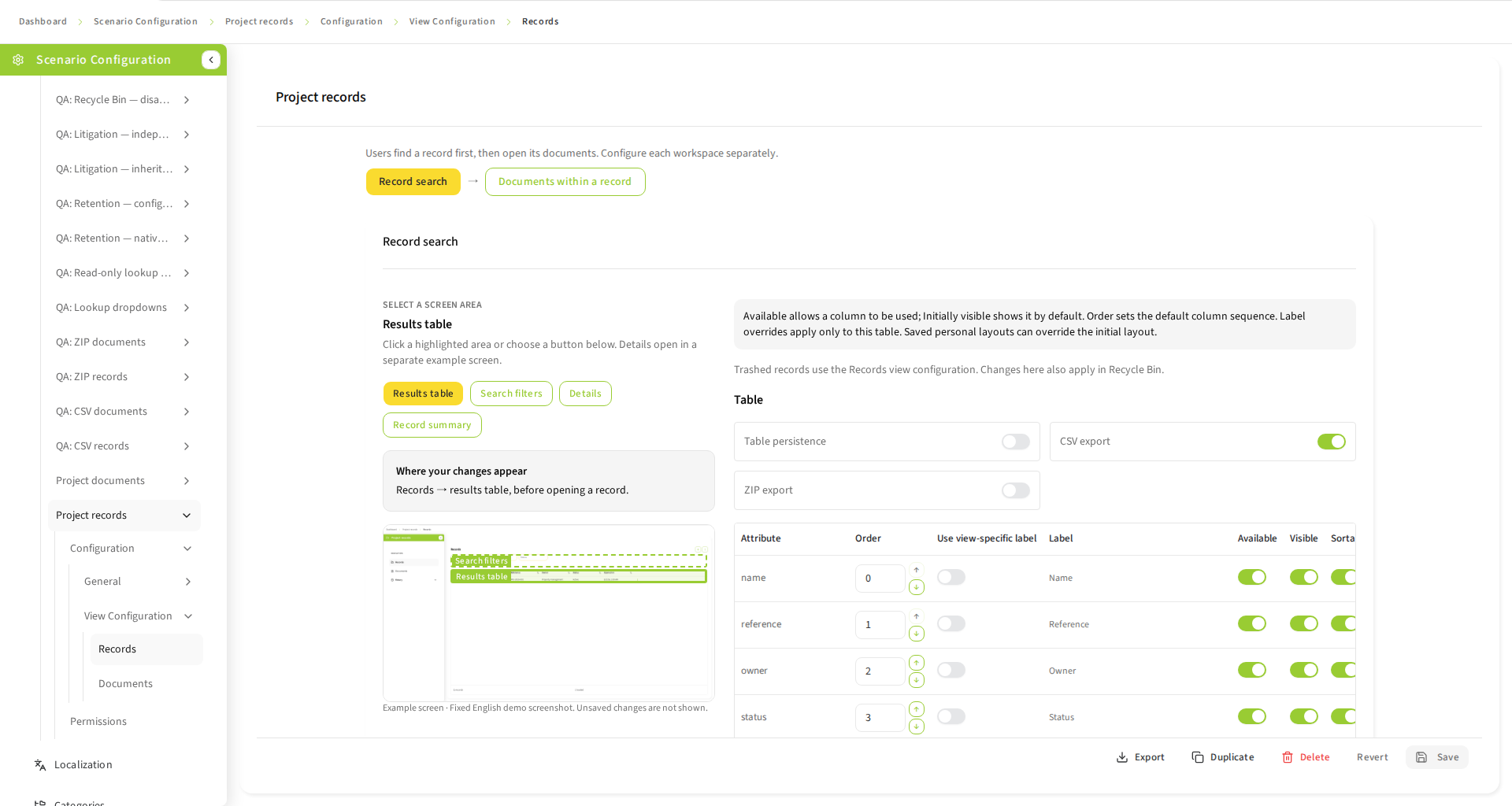
Example: put case number and case title in the Record table and summary, and document name and document date in Document views. A case title label does not rename a child document field. Explain deletion policy to users before allowing parent deletion.
8.6. General settings and attributes
Overview settings are always expanded. Use General → Overview to set the localized title, description and dashboard visibility. Use General → TypeDefinitions to edit shared settings. The Record card appears first with Attributes, Versions and Attribute lookups; the Document card contains Attributes, Content, Versions and Attribute lookups. One-stage scenarios show only Document. Visibility controls navigation, not security. Each document workspace and the record search workspace have their own creation and editing switches in their Details editor. Disable these actions when they should not be exposed; repository authorization still applies. Deletion availability also depends on permissions, and the stored record-management policy determines the treatment of children. It does not override the m:n deletion safeguard. Existing cascade-deletion and parent-selection settings are retained when editing and saving other settings, but their toggles are not exposed in the configuration editor.
Choose a scenario icon from the icon picker in General → Overview. The icon is used in dashboard cards, favorites and list rows. Choose the default option to restore the scenario initial. Imported icon identifiers that are valid but unavailable in this client are retained and also display the initial; do not supply SVG markup or an image URL as an icon identifier.
The attribute matrix displays type information and mandatory, primary-key, read-only and unique metadata. These badges describe the repository contract. Enable available fields and preserve required writable fields when creation or editing is enabled. Do not try to make a repository read-only attribute editable.
After adding an attribute to a repository type definition, restart the client to load the updated definition. Existing configurations discover the field in their matrices while preserving authored settings. If you have unsaved administration edits, save or discard them before schema reconciliation completes. Review the new field’s availability and view settings, then save the scenario to publish it to runtime views. Discovery alone does not change the published configuration.
Localized text includes a default value and optional values per language. Use the localization drawer to supply translations. A field/view label override applies only where enabled; otherwise the normal configured label applies. Preview each supported language after saving.
8.7. Content, versions and record deletion
Open General → TypeDefinitions and expand the Document Content or Versions section. Configure original and rendition labels, availability and independent download switches. Choose an available default content element or rendition. Annotation settings belong to the original and are shared by its renditions; default visibility must be disabled when annotations are disabled.
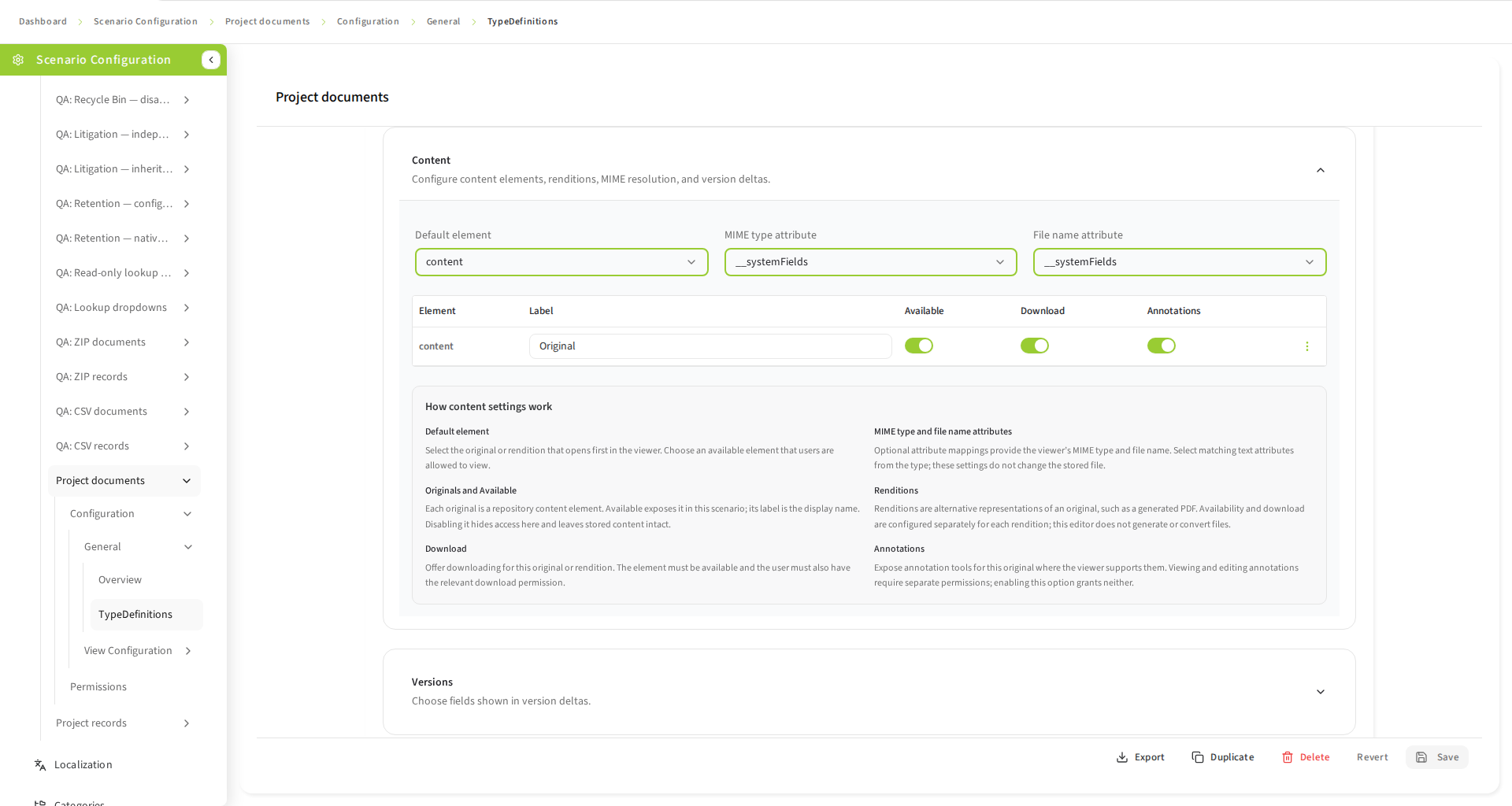
Optional filename and MIME attributes must reference writable string fields. If omitted, repository content metadata supplies the values. The primary upload populates configured filename/MIME fields; other content elements retain their own metadata. Editing the filename before submission also changes the primary content’s system name.
Enable version history and comments separately for document and record stages. These options control the client surfaces, not underlying permission grants.
For 1:n with foreign key scenarios, review the stored recordManagement.cascadeDeleteEnabled policy in a configuration export. With cascade enabled, deleting a parent deletes its documents first. Without it, the foreign key is cleared on the children; their metadata and stored content are retained. A mandatory foreign key forces cascade deletion. The deletion confirmation shows the related-document count and the configured delete or unlink consequence. If the count cannot be loaded, confirmation is blocked. Test the configured policy with a disposable record and explain this consequence to users before exposing record deletion.
For m:n with shared documents, the cascade setting is stored policy only: record deletion and global document deletion are unavailable. Membership removal preserves the document, even when its final membership is removed. This behavior is independent of the stored cascade setting.
8.8. Configure views
Open View Configuration and choose Records or Documents. In Records, choose Record search or Documents within a record. Select Results table, Search filters, Details or the record-owned Record summary using the labelled buttons or highlighted screenshot areas. The selected settings open immediately; these selections do not add deeper navigation. Configure globally available attributes first, then their supported use in search, table, detail and create/edit views. Adjust order and labels with the provided controls. Only actual runtime consumers are customer features: a configuration field alone does not establish an available UI action.
The example screen stays visible beside the settings on wide screens and above them on smaller screens. Where your changes appear explains the runtime location, and the settings guidance explains availability, initial visibility, order and label overrides. Record summary settings belong to the record even though the summary appears beside its documents. Example screenshots are fixed English demo images; they do not reflect unsaved changes. Documents examples match the scenario layout: one-stage examples have no scenario side navigation, while two-stage examples retain it. Documents within a record use their own examples and settings. Use the area buttons if an image cannot load. Switching areas retains your draft; the footer reports unsaved changes until you choose Save.
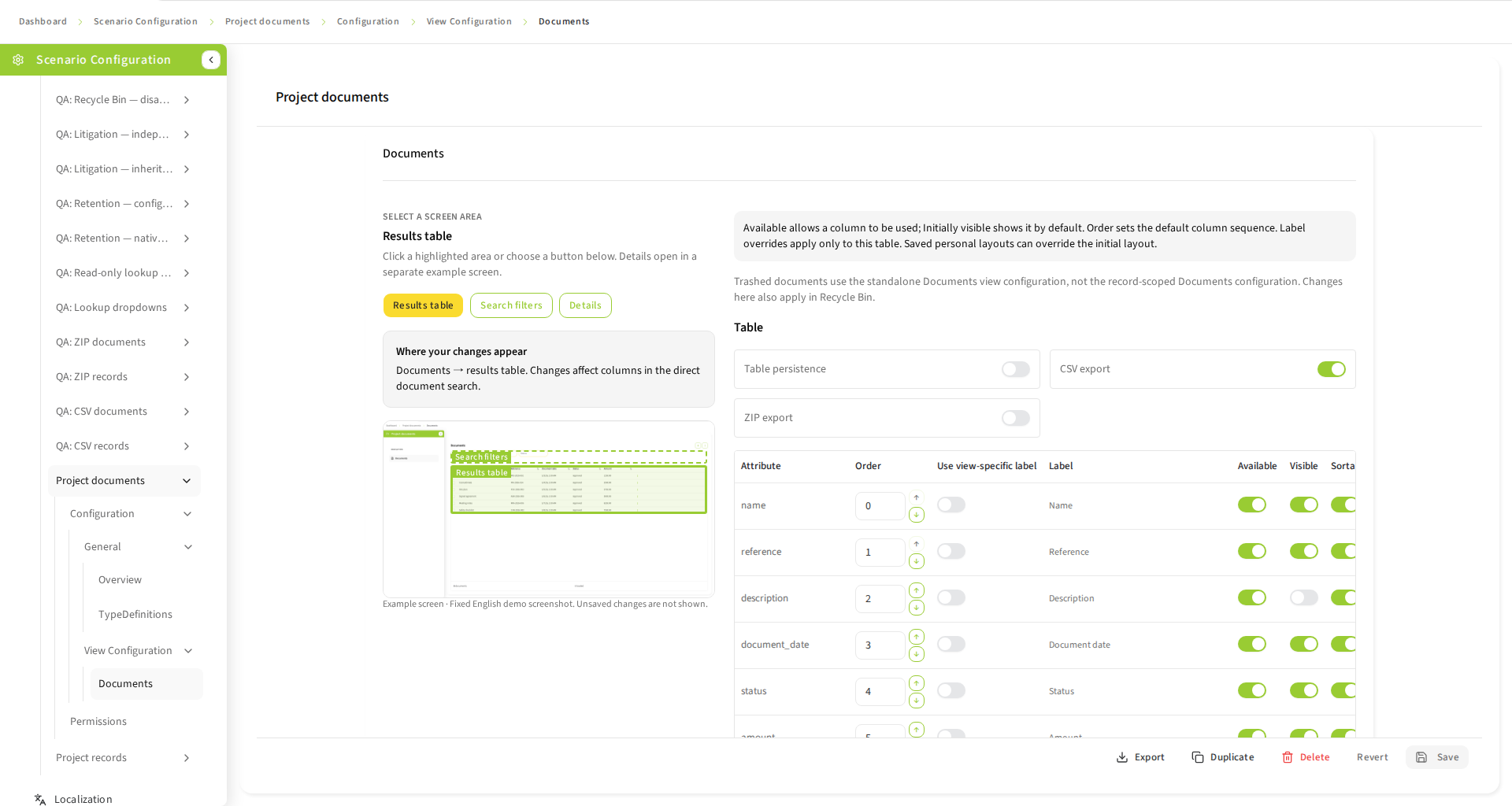
-
Search: enable fields and arrange their order. Ordinary controls and operators follow each field type; lookup dropdowns have their own search settings described below.
-
Table: configure available columns, ordering and visibility and sorting. Verify the result in the runtime list.
-
Detail/forms: configure field ordering, sections and read-only behavior where supported; required writable fields must remain accessible for enabled mutations.
-
Two-stage summary: configure parent summary fields and localized labels, then verify the selected-record context. New defaults contain up to four fields; an authored summary may include more. Existing available fields and their settings are preserved when the administration draft is initialized or saved.
8.8.1. Understand the view matrices
| Setting | Meaning and practical use |
|---|---|
Global attribute Available |
Makes an attribute eligible for configured views. Enable it here before using it in a view. Turning it off can remove dependent uses; inspect the editor’s confirmation and validation. |
View Available |
Includes the field in this particular table, search, detail, version or summary view. It does not grant repository permission. |
Order |
Moves a field to the requested position in that view. Orders in another stage or matrix remain independent. |
Label override |
Uses a view-specific label when enabled. Otherwise the stage attribute label is used. Supply translations through the provided translation action. |
Table Visible |
Controls initial visibility among available columns. Users may have remembered column choices when persistence is enabled. |
Table Sortable |
Allows sorting by the column where supported by the repository/runtime. Enable it for useful sortable fields, not every displayed value automatically. |
Detail Section |
Groups fields under a localized section heading, for example General or Classification. |
Detail Read-only |
Prevents editing that field through the configured form. It cannot make a repository read-only attribute writable. |
Version fields |
Determines which configured metadata fields are shown for history. Enabling history and selecting its fields are separate choices. |
Summary fields |
Displays parent context for Record scenarios, with order, labels and highlighting where offered. It does not change child attributes. |
Do not hide required writable inputs from enabled creation/editing workflows. Primary keys, system-maintained fields and the relationship managed by a Record scenario may be locked. A field can be visible in a table and absent from search, or searchable and absent from the table; these are independent choices.
Column-header filtering is not available in this version. CSV activation is configured independently for each table. ZIP export additionally requires the global settings, per-surface controls, business permissions and an available compatible Download-Service described below.
8.8.2. Configure lookup-backed attributes
Open General → TypeDefinitions and expand Attribute lookups inside the Document or Record card. Select an attribute and enable a shared lookup mapping. Lookup sections expand like Attributes, Content and Versions; they are not separate nested cards. The header lists attributes with enabled mappings as Active lookup filters, or shows No lookup filters set up when none exist. This summary remains visible when collapsed and updates with draft edits; it does not depend on dropdown search being enabled. Disabled mappings and imported filter/form settings without a shared mapping are not listed as active. The source must be an accessible repository document or container type with valid configured columns. It does not need a separate scenario. For example, an invoice scenario can offer customer codes and names without a customer-management scenario. Existing mappings remain visible for repair if the source or columns become unavailable.
Access belongs to the scenario and attribute using the lookup. Users need the applicable scenario action and field permissions, together with repository read access to the source data. Filter lookups follow the attribute’s Search availability and applicable table field rules; the attribute need not also appear as a displayed table column. Form fields retain their independent create/update visibility and editability rules. Visible read-only values may display their resolved labels, but cannot be changed through the lookup. Record-scoped document lookups use that workspace’s permissions and current record context.
The configured mapping determines which stored and display values users may receive. Dropdown search columns can find matches without appearing in the returned label or values. Unrelated scenarios and their Details columns, permissions or order do not affect this lookup. Deleted or trashed source entries are unavailable as valid selections. Configuring a lookup grants no source creation, editing, deletion, content or version-history access. Check the setup using the intended normal-user permissions as well as an administrator account.
For a Record scenario, the document lookup source, stored column and labels are shared by the all-document and record-scoped document workspaces. Their filter and form dropdown settings are independent. Open the record view configuration and select its document workspace to edit those scoped settings; changing them does not change the all-document dropdowns. Saving validates all configured workspaces, including retained settings on a workspace you are not currently editing.
When reopening the editor or switching scenarios, the attribute selector initially shows the first attribute with a saved lookup, if one exists. Select another attribute to inspect or configure its settings; an ordinary attribute correctly shows lookup disabled. An explicit attribute choice remains selected while editing the current stage.
-
Choose the source type and a unique stored-value column compatible with the target attribute’s scalar type. For example, store a unique customer code while displaying the customer’s name and city. A composite unique key is not sufficient for a single stored column.
-
Select and order the display columns. Their formatted values are joined with ` — `; users see this label, but queries and saves use only the stored value.
-
Choose what happens when a saved value is no longer available: Preserve keeps it, while Require replacement requires a valid selection before an editable form can save. A temporary lookup failure is not proof that the value was removed.
-
Configure filter and form dropdown search independently. Enable search and select columns with Equals, Contains or Starts with. Only display columns have an Order control; search-column order does not affect matches or result sorting. Text matches are case-insensitive and matches across columns combine with OR. Non-text scalar columns support Equals only. A query that cannot represent a column’s type skips that column, so a name search can still match text columns alongside numeric Equals columns. If no column can accept the query, no matches are returned. Disabling search leaves browsing available.
-
For the filter, choose single or multiple selection. Users select individual values and can retain selections across dropdown pages. Forms always select one value.
-
Save the scenario, reload it, and verify the permitted workflow as a normal user. Full version-2 exports retain the mapping and both sets of dropdown settings; existing configurations without these optional fields remain valid.
Each dropdown search attribute may appear only once, even with a different operator. Imported column objects can pass JSON Schema’s whole-object uniqueness check yet fail semantic validation for repeating an attribute; remove the duplicate before saving. Parent selection and lookup mappings do not override litigation edit protection, retention lifecycle restrictions or recycle-bin read-only rules. Grant ordinary edit permissions and, for protected held entries, the separate configured permission to edit under litigation. Retention management and lifecycle override grants remain independent.
Lookup-filter Select all is not available.
Imports reject the retired selectAllEnabled property even when it is false; remove only that property from older branch-created exports. Before deploying this unreleased contract update, an administrator must also clean any saved configuration containing it, otherwise startup validation fails. There is no automatic cleanup or data reset; preserve other settings and saved filter selections.
Changing a source does not silently rewrite the stored, display or search columns. Removed, inaccessible or incompatible references remain in the draft with validation errors so that you can repair them explicitly. A mapping on a foreign-key field must match the repository’s declared relationship; an ordinary lookup does not create a relationship.
Imported filter/form lookup settings without a shared attribute mapping remain marked for repair. Enabling the shared mapping preserves those authored surface settings; complete the source and column mapping before saving. Scenario, category and localization configuration saves all apply the same lookup and parent-selection validation, so stale settings must be repaired even when the current edit is elsewhere. Saving unrelated settings preserves untouched scenario configuration, including its existing export flags; validation still applies to retained lookup mappings.
For a strict one-to-many foreign-key scenario, the optional recordManagement.parentSelectionEnabled setting is disabled by default. The configuration editor does not offer an Allow choosing another parent record toggle; existing or validated imported settings remain supported. When enabled in the stored configuration, users can choose another parent during document creation or editing. The picker derives its source and stored column from the selected relation; a non-ID referenced key is supported. Existing create/edit grants and relation-field read-only rules still apply. This setting does not alter many-to-many membership workflows or introduce new permissions.
Parent selection uses the dropdown search settings and relation-field read-only rule of the current document workspace. A read-only relation in the record-scoped form remains locked even when the all-document form allows reassignment, and conversely.
8.9. Organize scenarios into categories
Open Categories. Categories organize dashboard navigation; they do not create repository folders, move documents or grant permissions. Each category has a stable ID and a required default label, with optional translations. Renaming or translating a label does not change the ID or its assignments.
-
Enter a nonblank label and choose Add root category. To create a nested category, select its parent and choose Add child category.
-
Select a category to edit its default label or translations. Do not leave the required default label empty or whitespace-only.
-
Use the parent selector to move a category and its children under another category, or back to the root. A category cannot become its own ancestor. Moving to another parent appends it to that parent’s children.
-
Use Move up and Move down to order categories among siblings. Category order controls navigation order, not the order of scenarios in the catalog.
-
Under Scenario assignments, choose one category for each scenario or leave it Unassigned. Hidden scenarios can also be assigned. A parent dashboard filter includes scenarios assigned to its descendants; unassigned scenarios appear under All categories only.
-
Choose Save all to persist the shared configuration draft, including any retained scenario or dashboard-presentation edits. Verify the saved dashboard as a normal user.
Deleting a category requires confirmation and removes its entire subtree from the draft. Scenarios assigned anywhere in that subtree become unassigned; the scenarios and repository data are not deleted. Save all to persist the removal. Back up the full configuration when assignments must be recoverable; a category-only export does not contain them.
8.9.1. Choose shared dashboard presentation
In Categories, choose the tree/category presentation or the flat catalog and then Save all. Tree presentation shows category navigation. Flat presentation shows all visible scenarios in configured order without a category filter. Both retain search, favorites, cards/list selection and pagination.
Choose Save all after changing this setting. Category-only and presentation-only saves preserve untouched scenario settings; switching Flat catalog to Categories / tree does not require editing a scenario first. This is an administrator-owned setting for everyone, not a private user preference. Switching to flat retains the category tree, translations and scenario assignments; switching back to tree restores their navigation structure. It also preserves users' favorites and cards/list preferences.
8.9.2. Import and export categories only
Export categories downloads categories.json: a JSON array containing the current draft’s complete category tree, including unsaved edits, stable IDs, translated labels and child order. It contains no scenarios, category assignments, scenario icons or dashboard presentation. For example:
[
  {
    "id": "finance",
    "label": { "default": "Finance", "values": { "de": "Finanzen" } },
    "children": [
      { "id": "invoices", "label": { "default": "Invoices" } }
    ]
  }
]-
Choose Import categories in Categories and select a category-array file, not a full configuration envelope.
-
Review validation errors before retrying. IDs must be globally unique and labels valid. New roots and children are appended in imported order. An existing ID must retain the same label/translations, parent and sibling position; a conflicting definition aborts the whole import. Use the editor, not import, to rename or move an existing category.
-
After successful validation, review the merged draft and choose Save all. Import does not immediately persist anything and does not change scenario assignments or dashboard presentation.
An empty or identical category import makes no changes; it does not delete existing categories. Invalid files, conflicting definitions or failed validation leave the draft unchanged. If the draft changes while validation is running, repeat the import against the current draft rather than assuming the earlier result was applied.
8.10. Save, duplicate, order, import and export
8.10.1. Save and discard scopes
Save editor changes and verify the result after reloading. Save success and failure messages appear as toast notifications, consistently across the administration workspaces. Field validation remains beside the affected controls. Failed saves retain your changes; a success notification confirms that the write completed. The scenario editor’s Save current saves the selected scenario. When category or dashboard-presentation changes are pending, the action becomes Save all and saves the complete shared configuration draft, even when the selected scenario itself is unchanged. Revert current discards only the selected scenario’s edits; it does not undo category, presentation or other scenario edits.
Save all in Categories also persists retained scenario edits. Confirmed configuration reload discards the whole shared configuration draft and restores saved data, rather than only the visible workspace. Export needed drafts before discarding them.
Leaving administration with unsaved configuration or localization changes opens Unsaved administration changes. Choose Save, Discard or Cancel deliberately. A failed save retains the unfinished draft. While a save is in progress, wait for it to finish before navigating or starting another write. The browser’s close/reload warning is not a save action.
Duplicate a scenario when you need a similar configuration with a new identity. Change order using the sidebar ordering controls and save where requested. Export one scenario or the full configuration through the provided action. Store the export securely; it may contain business-specific labels and configuration.
8.10.2. Configuration transfer and legacy files
Configuration exports use a version-4 envelope with schemaVersion, categories, scenarios and scenarioPresentation. If configured, the optional shared zipDownloads block is retained too; ZIP actions also require enabled surface controls, current business permissions and service availability. An imported file that omits that block preserves the current ZIP settings, while an explicit empty object restores disabled/inherited defaults. Supplied limits must be positive whole numbers and cannot exceed the configured service ceilings. A single-scenario export uses the same envelope, including the full category tree and presentation but only the selected scenario. It is not a bare scenario object or a category-only array. Full configuration export is the appropriate backup for scenarios, their assignments and the shared dashboard layout; neither export includes private dashboard preferences.
To import configuration, use the JSON import action in Scenario configuration. Imports merge by scenario name, keeping unrelated scenarios and categories. Matching names update compatible scenario settings; they do not permit changing immutable structure or conflicting category assignments. Category conflicts abort the import. The complete merged draft must pass schema and live repository validation before it is applied. Review it and save explicitly; import success is not a successful save.
An explicit scenarioPresentation in a supported versioned import selects tree or flat. If it is omitted from a supported versioned import, the current draft choice is retained. For a new current-version configuration, omitted presentation defaults to tree.
Legacy files containing only { "scenarios": […] } or { "schemaVersion": 1, "scenarios": […] } are also accepted by this import action. They are converted to v4 with flat presentation before validation, upgrading document-view structure while preserving authored settings. Existing unrelated scenarios and categories remain; an existing scenario’s conflicting category assignment still prevents import. Unknown fields/versions and mixed legacy/versioned envelopes are rejected. An empty scenario array does not clear the existing configuration. Subsequent exports always use v4.
Normal saves and new exports use configuration version 4. Full exports preserve categories, scenario category assignments, optional icons and dashboard presentation. Supported legacy V1/unversioned payloads are normalized to flat V4 with an empty category list before merging; this does not clear the draft’s existing categories or change existing relationship models. The backend upgrades valid stored V1 configuration on startup rather than requiring a reset. A merge retains the current dashboard presentation when a supported versioned import omits that setting.
Delete only the intended scenario after reviewing confirmation. Configuration removal does not itself describe a repository data-deletion workflow. Reset replaces configuration with seeded defaults; back up first and use reset only in an explicitly disposable or otherwise authorized environment.
8.11. Categories and dashboard presentation
Open Categories from the settings sidebar. Create root or child categories, configure their localized labels, and arrange their navigation order. Stable category identities are distinct from repository record identities; moving or assigning a scenario does not link documents to records.
Category and scenario translation keys use canonical language tags, matching language settings.
Examples include de, de-DE, zh-Hans, en-001 and sr-Latn-RS. Incorrect casing, underscores
and malformed or repeated subtags are rejected by configuration validation.
Assign scenarios to categories and choose Tree or Flat presentation. Tree presentation uses the authored category hierarchy; flat presentation keeps scenario navigation without that hierarchy. Save changes explicitly and check the dashboard as a normal user. Category and scenario changes share the configuration draft: preserve unsaved edits when switching workspaces, and resolve stale-save errors before retrying.
8.12. Manage languages and translations
On first system startup, English and German UI catalogs are installed automatically from the packaged application; no translation-provider setup or manual import is required. The shipped scenario and category labels also include both languages. Later startups add newly shipped UI keys and update untouched shipped defaults while preserving administrator overrides and saved scenario/category configuration. Customer-authored text requires its own translations.
Open Localization from the administration navigation. Choose a catalog language, search by translation key or text, edit the translation and save. Enable a language for users only when it is suitable for your audience. Select an enabled language using the Workspace header and check both static UI text and scenario labels. Flex does not provide a separate runtime language selector. An enabled Workspace language takes precedence when the client opens or the host selection changes; a disabled host language does not enable that language in Flex. Additional configured catalogs remain available for administration; Workspace currently offers English and German for runtime selection. Host synchronization does not overwrite an existing saved Flex language preference.
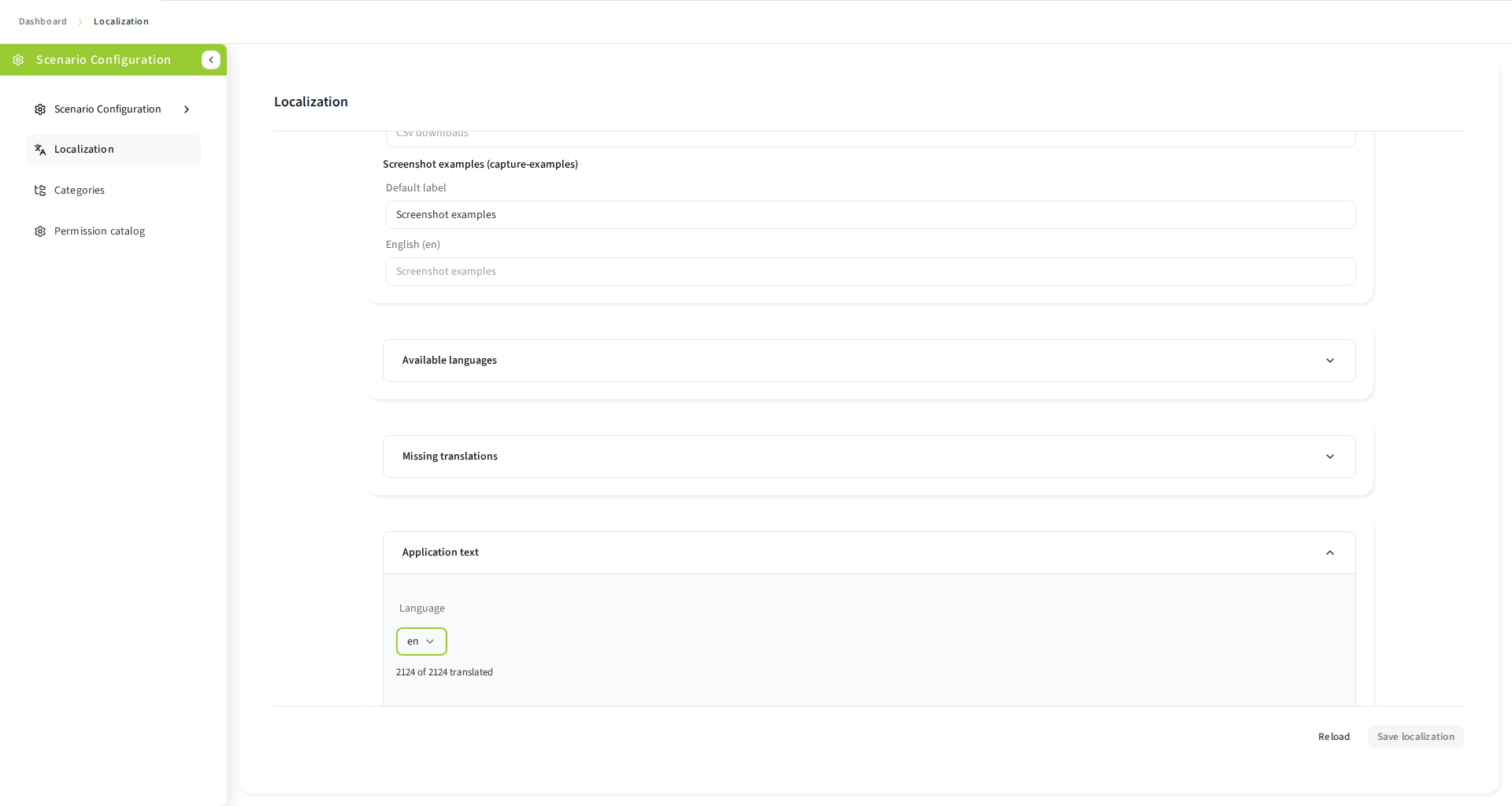
Editing a label’s default-language text also updates an inherited translation for that same language. Translations in other languages remain unchanged.
Missing text uses the default language. Scenario-owned labels and global UI translations are separate. An unsaved translated draft is not persisted by changing the runtime language. Translation generation, when offered, needs a configured available provider; review generated text before accepting overrides. This guide does not assume that a generation provider is installed.
Category labels belong to the shared configuration, not the global UI catalog. In Localization, edit the required raw default label separately from explicit translations for each language. Changing the catalog’s default language does not move or overwrite a category’s stored translation. Empty or whitespace-only category defaults block saving and must be corrected at the field. Label edits do not change IDs, hierarchy or scenario assignments.
Localization saves only resources with pending edits. If the shared configuration and catalog both have changes, configuration is saved first, followed by the catalog. A partial-success message means configuration was saved but catalog changes remain unsaved; correct the error and retry the remaining work. Saving configuration may include scenario, category or presentation edits retained from the other administration workspaces.
Reload is unavailable during a save. When shared configuration edits exist, its confirmation covers both localization and configuration: confirming discards retained scenario, category and presentation edits as well as localization changes. Cancel to keep those drafts.
8.13. Validation and concurrent editing
8.13.1. Startup, additive examples and recovery
The backend validates the packaged configuration at startup and checks existing storage locally. On the first signed-in aggregate configuration read after each backend restart, it checks missing scenario names against one complete repository type catalogue using that user’s token. No separate seed account or secret is needed. Simple scenarios require their document type; Record scenarios also require their record type, and many-to-many relationships require their relation type. Document and record attribute lookups also require their source repository types. A lookup source does not need a separate scenario. A strict foreign-key name is not a separate type.
Existing scenarios, their order and revisions remain authoritative. Newly eligible scenarios append in packaged order with required missing categories; existing category labels/locations and shared presentation, ZIP and CSV settings remain unchanged. On a pristine installation the packaged metadata is retained even if confirmed missing types leave no eligible scenarios.
Technical verification failures (denied upstream token, timeout, outage or invalid response) do not initialize empty storage. Existing configuration stays readable where the database can be read reliably; a pristine request receives a temporary configuration-unavailable error. Resolve the cause and retry the configuration load. Logs contain sanitized outcome/reason/count diagnostics; never copy tokens into support reports. Invalid packaged configuration or corrupt/partial storage still prevents startup and requires operator investigation.
Confirmed missing types complete this process’s check. After installing those types, restart Flex: the next signed-in aggregate read considers them again and adds newly eligible scenarios. Repeated reads after a completed check do not poll the repository. The default optional-work budget is five seconds (operator configurable up to thirty); normal request/database cleanup time is additional.
Deleting a scenario whose name remains in the packaged seed is not permanent suppression: it can return after a restart or another pending instance’s reconciliation. Removing an entry from the seed does not delete saved scenarios. Renaming a seed entry creates a new identity and retains the old saved entry. Existing administrator reset/import/save semantics remain available; reset replaces the collection with validated configured defaults, so back up and review before using it. These actions do not reset a completed reconciliation cycle. Existing saved scenarios receive no additional repair or live-type audit, and ordinary CRUD/draft validation keeps its established behavior.
8.13.2. Correct invalid or conflicting edits
Invalid references, duplicate scenario names or category IDs, blank category defaults, dangling category assignments, unavailable default content, inconsistent annotation switches, missing required fields and unsupported relationships prevent a save. Correct the indicated setting rather than removing validation.
A stale save is rejected when another administrator has changed the scenario or shared configuration being saved. Your draft is retained. Preserve a copy of the intended edits, explicitly reload the saved configuration and reapply necessary changes. Remember that a shared reload can discard edits from other administration workspaces. This version does not provide a conflict-specific merge interface. For authorization or session errors, sign in again through Workspace and check current state before repeating writes.
8.14. Import reference
8.14.1. Configuration import fields
| Field | Type / values | Required |
|---|---|---|
|
4 |
yes |
|
tree, flat |
no |
|
object |
no |
|
object |
no |
|
array |
yes |
|
array |
yes |
|
string |
yes |
|
object |
no |
|
identifier |
yes |
|
localizedText |
yes |
|
array |
no |
|
boolean |
yes |
|
localizedText |
no |
|
identifier |
yes |
|
identifier |
yes |
|
array |
yes |
|
preserve, requireReplacement |
yes |
|
identifier |
yes |
|
equals, contains, startsWith |
yes |
|
boolean |
yes |
|
array |
yes |
|
single, multiple |
yes |
|
lookupSearch |
yes |
|
lookupSearch |
yes |
|
identifier |
yes |
|
localizedText |
yes |
|
boolean |
yes |
|
attributeLookup |
no |
|
identifier |
yes |
|
boolean |
yes |
|
boolean |
yes |
|
integer |
yes |
|
number |
no |
|
boolean |
yes |
|
boolean |
yes |
|
labelOverride |
no |
|
identifier |
yes |
|
boolean |
yes |
|
integer |
yes |
|
labelOverride |
no |
|
searchFilterLookup |
no |
|
identifier |
yes |
|
boolean |
yes |
|
integer |
yes |
|
boolean |
yes |
|
localizedText |
yes |
|
labelOverride |
no |
|
detailFieldLookup |
no |
|
identifier |
yes |
|
boolean |
yes |
|
integer |
yes |
|
labelOverride |
no |
|
identifier |
yes |
|
boolean |
yes |
|
integer |
yes |
|
boolean |
yes |
|
labelOverride |
no |
|
boolean |
yes |
|
array |
yes |
|
boolean |
yes |
|
boolean |
yes |
|
boolean |
yes |
|
array |
yes |
|
boolean |
no |
|
array |
yes |
|
boolean |
yes |
|
boolean |
yes |
|
boolean |
yes |
|
boolean |
yes |
|
array |
yes |
|
boolean |
no |
|
array |
yes |
|
table |
yes |
|
search |
yes |
|
detail |
yes |
|
versions |
yes |
|
object |
no |
|
identifier |
yes |
|
localizedText |
yes |
|
boolean |
yes |
|
boolean |
yes |
|
identifier |
yes |
|
localizedText |
yes |
|
boolean |
yes |
|
boolean |
yes |
|
object |
yes |
|
array |
yes |
|
identifier |
yes |
|
array |
yes |
|
identifier |
no |
|
identifier |
no |
|
boolean |
yes |
|
boolean |
no |
|
recordSelection |
no |
|
boolean |
no |
|
boolean |
no |
|
automatic, ask |
no |
|
automatic, ask |
no |
|
automatic, ask |
no |
|
identifier |
yes |
|
identifier |
no |
|
string |
no |
|
localizedText |
yes |
|
localizedText |
yes |
|
boolean |
yes |
|
ONE_STAGE, TWO_STAGE |
yes |
|
STRICT_ONE_TO_MANY, MANY_TO_MANY |
no |
|
identifier |
yes |
|
identifier |
no |
|
identifier |
no |
|
stage |
yes |
|
stage |
no |
|
content |
no |
|
recordManagement |
no |
|
scenarioPermissions |
no |
|
documentView |
no |
|
recycleBin |
no |
|
litigation |
no |
|
retention |
no |
|
array |
yes |
|
array |
yes |
|
document, record, recordDocument |
yes |
|
table, detail, create, update, summaryCard |
yes |
|
identifier |
yes |
|
permissionSetting |
no |
|
permissionSetting |
no |
|
object |
yes |
|
array |
yes |
|
permissionRule |
no |
|
defaults |
no |
|
array |
no |
|
array |
no |
|
none, defaults |
no |
|
boolean |
no |
|
table |
yes |
|
search |
yes |
|
detail |
yes |
|
array |
yes |
|
object |
yes |
|
boolean |
yes |
|
boolean |
yes |
|
boolean |
yes |
|
boolean |
no |
|
boolean |
no |
|
boolean |
no |
|
disabled, ask, automatic |
no |
|
disabled, ask, automatic |
no |
|
disabled, ask, automatic |
no |
|
disabled, ask, automatic |
no |
|
boolean |
no |
|
boolean |
no |
|
boolean |
no |
|
boolean |
no |
|
disabled, ask, automatic |
no |
|
disabled, ask, automatic |
no |
|
disabled, ask, automatic |
no |
|
Note
|
Conditional requirements and live repository validation also apply. Export an existing scenario as a starting point; this inventory does not describe every semantic constraint. |
8.15. Configure scenario permissions
Select a scenario and use the Configuration and Permissions navigation destinations. Both edit the same scenario draft. Permission drawers stage their changes separately until you choose Save; the page Save/Save all then persists the scenario draft. The Permissions overview groups scenario access, actions and field controls. Search by feature, attribute or criterion; filter explicit rules, configuration defaults, entries without grants or disabled targets. Grouped tables show Name, Allowed and Denied with the complete configured identity labels and a three-dot menu at the end of each row. Empty sections are hidden. These lists describe configuration, not a user’s effective access.
Edit permissions only in the scenario’s Permissions section. Configuration feature switches and view matrices contain no permission controls. Each permission row’s three-dot menu contains only Edit Permission, which opens the shared right-hand drawer. Browse one catalog, initially filtered to All, and select an identity; its dialog offers green Allow, red Deny, and Cancel. The wide drawer keeps the Allow and Deny lists prominent above the catalog, with a Remove button for every entry in either list. Any allow criterion may grant; any matching deny wins. Client roles retain their client identity, groups retain full paths, and claim values retain their type. Disabled features retain editable rules.
Configure the scenario-wide Configuration defaults rule above the permission tables. Edit its Allowed and Denied criteria using the same staged drawer. Configuration status is read-only text in the table. Choose No grants, Configuration defaults, or Explicit permission rule inside the editor. Rows using defaults show their resolved criteria, labelled as inherited, and follow changes to the shared rule. No grants always denies. Explicit rules remain independent. New scenarios start with every row using defaults and a shared Allowed criterion for realm role flex-admin, with no Denied criteria. Administrators can edit this initial rule; existing scenarios retain their saved settings. Previously omitted field rules show Existing configuration behavior; explicitly choose Configuration defaults to opt them into the shared rule. Without a default rule, inherited actions grant nothing and inherited fields retain their configuration behavior. An explicitly empty default rule denies.
For fields, table visibility, detail visibility, create visibility/editability and update visibility/editability are independent. Rules can only restrict existing schema/configuration availability and writability. Removing the final criterion from an explicit rule leaves an empty denying rule.
At the bottom of Permissions, Reset to factory defaults asks for confirmation, restores the shared Allowed criterion for realm role flex-admin, clears Denied criteria and all explicit row rules, and sets every row to Configuration defaults. Other scenario settings are preserved. Reset remains an unsaved draft change until page Save/Save all.
Select multiple rows across sections to add identities to all selected Allowed or Denied lists. Section selection affects only its visible rows; selected rows remain selected when filtering. Clear the selection explicitly or switch scenarios. Bulk additions merge into existing rules without duplicates or removals. Save in the drawer applies additions to the scenario draft; Cancel discards them.
Choose Validate Permissions for advisory checks of the current draft. Hints identify missing catalog identities, duplicates, identities present in both lists, obsolete field references, unavailable grants and missing access/viewing prerequisites. For example, annotation grants cannot enable content whose availability is disabled. Findings refresh after draft changes and link to the affected configuration. Checks do not simulate user memberships, block saving or automatically change rules.
A stale catalog warning retains existing selections. Deployment operators provision read-only discovery credentials and register selectable audiences and typed claim values. Administrators do not select criteria based only on their own identity. Imports validate criteria in both Allow and Deny rules; unsupported criteria must be corrected before saving.
Schema v4 exports include the scenario’s action rules and field overrides, with no discovery credentials, cached catalogs or current-user grants. Supported legacy and released v2 imports upgrade without generating grants. Existing scenarios without mappings deny access after migration: configure initial access and action mappings before rollout. Configuration administration does not automatically grant business access.
8.16. Browse the permission catalog
Open Permission catalog in administration navigation to browse all discovered realm roles, client roles and groups, independently of your own memberships. Search by role, client identifier or full group path and filter by category. Audiences and custom claims are registered by operators and are marked separately from Keycloak entries.
Groups stay listed by full path, for example Group: /Admin. Token group names
match the final path segment: Admin matches /Admin, and accounts matches
/finance/accounts. Existing mappings need no changes. Groups with equal names
under different parents cannot be distinguished when the token supplies names only;
allow and deny rules match all such paths, with deny taking precedence. A name-only
membership does not imply access through ancestor groups. Tokens supplying full
paths retain path-specific matching and descendant membership. Names are case-sensitive.
The page shows the last successful discovery and warns when its snapshot is stale. Reload catalog reloads the server snapshot; discovery retries occur at most every five minutes. If discovery has never succeeded, ask your operator to configure the dedicated read-only Keycloak discovery account. Existing choices and scenario mappings survive an outage. The inventory itself remains read-only. Each entry shows its number of configured occurrences, including unsaved changes and hidden scenarios. Identities referenced by scenarios but absent from the catalog are also shown as Missing from catalog. Absence from an unavailable or stale snapshot is unconfirmed.
Sort the catalogue by Source, Identity, Usage count or Status using the column headers. Open Usage details from an entry’s trailing three-dot menu to see each scenario, action or field/control and its Allowed/Denied disposition. Remove an individual occurrence to update the shared administration draft. Removing the final identity preserves the explicit empty rule; it does not restore field inheritance. Choose Save to persist the shared draft, or Discard changes to discard all unsaved administration changes, including changes made on other configuration pages. Navigation to a usage retains the draft. Validate Permissions checks all scenarios on this page.
To grant or deny access, open the scenario’s Permissions page and select catalog entries in the target’s drawer. Configure SCENARIO_ACCESS and the required action rules, then save the scenario. Configuration administration alone grants no scenario access. You can use administration even when the dashboard shows no scenarios. Navigation to the catalog retains unsaved configuration drafts.
The drawer header and Save/Cancel footer stay visible while the body scrolls. Save applies only its working copy to the scenario draft. Cancel, Escape and drawer dismissal discard drawer-only changes. Canceling the identity-choice dialog leaves the drawer draft intact. Save the scenario page to persist applied edits.
Select a permission name to open Affected UI. Choose a location to see its effect and, where useful, a highlighted screenshot. Use Zoom in for a larger, readable image. One rule can apply to several locations; changing the selected location does not create or edit a rule. Edit Permission opens the existing editor. The preview is independent of bulk-selection checkboxes and remains open when filtering the list. On smaller screens it appears above the tables. Close preview closes only the explanation.
The screenshots are static English examples. They do not show your exact configured fields, unsaved changes or a user’s effective access. Each field is identified by its actual target label; the image highlights a representative region. Read the conditions for related permissions and configuration requirements. Historical content shares content-view/download rules, while historical annotations cannot be edited. Unimplemented actions and effects without a useful screenshot are explained in text.
Select the Configuration defaults heading to inspect targets explicitly using the shared rule. An omitted field rule retains existing configuration behavior and is not an explicit defaults selection.
The Permissions tables contain independent targets for table visibility, detail visibility, create visibility/editability and update visibility/editability. Select targets across sections and choose bulk Allow or Deny to collect additions in the drawer. Save merges criteria, skips duplicates and retains unrelated controls. Bulk operations add only; remove existing criteria or return to defaults by editing an individual permission.
The scenario permission overview shows Configuration status. Search applies together with the selected filter. Configuration defaults includes explicit defaults selections and field controls retaining inherited configuration behavior; the visual defaults explanation lists only explicit consumers of the shared rule. Explicit empty rules deny access.
Choose Use configuration defaults inside a permission editor to stage an explicit selection of the shared scenario rule. Save applies that choice to the scenario draft; Cancel retains the previous rule. Visibility and editability remain independent. An omitted field rule retains existing configuration behavior, while an omitted action grants nothing.
The catalogue also discovers explicitly configured access-token audiences and hardcoded string, boolean or number claims from Keycloak clients and client scopes. Operator-registered criteria remain available. Dynamic claim mappers do not provide selectable values, and an empty group category can mean the realm has no groups. The catalogue does not show user memberships or automatically grant permissions.
The permission catalog scrolls continuously without pagination. Permission Identity precedes Source. Click a column heading to sort; the arrow shows its direction. Row three-dot menus open usage details.
8.16.1. Independent document permissions and upgrades
The Permissions editor lists Documents and Record Documents View separately, including content, download, annotation and history actions. A grant in one workspace does not grant the corresponding action in the other. Shared content and version feature switches remain under General and still limit availability in both. The record summary card has its own field-visibility permissions.
Current exports use schema version 4. Supported older imports and stored configurations copy their existing document view settings and permission selections into both document workspaces, retaining existing behavior. Subsequent edits are independent. Existing saved table/search preferences initialize the new view contexts when no new preferences exist. Record-document preferences are shared across records within the scenario; the selected record always restricts the document query.
Configure ZIP export in General → Overview → ZIP downloads. This section appears after Naming and Dashboard, before Retention. These settings apply to all scenarios and use the shared Save/Cancel draft. Both global switches default to off. Empty file/byte limits inherit the configured service maximum; the effective maximum uses the stricter value. The file limit counts archive files, which can include multiple files per document. The byte limit counts the total size before compression, not the resulting ZIP size. Confirmation thresholds require explicit user consent at the configured file count or uncompressed size; they do not override hard limits. Numeric limits and thresholds cannot be edited while both global ZIP switches are off; their saved values are retained. Configured and effective maxima use localized thousands separators. The availability status reports whether the compatible service can be reached with your current session; permissions and surface switches still apply.
When the corresponding global switch is enabled, configure ZIP independently in each workspace’s table settings. Entire-record card switches in record details and RecordDocuments are independent of table ZIP settings. Disabling a global switch retains authored surface settings and locks the affected ZIP permission rules. Saving preserves ZIP settings. An enabled switch does not grant users permission to download. CSV has independent table activation and application-wide row settings described below.
8.16.2. CSV downloads
Enable CSV independently in the document, record and record-document table settings. It exports the visible data columns in their current user-defined order. A record table exports record metadata, without expanding its documents. Existing scenario access, field visibility and repository permissions apply; configuration administration does not grant data access. This delivery does not activate separate CSV permission grants.
CSV downloads have separate global switches for documents and records. The document switch also covers documents inside records. A scenario table must additionally enable CSV. Existing configurations with omitted global switches retain their table activation. When both global switches are off, row-limit fields are disabled; previously configured limits remain stored for reactivation.
Application-wide CSV settings contain an optional maximum row override and a positive warning threshold, defaulting to 10,000 rows. An empty maximum inherits the operator-configured service ceiling; the effective maximum is the smaller value. New overrides above that ceiling are rejected. If an operator later lowers the ceiling, the lower value applies even to an older saved override. Review any discrepancy shown in the settings. Neither global row settings nor a warning threshold enable a table, and confirmation cannot override a hard limit. CSV limits count rows, independently of ZIP file counts and uncompressed bytes.
Configuration exports and imports preserve csvDownloads in schema version 4. A missing maximum inherits the service ceiling and an omitted warning threshold uses 10,000. There is no format designer, persisted CSV job or download history. See CSV downloads for native saving, mandatory browser fallback, temporary memory use, stored reference IDs, concurrent-data limitations and spreadsheet formula-like text.
8.17. Configuration QA behavior
Creation and update forms follow the selected workspace’s detail field order, section headings, labels and read-only settings. In two-stage scenarios, record-scoped documents and the all-documents view retain their independent table, search, detail and permission settings. Disabling a shared attribute removes it from both document workspaces. Stored column preferences cannot restore fields that the current permissions hide.
A permission change also applies when a drawer or confirmation was already open: a revoked action cannot be submitted. Configuration administration alone does not grant business actions. Restoring historical versions, column-header filtering controls and document summary cards remain unavailable; record summary cards are supported. ZIP export is controlled independently by its global/surface settings, current grants and service availability.
8.18. Recycle-bin configuration (in development)
General Overview includes scenario-wide trash, trash-bin visibility and deletion-only-for-trashed settings. Search settings control whether each workspace offers Include trashed items in its table filter bar. The filter also requires the workspace’s Trash, View trashed items and Include trashed items in search permissions. Clearing it returns to active items only.
Recycle bin appears below Documents and above History in scenario navigation. Its Records and Documents entries open separate lists with their configured columns; the Documents list also includes trashed documents whose record is active. One-stage bins show Documents only. The breadcrumb returns to the scenario. Trashed items are read-only. Editors offer Move to recycle bin and permanent Delete only when the current state, permissions and deletion policy allow them. The record summary card uses a three-dot menu for the same state-sensitive Edit, Delete, Trash and Restore actions; Restore has a recovery icon. A narrow status column keeps trash markers aligned separately from business values. Permanent deletion from the bin requires typing the displayed item name, or DELETE for bulk operations and items without a display name. Record scenarios provide independent automatic/ask modes for trashing children, restoring children and restoring a document’s parent. Native repository cascades are identified as repository-managed and cannot be overridden. Existing disabled trash cascading preserves record-only behavior.
Confirmation shows affected counts and shared/global impact. When children are included in record restoration, all trashed children are restored, even those trashed earlier independently. Declining children applies the action to the record only; declining a required parent restoration cancels document restoration. Relationships are preserved. Each action still requires its scenario permissions. The server rechecks current configuration, permissions and related scope before execution. Confirmation does not reserve or lock repository data. An increased affected count requires a fresh confirmation. Partial or lost responses require refreshing repository state before another action; completed steps are not rolled back. There is no resumable operation history or recovery control for these actions.
|
Note
|
Recycle-bin functionality remains in development until runtime, native-cascade and inheritance acceptance is complete. Configuration transfers use the current version-4 payload described in Complete runtime configuration reference and Import reference. Database migration versions are independent of payload versions. |
The supported repository contract for reading retained content and annotations while trashed is not yet confirmed, for both current and historical versions. Retention alone does not guarantee read access. The original delivered ECR 28.1.0 returns Not found for these reads while trashed; the same reads succeed after restoration. Do not promise preview or download access while trashed until the supported contract is decided and verified against an original delivered ECR artifact. For now, use the authorized Restore workflow and verify access after restoration, as described in Downloads, unavailable content and historical viewing; scenario settings cannot override this repository limitation.
8.19. Lifecycle policy defaults and repository constraints
| Setting | Default | Consequence |
|---|---|---|
Scenario Recycle Bin |
Off |
Enable only for types supporting the repository deleted system field. External views do not support trash. |
Recycle Bin navigation / Include trashed items |
Off |
Navigation and each workspace filter need their own settings and permissions. |
Deletion only for trashed items |
Off |
When enabled, active items must be trashed before irreversible deletion. |
Delete documents with record |
On for newly created scenarios |
Applies with Recycle Bin on or off. Off clears an optional FK; a mandatory FK forces deletion. |
Trash documents with record |
On when omitted |
Off permits record-only trash for explicit cascades; it conflicts with native repository CASCADE. |
Trash children / Restore children / Restore parent mode |
Automatic |
Three independent settings. Ask offers one related-item choice in confirmation. |
Repository retention and deletion restrictions are administered in the repository, not through scenario switches. No retention timeout does not mean trash is disabled. The effective inherited FK definition determines native CASCADE; type inheritance alone does not create a cascade. Native downward trash/restore cannot be overridden by a scenario or end-user decline. Restoring a document’s trashed parent may also restore its trashed siblings through that native cascade; review the complete count.
An imported legacy restore-cascade false becomes Ask; true or omitted becomes Automatic. Explicit modes take precedence. Saving or editing another mode preserves that choice; disabling trash cascading does not disable child restoration.
For active strict records, the delete/unlink confirmation covers every linked child, including trash. A cascade needs child Delete permissions for active items and Permanent delete plus View trashed items for trash. Unlink needs record-scoped Edit and an editable relationship field. Restore trashed children before unlinking. If trash is disabled, use an authorized enabled-bin scenario to resolve linked trash; disabling a feature does not grant purge access.
For a trashed record, permanent deletion always removes its linked trashed children first, regardless of the active-record cascade toggle. Active linked children block purge: trash them first. m:n record and global document irreversible deletion remain unavailable. This safeguard also applies when another scenario exposes the same shared type or attempts to cascade-delete it. Optional strict-FK unlink can still preserve those shared documents. Configuration deletion removes a scenario, not its repository data.
Deletion removes metadata irreversibly. Repository document purge additionally attempts immediate content cleanup; ordinary deletion can queue content cleanup. Retention, repository permissions or integrity rules may reject either operation. Separate child/parent mutations are not atomic. After partial failure, a lost response or changed scope, refresh and review actual state before confirming again.
8.20. Recycle Bin view configuration
Recycle Bin reuses the scenario’s existing view settings. Trashed records use the Records configuration. Trashed documents use the standalone Documents configuration, including in a Record scenario; they do not use Documents within a record. Changes to those views also apply in Recycle Bin. The configuration editor explains this inheritance beside the relevant settings. Recycle Bin retains separate permissions, trash-only searches and saved view preferences. There are no separate view configuration fields for trashed items.
9. Configure litigation holds
In General / Overview, the overall Litigation switch controls hold actions and the separate Litigation-view switch. Both are disabled by default. If the selected types do not support litigation and retention, the editor locks the settings and explains the reason directly beneath the heading. Turning the overall switch off locks dependent options and permission editing but keeps their saved values for re-enablement. Map their action permissions using the existing Permissions editor. Set and remove permissions are independent for documents, records and record-scoped documents. The repository independently checks its own authorization; a scenario grant cannot override it. Users who set or remove holds also need the required repository authority in their access token. Provision this authority in the identity provider; the client does not infer it from token roles.
The additional held-item edit protection is enabled by default. Map Edit held entities to the desired roles or rights; users also need the ordinary permissions for the attempted change. Disabling this additional protection does not disable repository rules.
For strict record-document relationships without native hold inheritance, configure separate Disabled, Ask or Automatic inclusion modes for setting and removing visible child holds. Configure parent inclusion when setting a child hold and, separately, visible sibling inclusion after including that parent. All inclusion modes default to Disabled. These options do not provide automatic propagation for many-to-many relationships.
When removing an inherited document hold, the confirmation always asks users to include the source record, independently of the parent-inclusion setting for setting holds. This requires record removal permission and affects all documents inheriting the record hold.
Native hold inheritance takes precedence over scenario inclusion choices. The client updates the source and lets the repository apply inherited effects. Retention support on the entity type is required, but a populated retention date is not. No Litigation Management Service integration is required.
9.1. Understanding type settings without a separate reference
General / Type definitions shows read-only repository feature badges beside each selected record or document type. These describe repository capabilities, not grants. The feature summary and its explanations are inside the collapsible Type-definition features section. Other help appears beneath the corresponding Attributes, Content or Versions table, keeping collapsed sections compact. Available in the shared attribute list makes a field eligible for scenario configuration; each view and permission rule can restrict it further. Use view-specific label changes only the label on that surface, leaving the repository attribute and other views unchanged. Separate Content help explains the default original/rendition, optional MIME/file-name mappings, availability, downloads and annotation permissions.
The overall Recycle Bin switch also preserves saved navigation, search and lifecycle options while disabling dependent editing. Its saved permissions remain intact. QA scenarios document their configuration and seed ownership in their descriptions. On the dashboard, hover over a scenario card or list row for one second, or focus its title with the keyboard, to read the full description in a scrollable enlarged card. Escape closes the preview.
10. Configure retention management
In General / Overview, configure retention management, read-only table/detail display and availability of the protected-lifecycle override independently. All are disabled by default. Map document, record and record-scoped document retention-management permissions in the existing Permissions editor. First assignment after creation uses the same permission as prolongation. Map the separate protected lifecycle permission only to authorized roles; it never overrides litigation hold or grants ordinary delete/trash rights. For strict one-to-many scenarios, configure child, parent and sibling inclusion independently as Disabled, Ask or Automatic. All default to Disabled. Siblings are considered only when their parent is included. This is action-only orchestration of visible related items; creation and later linking do not synchronize dates. Native repository retention inheritance takes precedence and writes only the source record after explicit confirmation. Assign date-management and protected-lifecycle privileges separately. Date-management permission allows setting or prolonging dates; it does not grant permission to trash or delete protected items. Protected-lifecycle actions additionally require their ordinary action grants and repository authorization. Litigation hold blocks trash and deletion even when a retention override is granted.
Native destructive cascades into retention-capable child types are blocked when protection of unreadable targets cannot be established. A visible child listing is not proof of complete native scope; no privileged identity is substituted to discover hidden data.
10.1. Released configuration compatibility
Release 0.1.4 uses configuration version 2. ZIP settings belong to version 3. Released version-2 imports retain scenarios, categories, presentation and permissions through an explicit upgrade; files labeled version 2 that contain version-3 ZIP settings are rejected. Stored version-2 and version-3 configurations are validated against their inherited schemas and upgraded automatically to version 4 at startup without resetting data. CSV collection settings require version 4; imports labeled version 2 or 3 that contain these settings are rejected. Authored ZIP settings and scenario permissions are preserved. New exports use version 4 and require a compatible application; importing them into a version-2-only release is unsupported. Database migration numbers are independent of configuration-file versions.
10.2. Direct links to permission targets
Links from permission catalog usages include the scenario and exact permission target in the address path. Bookmarking or reloading that address reopens the corresponding Permissions editor and target drawer, subject to administrator access. Older query-based links redirect to the same destination.
11. Developer integration: links with filters and sorting
This chapter defines the supported external link contract. An application or service can read the saved configuration, construct a URL, store it and later send a user to the same scenario, record and search state that a frontend user can share by copying the address. Link generation does not create a saved search or grant access to data.
11.1. Public entry, identity and configuration export
Obtain the deployment’s public HTTPS Workspace origin and packaged Flex mount from
the operator, for example https://workspace.example/flex-client/. Keep the trailing
slash. Do not construct links to internal container ports. /flex-client-dev/ is
development-only. Workspace owns normal browser login and forwards the destination
to Flex; the link contains no credentials or access tokens. Acceptance of destination
restoration after login depends on the deployed Workspace’s normal guest routing.
Read GET https://workspace.example/flex-backend/config/export with an authenticated
session or an operator-provisioned bearer token accepted by the existing gateway and
backend. All authenticated users may read, including ordinary users; configuration
writes remain administrator-only. Unauthenticated access is rejected. This endpoint
introduces no anonymous download or new login flow.
Both user-context and autonomous-service integration are intended. Autonomous-service identity provisioning, audience and gateway access must be agreed with the operator; this feature supplies no client credentials, token endpoint or token exchange. Do not assume a browser cookie is a supported service credential. Never put a bearer token in a generated link or persist it alongside a link.
The response is the existing full configuration export JSON, not converted metadata:
{
  "schemaVersion": 4,
  "categories": [],
  "scenarioPresentation": "tree",
  "scenarios": []
}
The example omits scenarios only for brevity. A real response includes their complete
saved configuration and any saved optional download settings. Unsaved Config UI edits
are excluded. Validate schemaVersion and the export schema before consuming it;
see the configuration reference. Future schema versions require explicit support in
the producer. ETag is the configuration collection revision; X-Scenario-Revisions
is a JSON array of revision strings aligned with scenario order. Cache privately and
revalidate before generating fresh links. An HTTP conditional request can use the
normal ETag mechanism. An unchanged configuration revision says nothing about changes
to separately retrieved repository TypeDefs.
The endpoint shares normal configuration-read initialization and failure behavior:
an authenticated read may reconcile missing packaged scenarios after backend restart.
It does not replace existing settings. Authentication/gateway failures can return
401/403; unavailable pristine initialization returns 503 with the sanitized code
CONFIGURATION_INITIALIZATION_UNAVAILABLE. Do not parse error text as configuration
or silently use an incomplete response. Handle other non-success responses explicitly.
11.2. Resolve scenario, table and TypeDef fields
Choose a scenario by its exact name, not its translated title, category or TypeDef
alias. Scenario names are URL identifiers. Record/document IDs must come from the
producer’s authorized business integration; the export endpoint does not list records.
| Destination | Configuration to inspect | TypeDef | Filter context view name |
|---|---|---|---|
Scenario-wide documents |
|
|
|
Records in a two-stage scenario |
|
|
|
Documents of a selected record |
Shared attributes from |
|
|
For a filter field, join stage.search.filters[].attribute to
stage.attributes[].attribute and to that TypeDef’s attribute of the same name.
Both configured entries must be available. The filter ID for a search filter is
search: followed by the exact attribute name. The existing header:<attribute>
form is also accepted only for an available table column with headerFilterEnabled;
new integrations should normally produce search: filters. Labels do not identify
fields. Effective field permissions and the current live schema are checked again
when opening the link.
For sorting, the attribute must exist in the TypeDef and the available table matrix, and the column must be sortable. A configured unavailable search property can also exclude the attribute from sorting. Do not sort by display labels or generated action columns. Field visibility permissions can remove columns for the target user.
The export is authored configuration; it is not a caller-effective permissions or
TypeDef response. Obtain live TypeDefs through the deployment’s existing authorized
ECR integration. With the ECR SDK, the client uses getAllDefinitionByName() and
getSystemFieldsByName(alias) to include system fields; raw catalog access is
GET /flex-backend/ecr/api/definitions/named through Workspace. ECR uses its ASDL
wire format, not a plain JavaScript attribute dictionary. Use the supported SDK or
decode/validate the ASDL format before joining attributes. Enum definitions and lookup
values likewise come from the existing authorized repository integration; this API
does not add business-data discovery endpoints or bypass scenario search permissions.
An attribute lookup is configured in stage.attributes[].lookup: sourceType,
storedValueColumn and displayColumns identify its source and stored-key mapping.
The matching search-filter lookup.selectionMode is single or multi. Resolve
the source TypeDef and obtain actual stored keys from authorized source records;
displayed text is not a stored key. For record documents use the shared document
attributes with the record-document search settings. A missing/incompatible source
or unavailable mapping can invalidate a previously generated criterion.
11.3. Destination paths and parameters
Paths below are relative to the public client mount. Percent-encode each identifier
as one path segment using UTF-8. Never concatenate unescaped IDs, encode a whole path
as one segment or use form encoding (+) for path spaces.
| Destination | Relative path |
|---|---|
Default scenario workspace |
|
Scenario-wide documents |
|
Records |
|
Selected record’s documents |
|
Selected document |
Append |
For example, Customer files and record case 42 produce:
Use the optional filter and sorting query parameters independently. Supply each
at most once; duplicates are invalid. They do not select a scenario or record: the
path owns selection. Recycle-bin/litigation destinations are not covered by this
external ordinary-search recipe. Do not generate legacy scenario-selector queries.
Both parameters contain JSON serialized to UTF-8, then Base64url without padding:
replace Base64 + with - and / with _, and remove trailing =. Add values through
a URL query builder. Decode in the reverse order. Do not Base64-encode Unicode code
units directly, use a locale-dependent character encoding, trim operands or normalize
Unicode strings. Existing filter links also accept the legacy padded/Base64 alphabet;
new producers should emit Base64url without padding. Sorting accepts the canonical
unpadded Base64url alphabet. Both decoders reject values longer than 100,000 encoded
characters; this is a decoder bound, not a promise that a browser or proxy will accept
such long URLs. Operators must establish a lower deployment-specific end-to-end URL
limit where necessary. Producers must reject oversized URLs rather than truncate them.
11.4. Exact existing filter envelope
The filter format is unchanged, version 1. Its context key is:
"v2." + lowercaseHex(SHA-256(UTF8(JSON.stringify([scenarioName, viewName]))))
Use a compact JSON array without added whitespace or escaped non-ASCII characters.
The v2. prefix versions the existing preference context, not the filter envelope.
Use the exact scenario/view names from the table above. No record ID participates
in the hash; record-document filters are shared by that scenario’s record-document
table. Build separate entries to carry record-list and record-document searches.
Fixed context vectors for Customer files:
-
record-search:v2.996026bf6adec771e8a7b45aec9d863f7670b15aaeded64c52ff29ad9a0b1c63 -
record-document-search:v2.5bef2d09db87d37927cdddc0207809f52b0ea073e9997f04948dc4176b2a8c96
Fixed encoding vector: the exact JSON {"value":"Ärger 東京 😀 + / & % "}
(two spaces after %) becomes
eyJ2YWx1ZSI6IsOEcmdlciDmnbHkuqwg8J-YgCArIC8gJiAlICAifQ.
This small vector demonstrates encoding only; actual parameters require their full envelope.
{
  "version": 1,
  "tables": {
    "<computed context>": {
      "filters": [
        ["search:customerNumber", {
          "combineOperator": "OR",
          "criteria": [{
            "filterId": "search:customerNumber",
            "columnName": "customerNumber",
            "operator": "EQUALS",
            "value": "00123",
            "label": "Customer number = 00123"
          }]
        }]
      ],
      "includeTrashed": false
    }
  }
}
<computed context> is explanatory, not a usable key. The generator below computes
it. filters is an array of [filterId, group] pairs, not a JSON object. Within a
group every criterion’s filterId must match the pair key. columnName is the exact
TypeDef attribute name, operator is uppercase, value and label are strings.
label is presentation text and never an executable field or lookup operand.
combineOperator is exactly AND or OR. Different groups combine with AND.
Duplicate group IDs should not be generated. A group must contain at least one
criterion; the empty search is filters: [].
includeTrashed is a mandatory boolean for each supplied table entry. Normally use
false. true requires configured inclusion support and the target user’s effective
trash-search permissions; otherwise it is removed with a warning. A link cannot enable
litigation access or change record membership scope.
| TypeDef type | Allowed ordinary operators | Value rule |
|---|---|---|
STRING |
|
Exact string; non-null comparisons require nonblank content. Significant whitespace remains part of the operand. |
UUID |
|
UUID with 8-4-4-4-12 hexadecimal groups. |
LONG |
|
Signed decimal integer string in the signed 64-bit range. Never convert through a JavaScript number. |
INTEGER |
Same as LONG |
Signed integer within -2147483648 through 2147483647. |
REAL, NUMBER, DECIMAL |
Same as LONG |
Finite numeric string accepted by existing numeric validation; decimal/exponent notation is supported. Preserve decimal lexical precision. Ordinary numeric predicates follow the client’s numeric conversion; use exact stored lookup operands for mapped keys. |
DATE, DATE_TIME |
|
Valid calendar |
TIME |
|
24-hour |
BOOLEAN |
|
Use |
ENUMERATION |
|
Enum wire value as a string, not a translated label. Resolve currently offered values from the repository. Existing scalar validation does not establish enum membership by itself. |
Use value: "" for null-check operators. For an inclusive range, put
GREATER_EQUAL and LESS_EQUAL criteria in one AND group. For several accepted
values, use equality criteria in one OR group. A partially invalid group is rejected
whole, preventing a half-range or changed OR expression from broadening the search.
Configured lookups accept EQUALS in an OR group and carry an additional
storedValue: { "type": "LONG", "value": "9007199254740993" } (example).
The type must match the target attribute, and the lexical value must pass that type’s
stored-key validation. value/label remain strings for presentation. For a single
selection the group has exactly one criterion. Null checks use a single criterion
without storedValue. Exact timestamp/decimal keys must retain their canonical stored
representation. Do not attach storedValue to an ordinary non-lookup filter.
11.5. Separate sorting envelope
{
  "version": 1,
  "scenario": "Customer files",
  "tables": {
    "records": [{ "field": "customerNumber", "direction": "asc" }],
    "recordDocuments": [{ "field": "createdAt", "direction": "desc" }]
  }
}
scenario must match the path scenario exactly. Supported table keys are documents,
records and recordDocuments; they correspond to the earlier table, independently
of hashed filter contexts. Fields use exact TypeDef attribute names. Direction is
exactly asc or desc; array order is priority. Do not repeat a field. Empty arrays
explicitly clear personal sorting. Backend-owned tie-breakers can still stabilize
paging and are not user sorting entries. Unsupported fields are removed; the relative
order of accepted fields is retained.
11.6. Complete JavaScript/TypeScript URL generator
This example runs as an ES module in modern browsers or Node with Web Crypto (Node 26 is used by this project); it is also valid TypeScript after adding application types. It needs no Angular code. Supply already validated filters and sorting derived from the exported configuration and live TypeDefs. The example values require matching fields in your deployment; they are not built-in demo identifiers.
const utf8 = new TextEncoder();
function encode(value) {
  return btoa(Array.from(utf8.encode(JSON.stringify(value)), b => String.fromCharCode(b)).join(''))
    .replace(/\+/g, '-').replace(/\//g, '_').replace(/=+$/, '');
}
async function context(scenario, view) {
  const hash = new Uint8Array(await crypto.subtle.digest('SHA-256', utf8.encode(JSON.stringify([scenario, view]))));
  return 'v2.' + Array.from(hash, b => b.toString(16).padStart(2, '0')).join('');
}
async function makeLink(base, scenario, recordId, recordFilters, recordSorting) {
  const mount = new URL(base);
  if (mount.protocol !== 'https:' || !mount.pathname.endsWith('/') || mount.search || mount.hash || mount.username || mount.password) {
    throw new Error('Supply an HTTPS client mount ending in /, without query, fragment or credentials');
  }
  const url = new URL('scenario/' + encodeURIComponent(scenario) + '/record/' + encodeURIComponent(recordId), mount);
  url.searchParams.set('filter', encode({ version: 1, tables: {
    [await context(scenario, 'record-search')]: { filters: recordFilters, includeTrashed: false },
    [await context(scenario, 'record-document-search')]: { filters: [], includeTrashed: false }
  } }));
  url.searchParams.set('sorting', encode({ version: 1, scenario, tables: {
    records: recordSorting, recordDocuments: []
  } }));
  return url.href;
}
const field = 'customerNumber';
const id = 'search:' + field;
const filters = [[id, { combineOperator: 'OR', criteria: [{
  filterId: id, columnName: field, operator: 'EQUALS', value: '00123', label: 'Customer number = 00123'
}] }]];
const link = await makeLink('https://workspace.example/flex-client/', 'Customer files', 'case 42',
  filters, [{ field, direction: 'asc' }]);
console.log(link);
The record-document entries explicitly clear that table’s preferences. Replace them
with the intended record-document filters/sorting to carry both searches. For record
only, construct the path without either query parameter. For filters only, omit
sorting; for sorting only, omit filter. To explicitly clear both, pass empty filter
and sort arrays and retain the generated entries. To select a document, append its
encoded path suffix before setting query parameters.
Complete output of the example above (adapt origin, scenario, record and fields before use):
https://workspace.example/flex-client/scenario/Customer%20files/record/case%2042?filter=eyJ2ZXJzaW9uIjoxLCJ0YWJsZXMiOnsidjIuOTk2MDI2YmY2YWRlYzc3MWU4YTdiNDVhZWM5ZDg2M2Y3NjcwYjE1YWFlZGVkNjRjNTJmZjI5YWQ5YTBiMWM2MyI6eyJmaWx0ZXJzIjpbWyJzZWFyY2g6Y3VzdG9tZXJOdW1iZXIiLHsiY29tYmluZU9wZXJhdG9yIjoiT1IiLCJjcml0ZXJpYSI6W3siZmlsdGVySWQiOiJzZWFyY2g6Y3VzdG9tZXJOdW1iZXIiLCJjb2x1bW5OYW1lIjoiY3VzdG9tZXJOdW1iZXIiLCJvcGVyYXRvciI6IkVRVUFMUyIsInZhbHVlIjoiMDAxMjMiLCJsYWJlbCI6IkN1c3RvbWVyIG51bWJlciA9IDAwMTIzIn1dfV1dLCJpbmNsdWRlVHJhc2hlZCI6ZmFsc2V9LCJ2Mi41YmVmMmQwOWRiODdkMzc5MjdjZGRkYzAyMDc4MDlmNTJiMGVhMDczZTk5OTdmMDQ5NDhkYzQxNzZiMmE4Yzk2Ijp7ImZpbHRlcnMiOltdLCJpbmNsdWRlVHJhc2hlZCI6ZmFsc2V9fX0&sorting=eyJ2ZXJzaW9uIjoxLCJzY2VuYXJpbyI6IkN1c3RvbWVyIGZpbGVzIiwidGFibGVzIjp7InJlY29yZHMiOlt7ImZpZWxkIjoiY3VzdG9tZXJOdW1iZXIiLCJkaXJlY3Rpb24iOiJhc2MifV0sInJlY29yZERvY3VtZW50cyI6W119fQRead configuration using the host application’s existing authenticated HTTP client:
async function readConfiguration(workspaceOrigin, authenticatedFetch) {
  const response = await authenticatedFetch(new URL('/flex-backend/config/export', workspaceOrigin), {
    headers: { Accept: 'application/json' }, cache: 'no-cache'
  });
  if (!response.ok) throw new Error('Configuration unavailable: HTTP ' + response.status);
  const config = await response.json();
  if (config.schemaVersion !== 4 || !Array.isArray(config.scenarios)) throw new Error('Unsupported configuration');
  // Validate the complete schema and required scenario/stage fields in your integration.
  return { config, etag: response.headers.get('ETag') };
}
For a browser on the same origin, the authenticated fetch can use the normal Workspace session. Cross-origin applications and server services require the operator’s supported access setup; this example neither enables CORS nor defines an authentication flow.
11.7. Minimal Java service-side construction
The following standard-library Java example generates the same single equality filter and sorting as the JavaScript example. The caller must validate scenario/attribute choices against the exported configuration and live TypeDefs before calling it. Use the application’s existing JSON parser for reading configuration. This example only serializes the small link payload; it has no HTTP authentication dependency.
import java.net.URI;
import java.net.URLEncoder;
import java.nio.charset.StandardCharsets;
import java.security.MessageDigest;
import java.util.Base64;
import java.util.HexFormat;

public class FlexLink {
    static String json(String value) {
        var result = new StringBuilder("\"");
        for (char c : value.toCharArray()) {
            if (c == '"' || c == '\\') result.append('\\').append(c);
            else if (c == '\b') result.append("\\b");
            else if (c == '\f') result.append("\\f");
            else if (c == '\n') result.append("\\n");
            else if (c == '\r') result.append("\\r");
            else if (c == '\t') result.append("\\t");
            else if (c < 32) result.append(String.format("\\u%04x", (int) c));
            else result.append(c);
        }
        return result.append('"').toString();
    }
    static String segment(String value) {
        return URLEncoder.encode(value, StandardCharsets.UTF_8).replace("+", "%20").replace("%7E", "~");
    }
    static String encoded(String value) {
        return Base64.getUrlEncoder().withoutPadding().encodeToString(value.getBytes(StandardCharsets.UTF_8));
    }
    static String context(String scenario, String view) throws Exception {
        byte[] bytes = ("[" + json(scenario) + "," + json(view) + "]").getBytes(StandardCharsets.UTF_8);
        return "v2." + HexFormat.of().formatHex(MessageDigest.getInstance("SHA-256").digest(bytes));
    }
    public static String link(String base, String scenario, String record, String field, String value) throws Exception {
        URI mount = URI.create(base);
        if (!"https".equals(mount.getScheme()) || mount.getHost() == null || !mount.getPath().endsWith("/")
                || mount.getQuery() != null || mount.getFragment() != null || mount.getUserInfo() != null) {
            throw new IllegalArgumentException("Expected public HTTPS client mount ending in /");
        }
        String id = "search:" + field;
        String group = "[[" + json(id) + ",{\"combineOperator\":\"OR\",\"criteria\":[{\"filterId\":" + json(id)
                + ",\"columnName\":" + json(field) + ",\"operator\":\"EQUALS\",\"value\":" + json(value)
                + ",\"label\":" + json("Customer number = " + value) + "}]}]]";
        String filters = "{\"version\":1,\"tables\":{" + json(context(scenario, "record-search"))
                + ":{\"filters\":" + group + ",\"includeTrashed\":false}," + json(context(scenario, "record-document-search"))
                + ":{\"filters\":[],\"includeTrashed\":false}}}";
        String sorting = "{\"version\":1,\"scenario\":" + json(scenario)
                + ",\"tables\":{\"records\":[{\"field\":" + json(field) + ",\"direction\":\"asc\"}],\"recordDocuments\":[]}}";
        return mount.resolve("scenario/" + segment(scenario) + "/record/" + segment(record))
                + "?filter=" + encoded(filters) + "&sorting=" + encoded(sorting);
    }
    public static void main(String[] args) throws Exception {
        System.out.println(link("https://workspace.example/flex-client/", "Customer files", "case 42", "customerNumber", "00123"));
    }
}
11.8. Restoration, warnings and stored-link compatibility
An explicit table entry overrides the opening user’s personal state, even when preference persistence is disabled. Empty entries explicitly clear state. Missing parameters/tables use normal saved preferences or defaults. Therefore omit an entry only when personal/default state is intentional. Copy the full address after loading has completed to share the frontend’s effective filters and sorting.
Filters and sorting are checked against the current configuration, TypeDefs and permissions. Independent valid groups/sort fields survive; invalid groups are removed whole. Malformed or unknown-version explicit parameters clear the destination table’s state instead of silently activating saved preferences. The client replaces the URL with the state actually applied, retaining explicit empty entries when necessary. The visible warning persists through this automatic cleanup and can be dismissed; details identify filter versus sorting rejection without echoing sensitive operands or hidden field names. Zero matching rows alone do not mean a criterion is invalid.
Refresh, a new session and browser navigation restore explicit URL state using the same client path. Missing/inaccessible scenarios, records or documents show the existing safe unavailable-target behavior; links cannot bypass current access checks. The selected record/document is resolved independently of table paging and filters.
Links have no built-in expiry and do not pin historic configuration, rights or data. Keep version-1 filters when storing links; a changed/removed scenario, attribute, lookup source or record can later make a link partially or entirely unusable. Fetch current configuration/TypeDefs when generating links on demand. For stored links, revalidate before reuse when feasible and expect the same warnings/unavailable-target behavior when they are opened later. Configuration revisions can aid cache invalidation but are not embedded authorization or historical-schema snapshots.
Base64 is readable encoding. Field names, values, labels and sorting can appear in browser history, copied links, screenshots, referrers and infrastructure logs. Follow deployment policy for sensitive values; do not generate such links when URL exposure is unacceptable. Credentials and access tokens must never appear in either parameter.